Taking someone out of a photo has always been one of the most asked-for editing tricks. Maybe it’s someone you’re no longer close to. Or maybe it’s a perfect vacation shot, ruined by a crowd of strangers in the background. Whatever the reason, the good news is that today, you can do it quickly and easily.

목차
How to remove people from the background automatically
The fastest way to clean up your photo is by removing the background entirely. This works perfectly if you want to get rid of tourists, passerby, or busy streets.
With a tool like remove.bg, it only takes a few clicks:
-
Upload your image to the website. We decided to use this one:

-
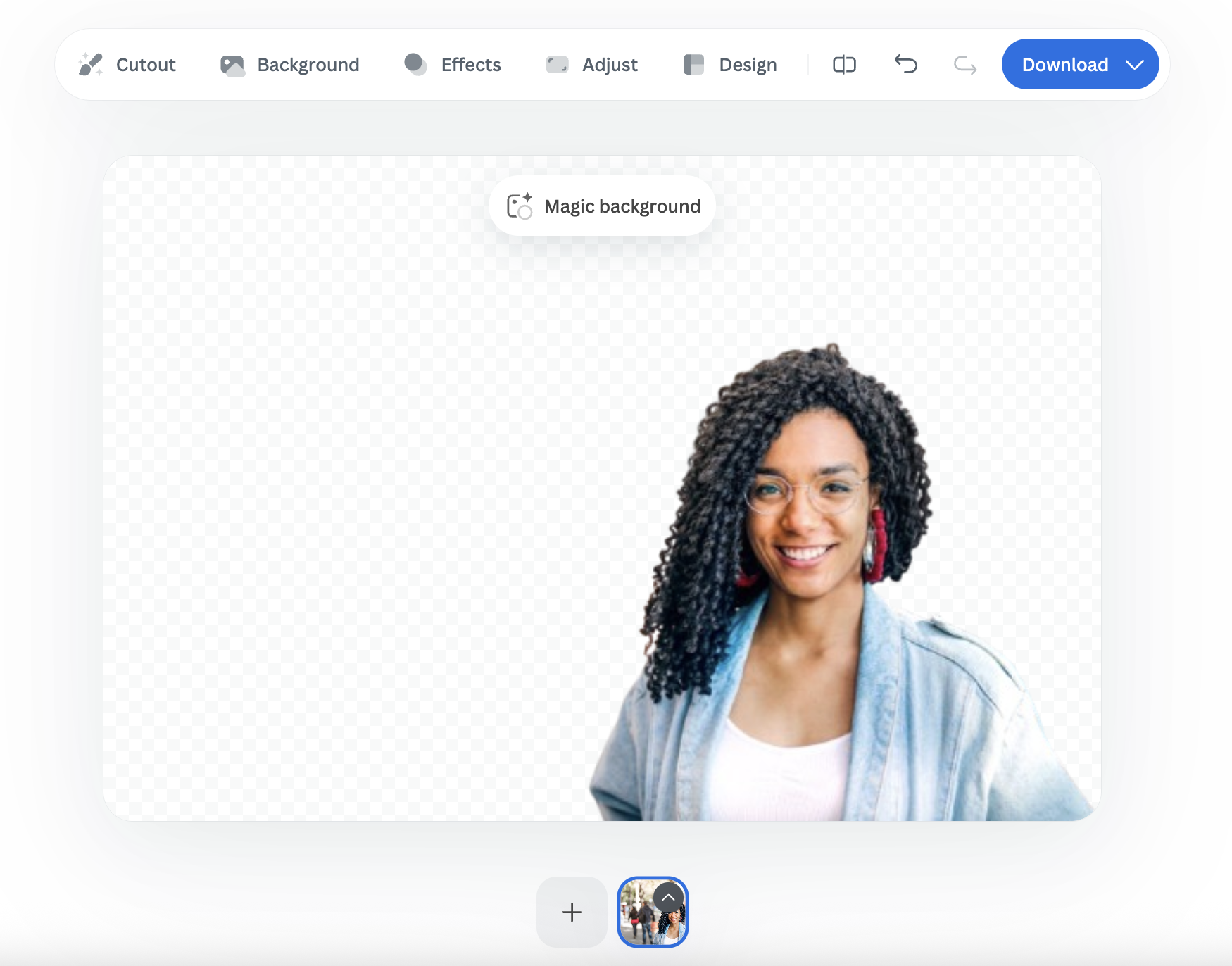
Once on remove.bg, the background disappears automatically.
-
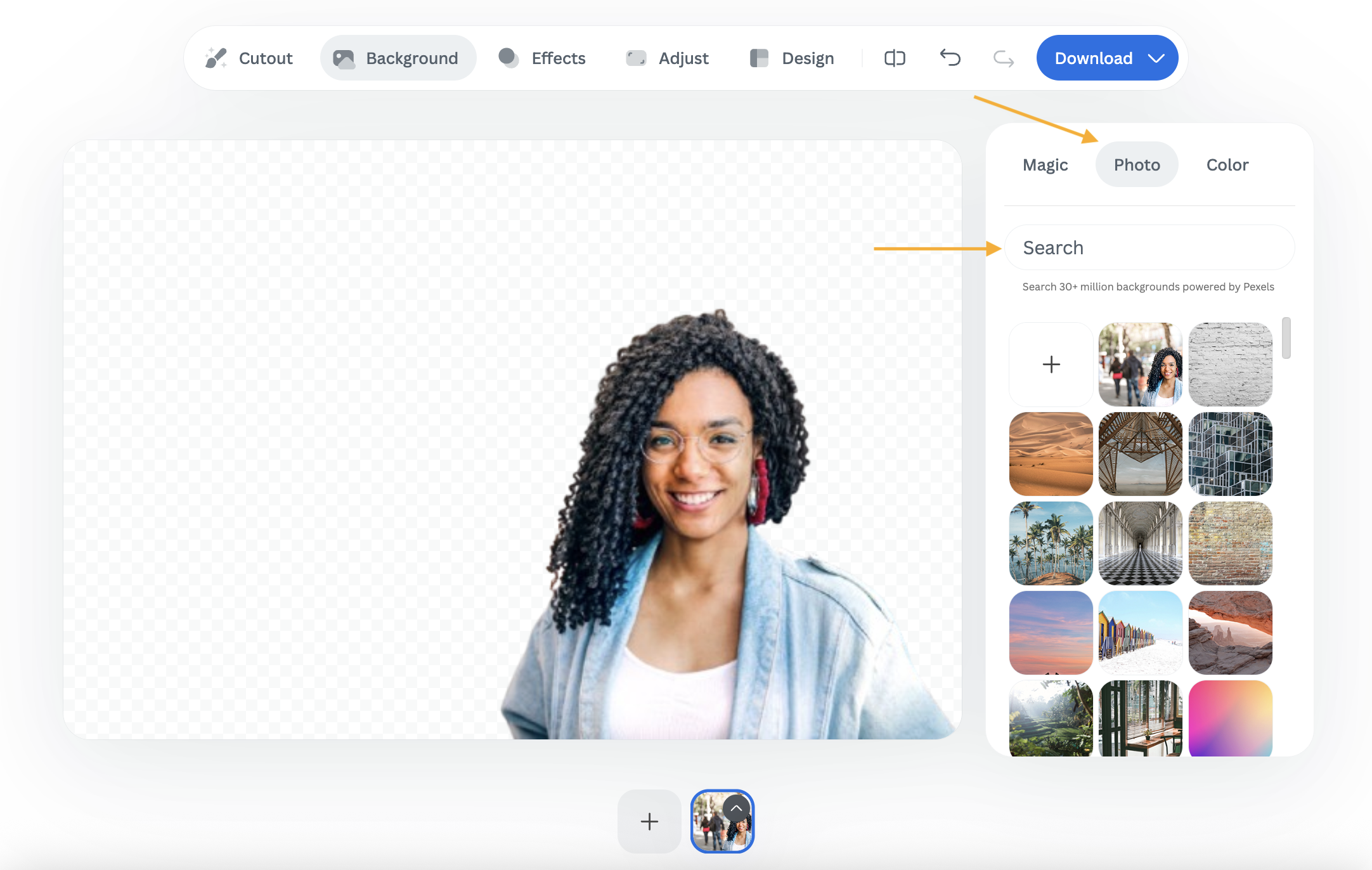
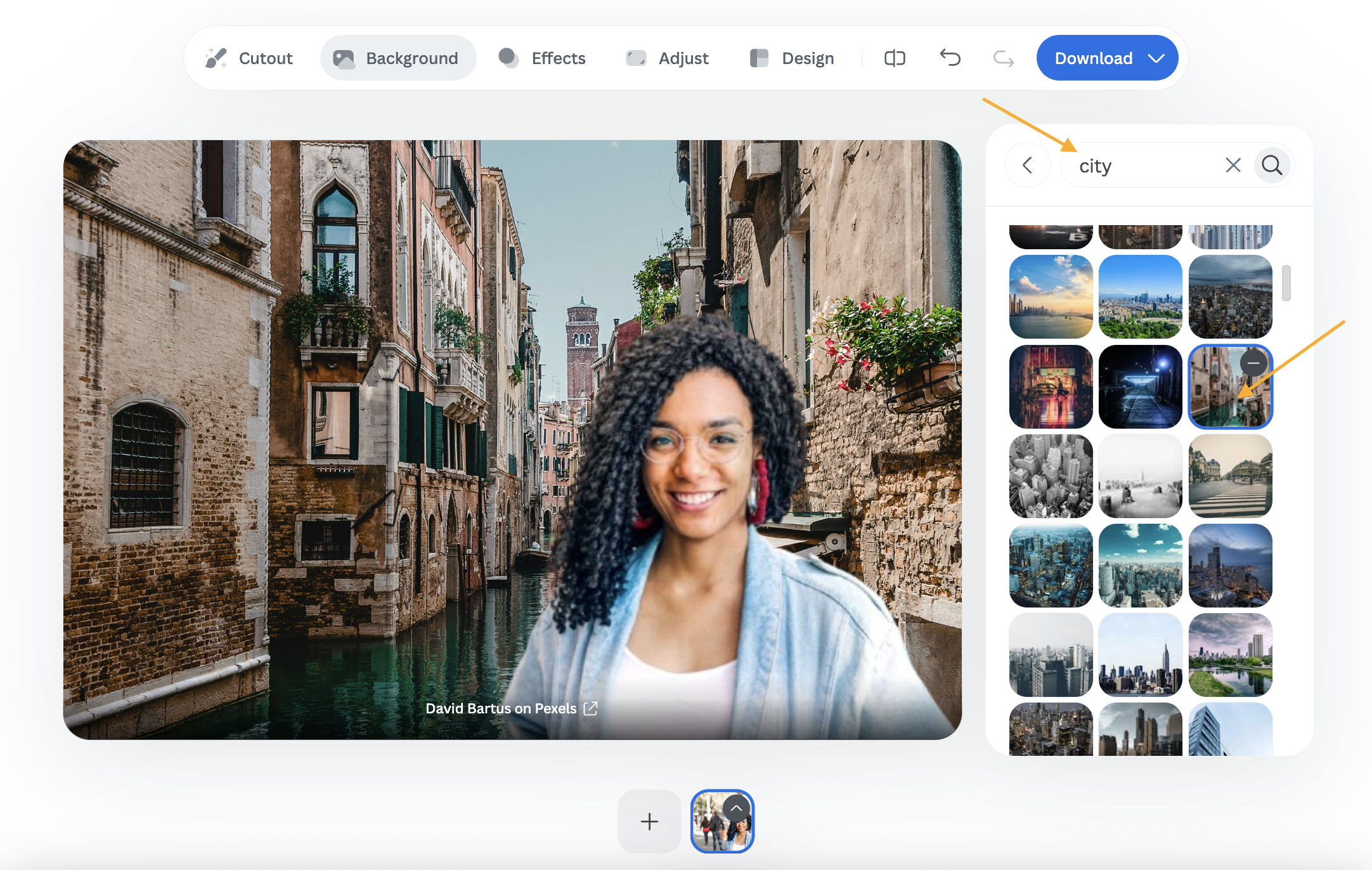
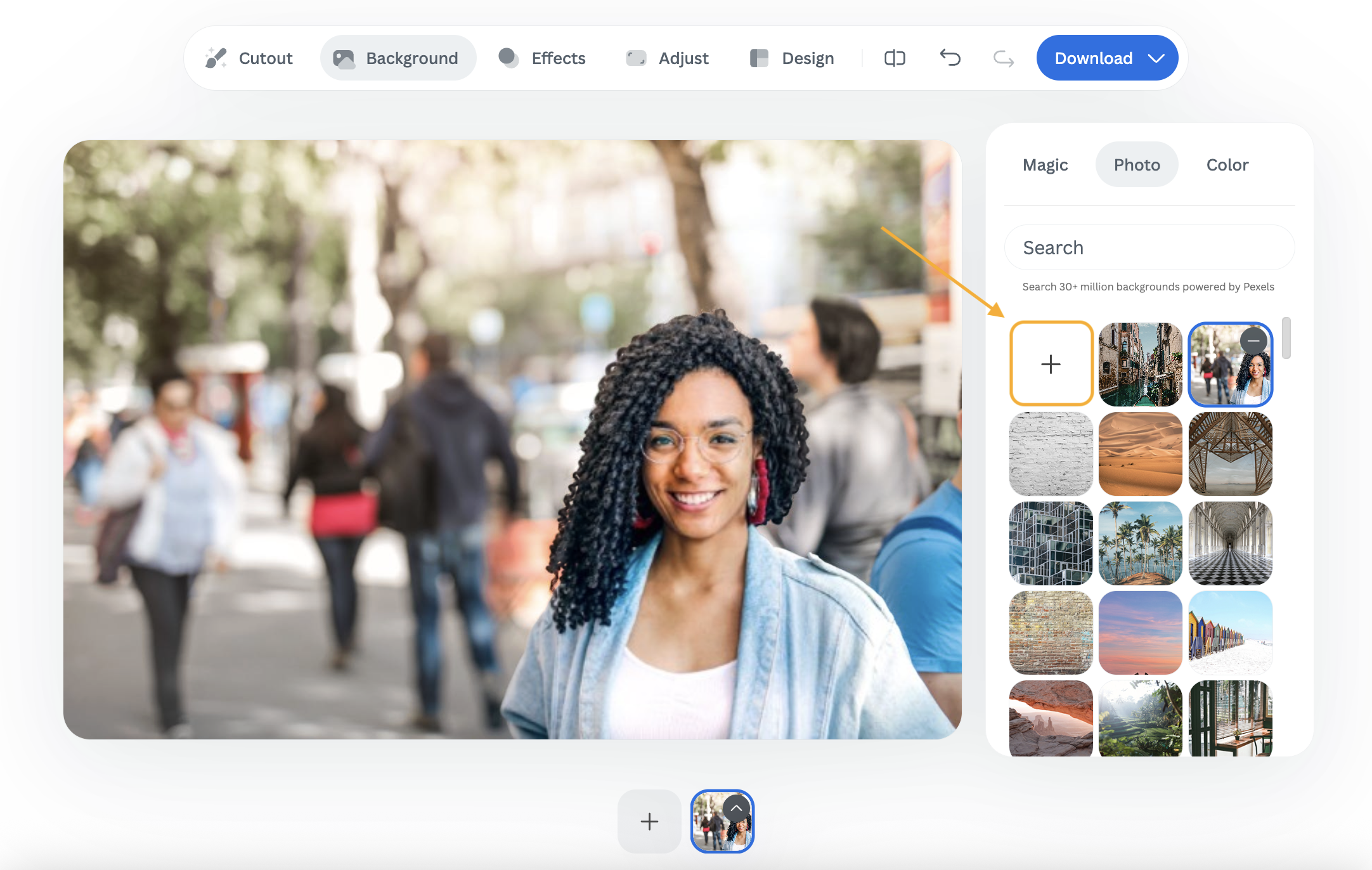
Go to Background > Photo and scroll through the library until you find a background you like. Use the search bar if you want something specific.
-
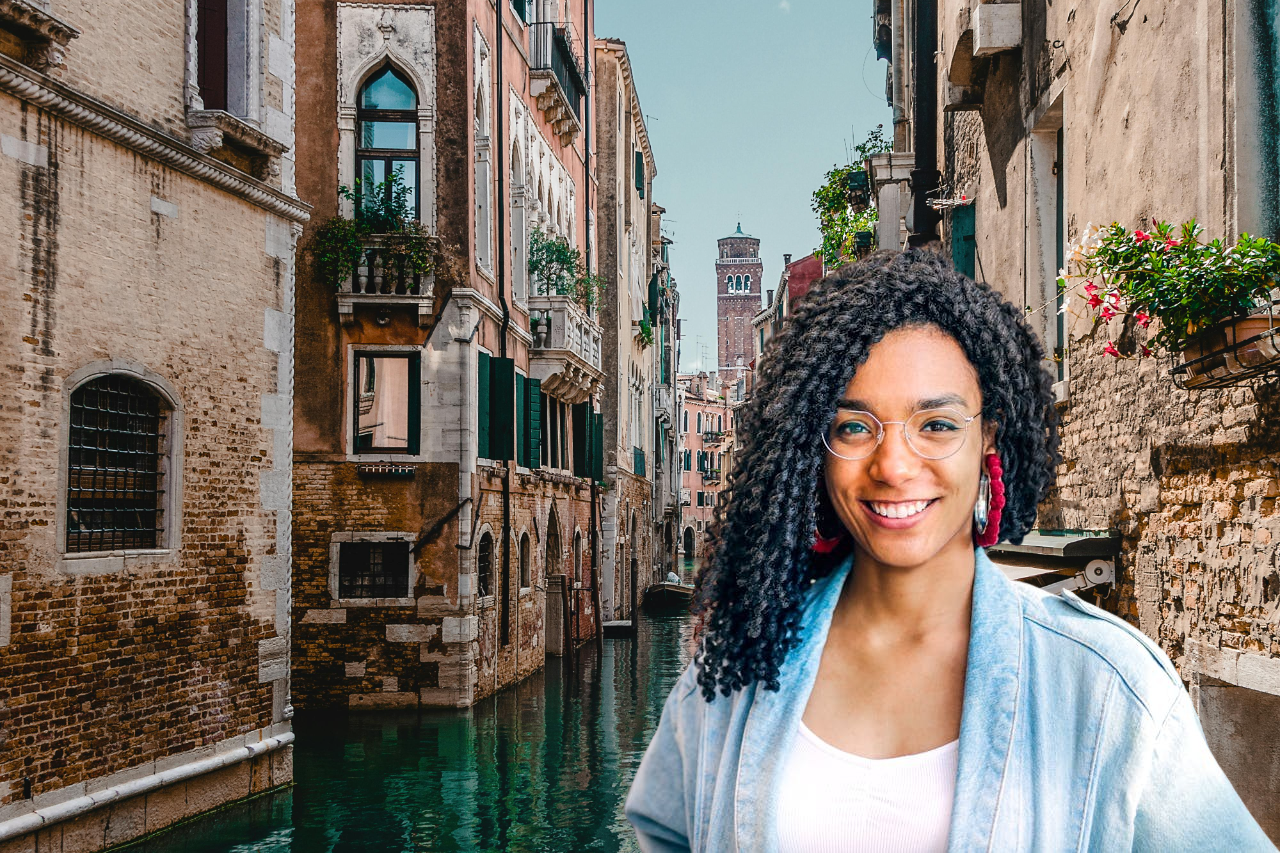
This would be the result:
-
Prefer a personal touch? Upload your own background under the Photo tab by hitting the + sign.
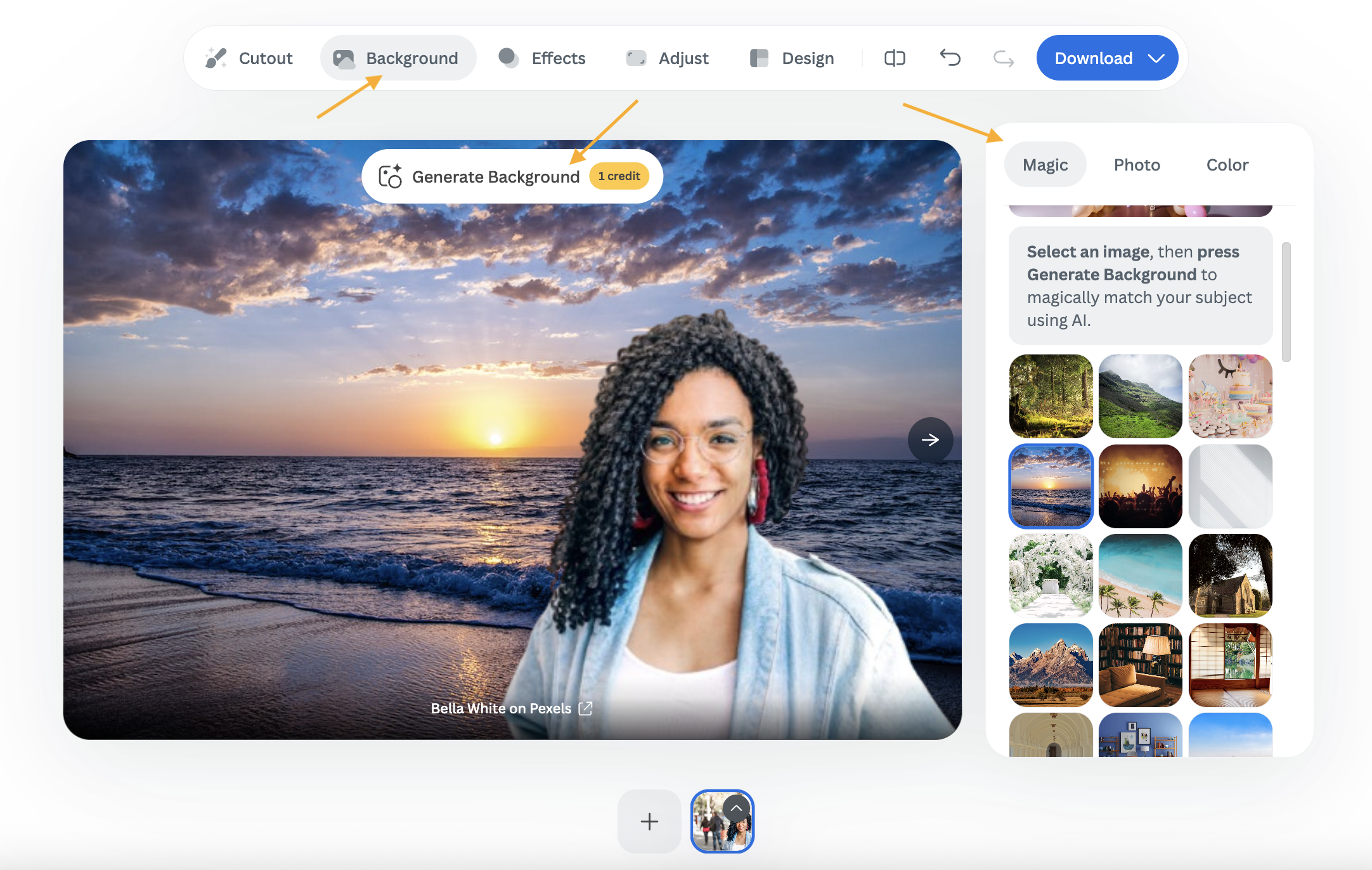
Another option is Magic Background, which utilizes AI to create a background that seamlessly matches your photo.
-
Just go to Background > Magic, choose a background to use as inspiration, and click on > Generate Background.
-
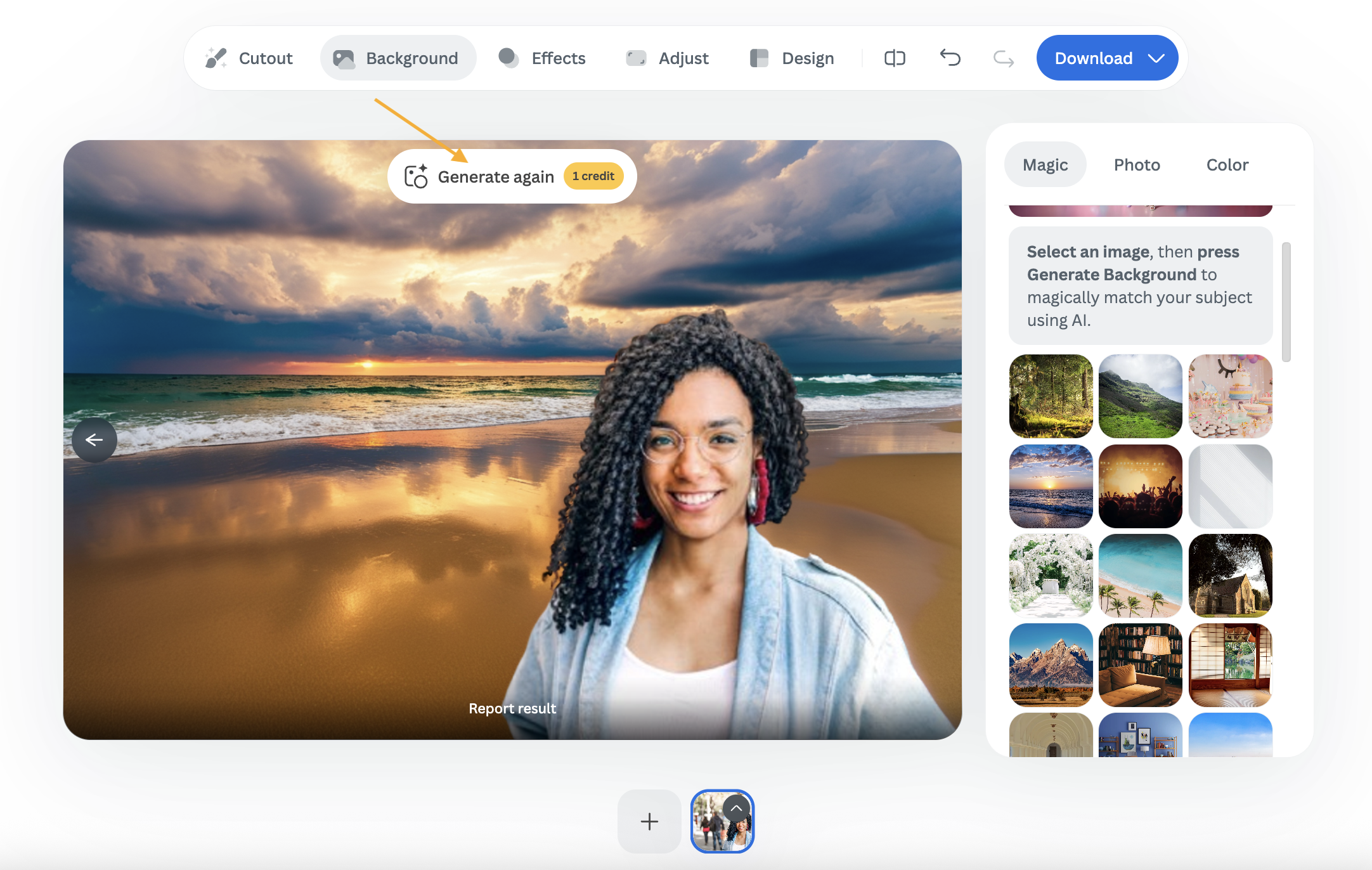
The AI will generate a customized background that blends with your image. If you are not happy with the result, you can click on > Generate again to obtain another backdrop.
How to edit people out of photos with one brush
Sometimes you don’t want to swap the whole background, you just want to erase one person standing too close. That’s where Magic Eraser comes in handy:
Upload your image to remove.bg or directly to Canva's Magic Eraser.
-
Keep the original background or add a new one.

-
Go to Cutout > Erase distractions.

You will be redirected to Canva, where you can select the Magic Eraser tool.
-
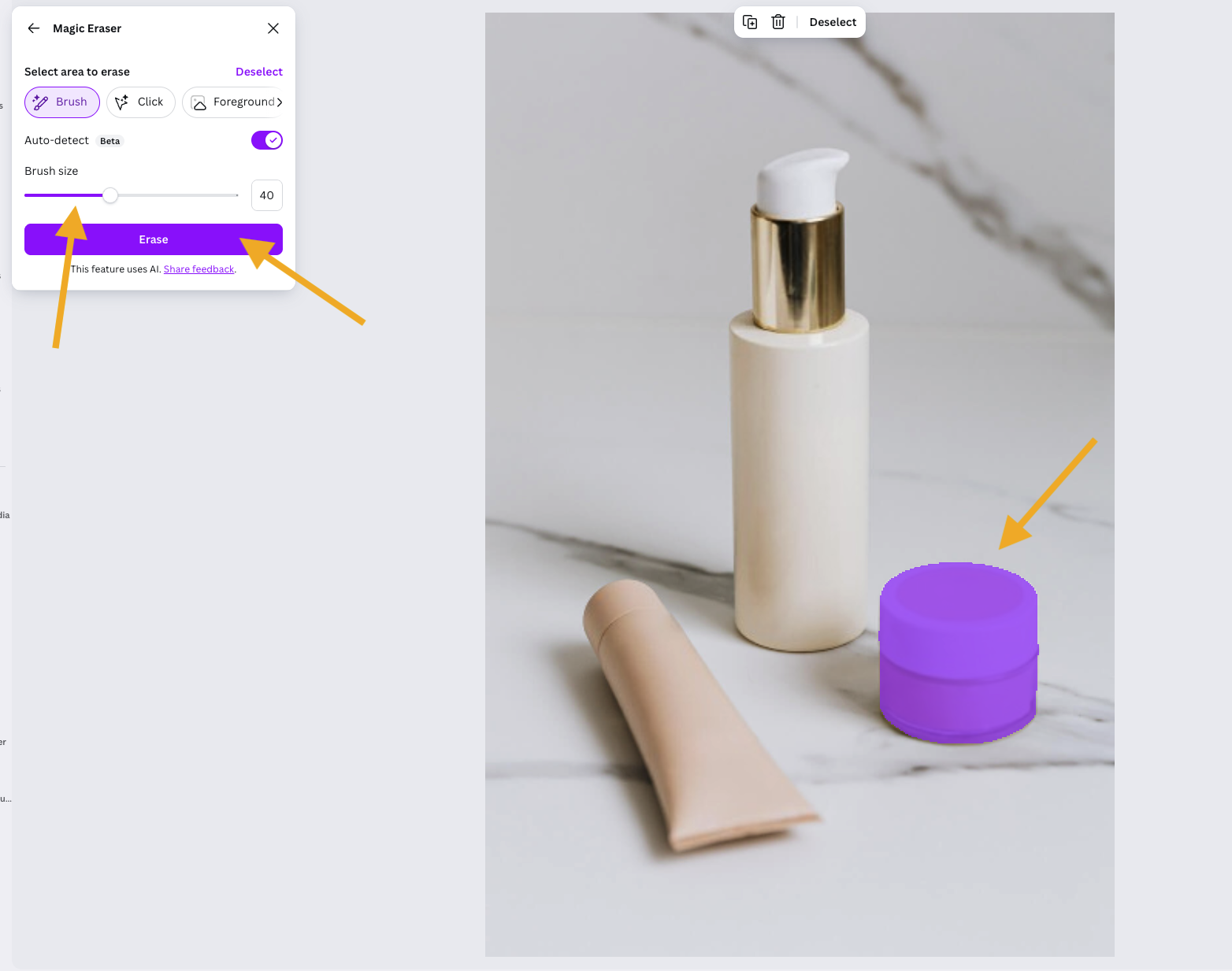
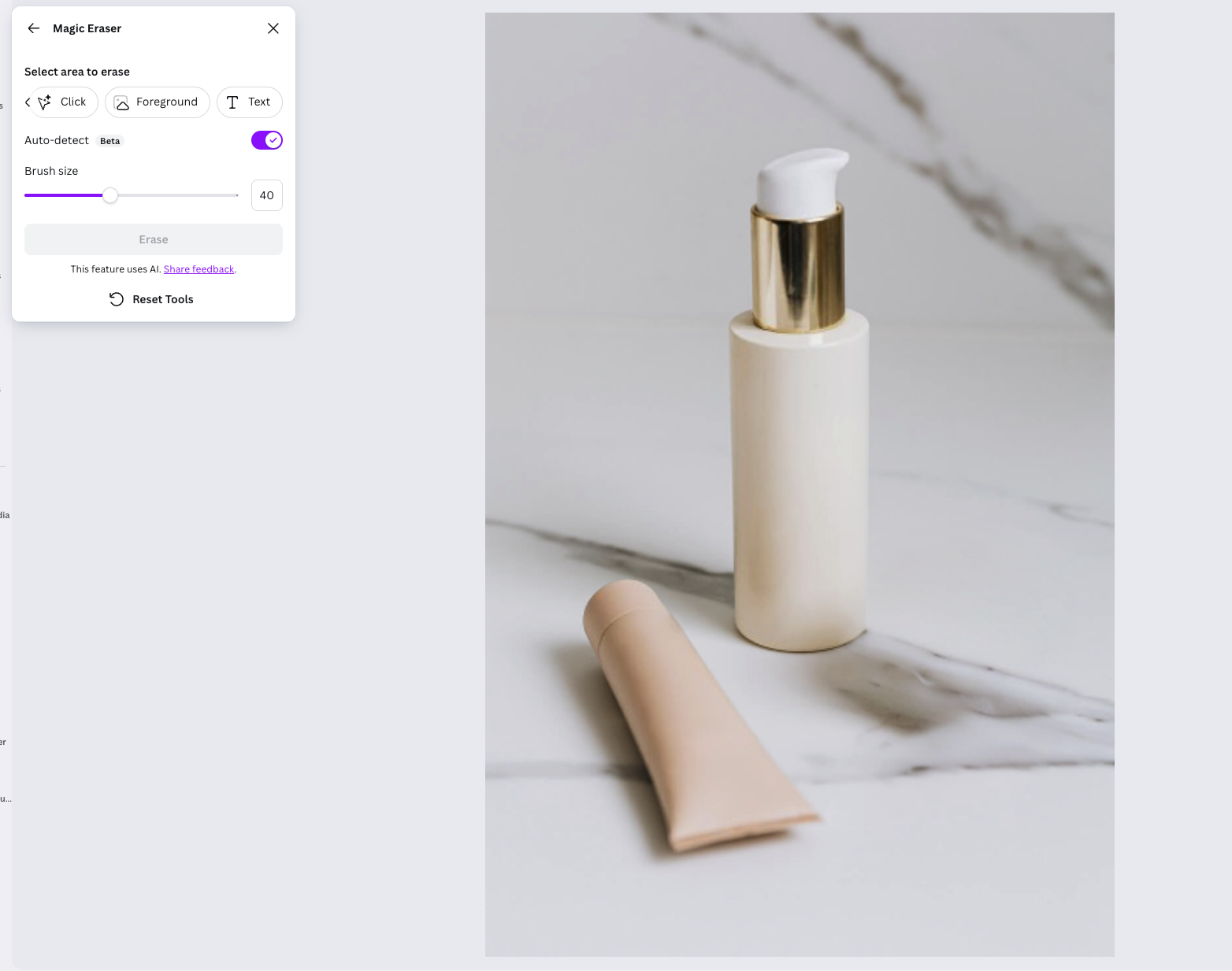
Choose your brush size and paint over the person or object you want gone.
-
Then click on > Erase. The AI takes care of the rest.
How to remove people manually for more control
If you want full creative control, professional tools like Photoshop and Affinity Photo provide detailed editing options. It takes longer, but you can achieve incredibly realistic results.
Here’s how to get started in Photoshop:
-
Open up your photo.
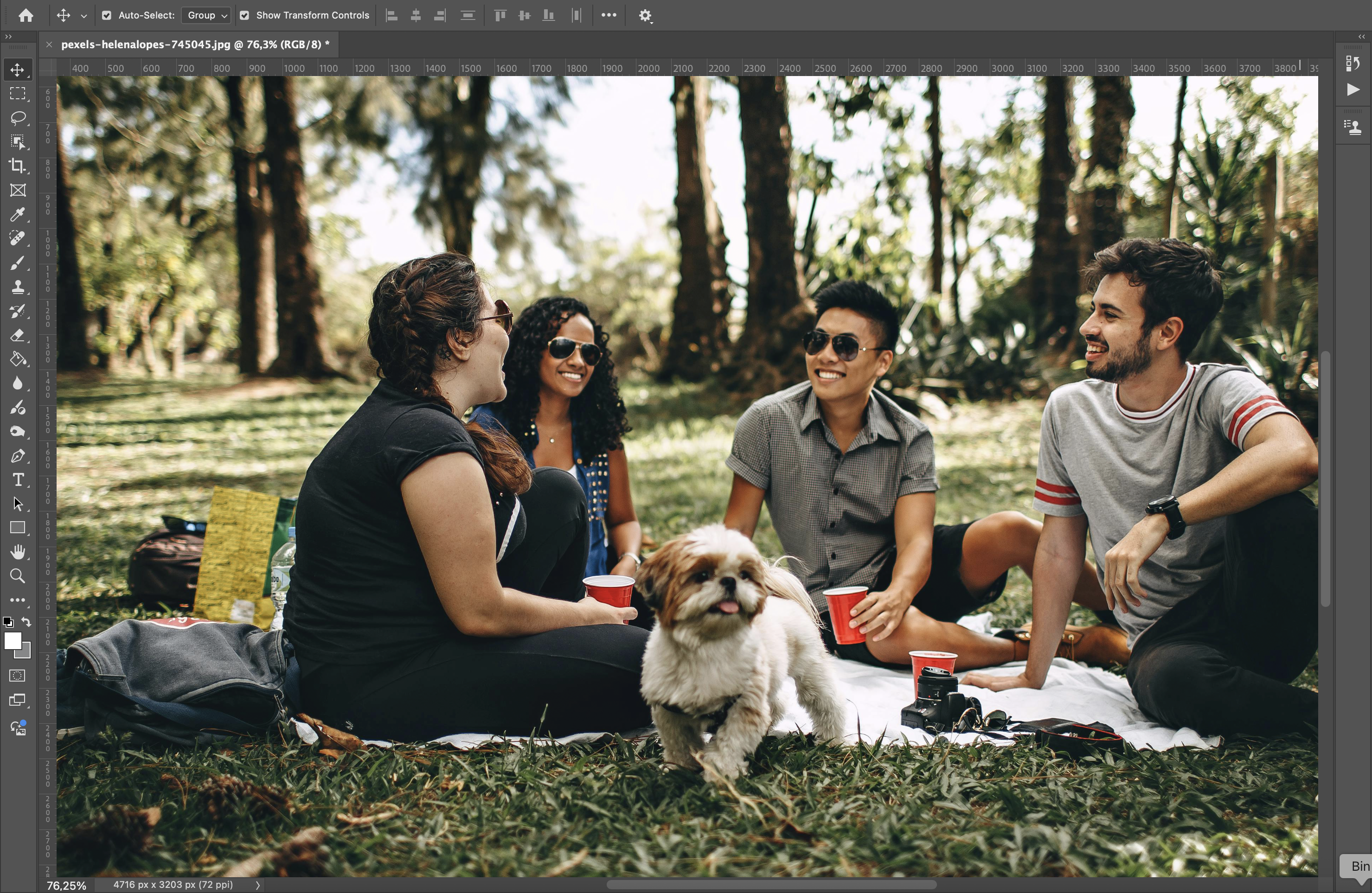
Use a selection tool (like the Lasso) to mark the person.
-
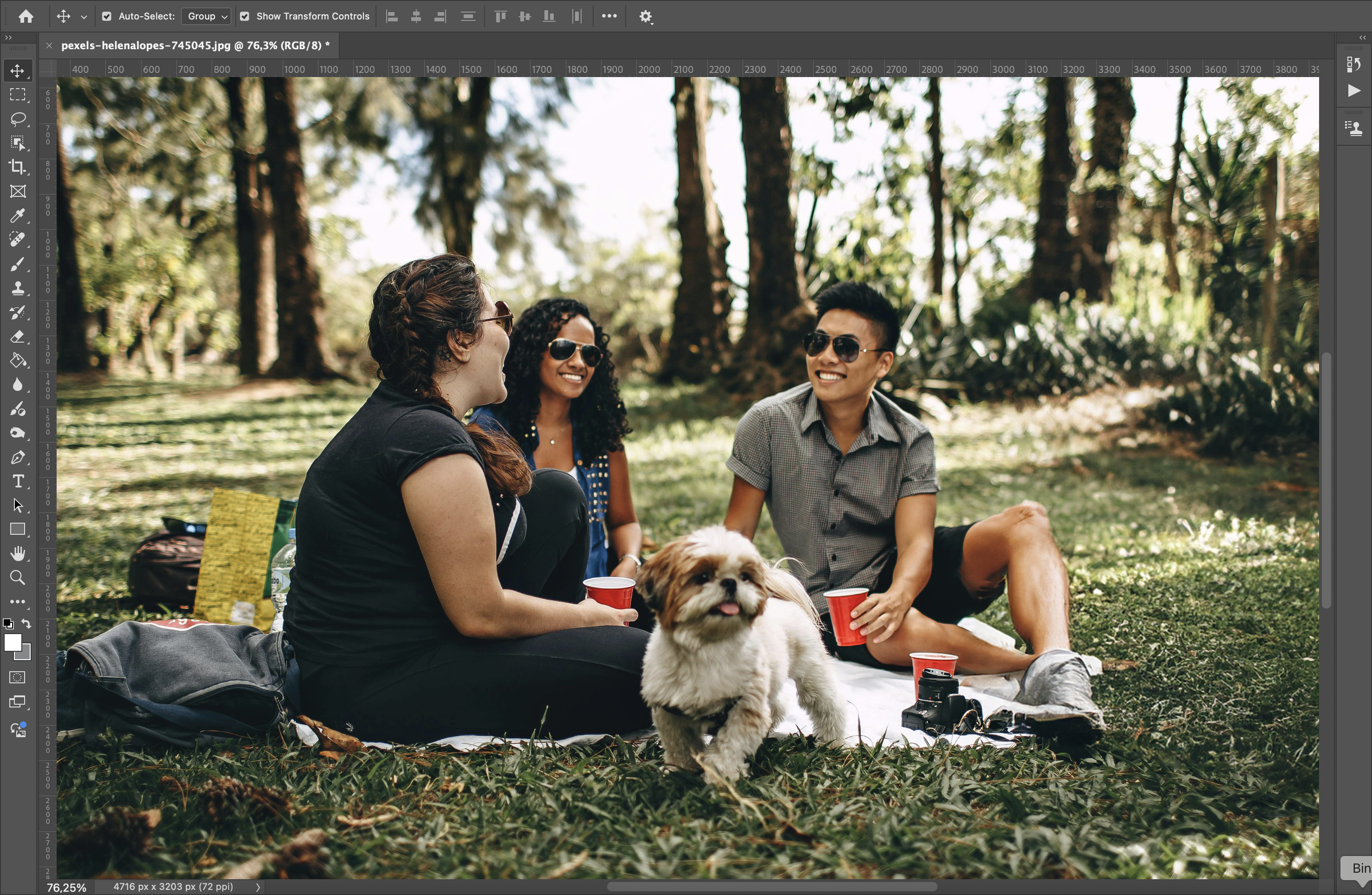
After you have selected the area, click on Generative Fill and describe what you want to generate into the prompt. If you leave the prompt empty the object will be removed and the “empty” are will be filled in to match the rest of the background.
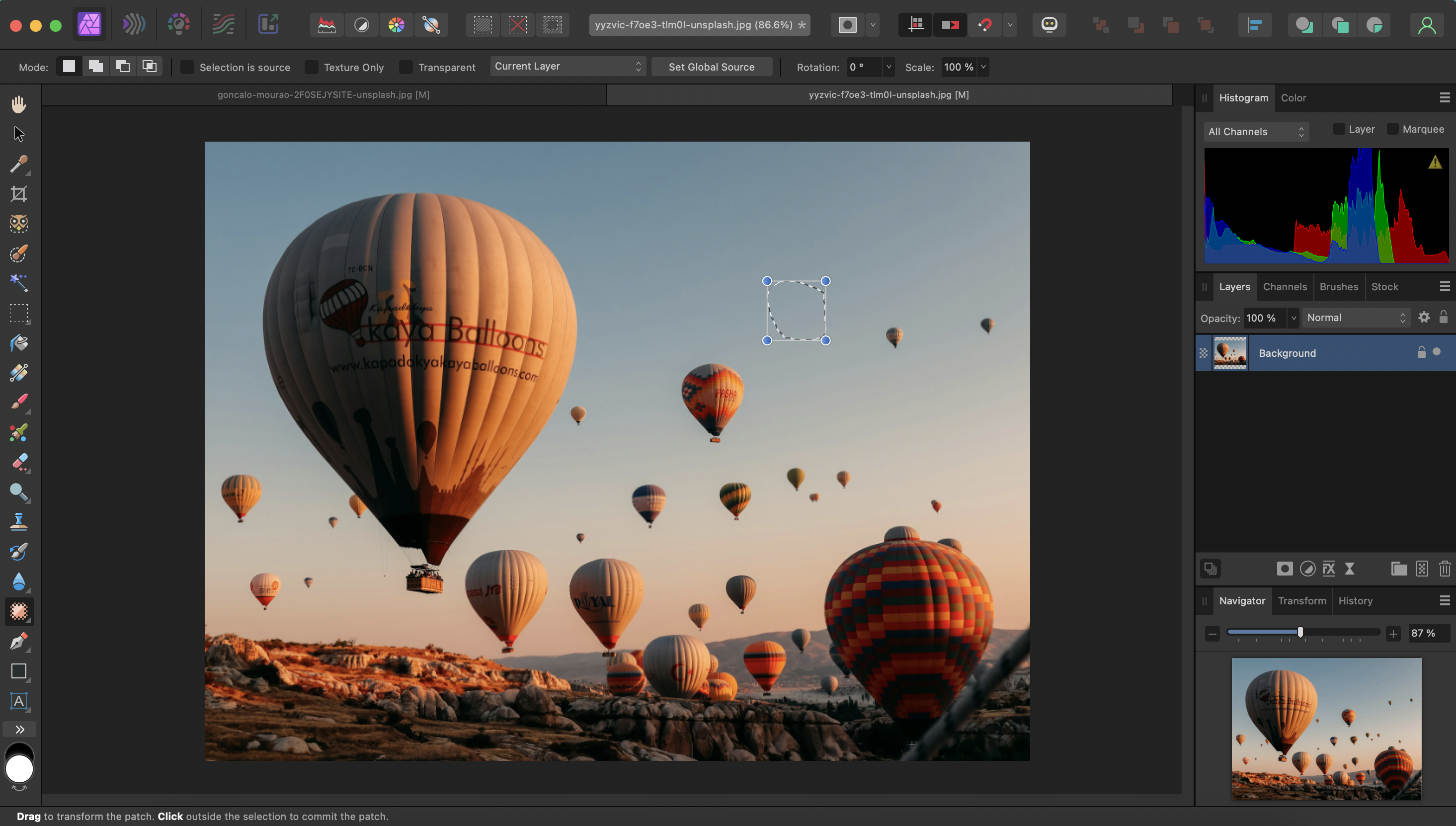
If you’re using Affinity Photo, the Inpainting Brush and the Patch Tool are two of the most effective tools for removing unwanted elements.
Let’s start with the Inpainting Brush:
-
Open your image in Affinity Photo.
-
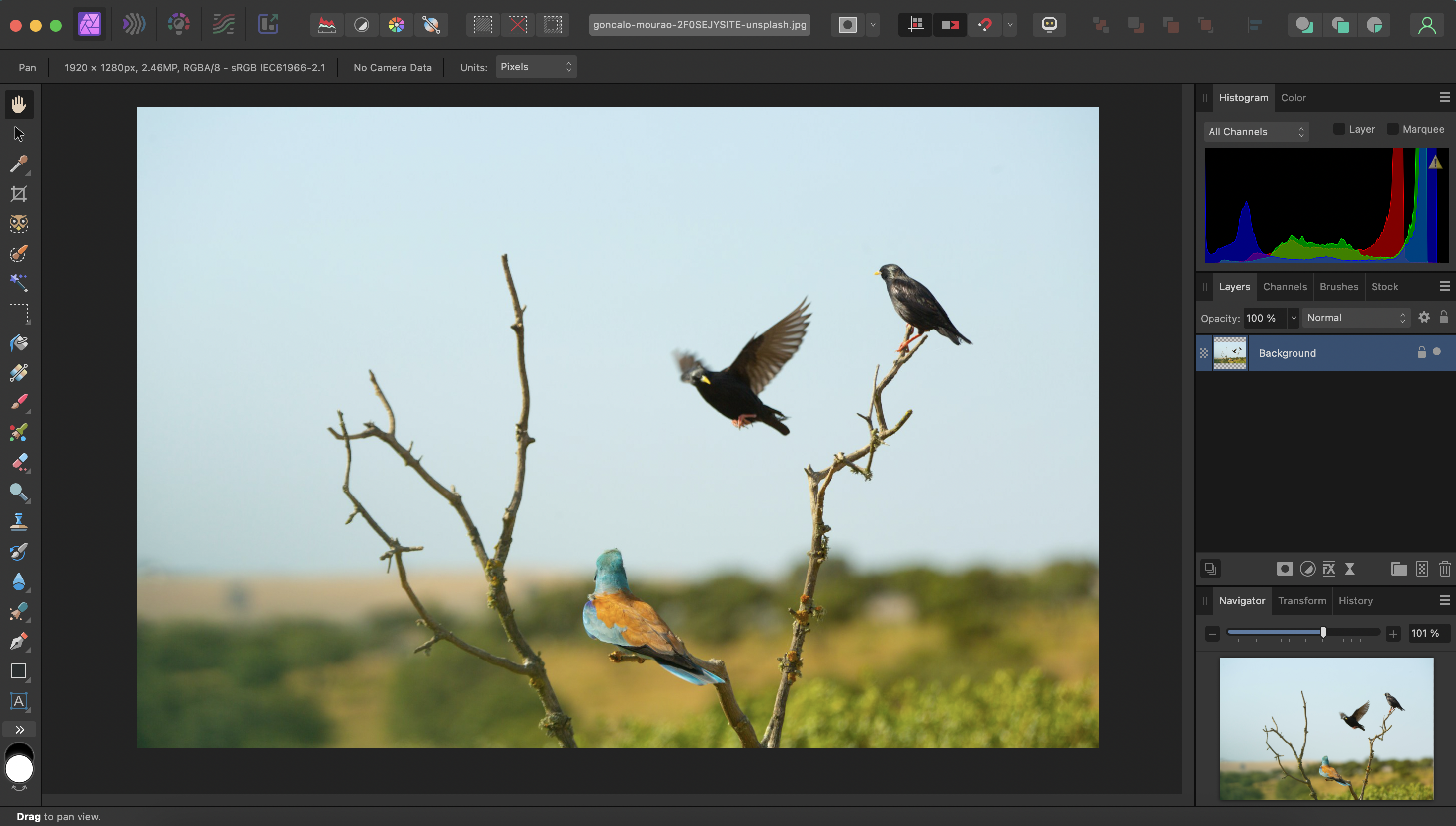
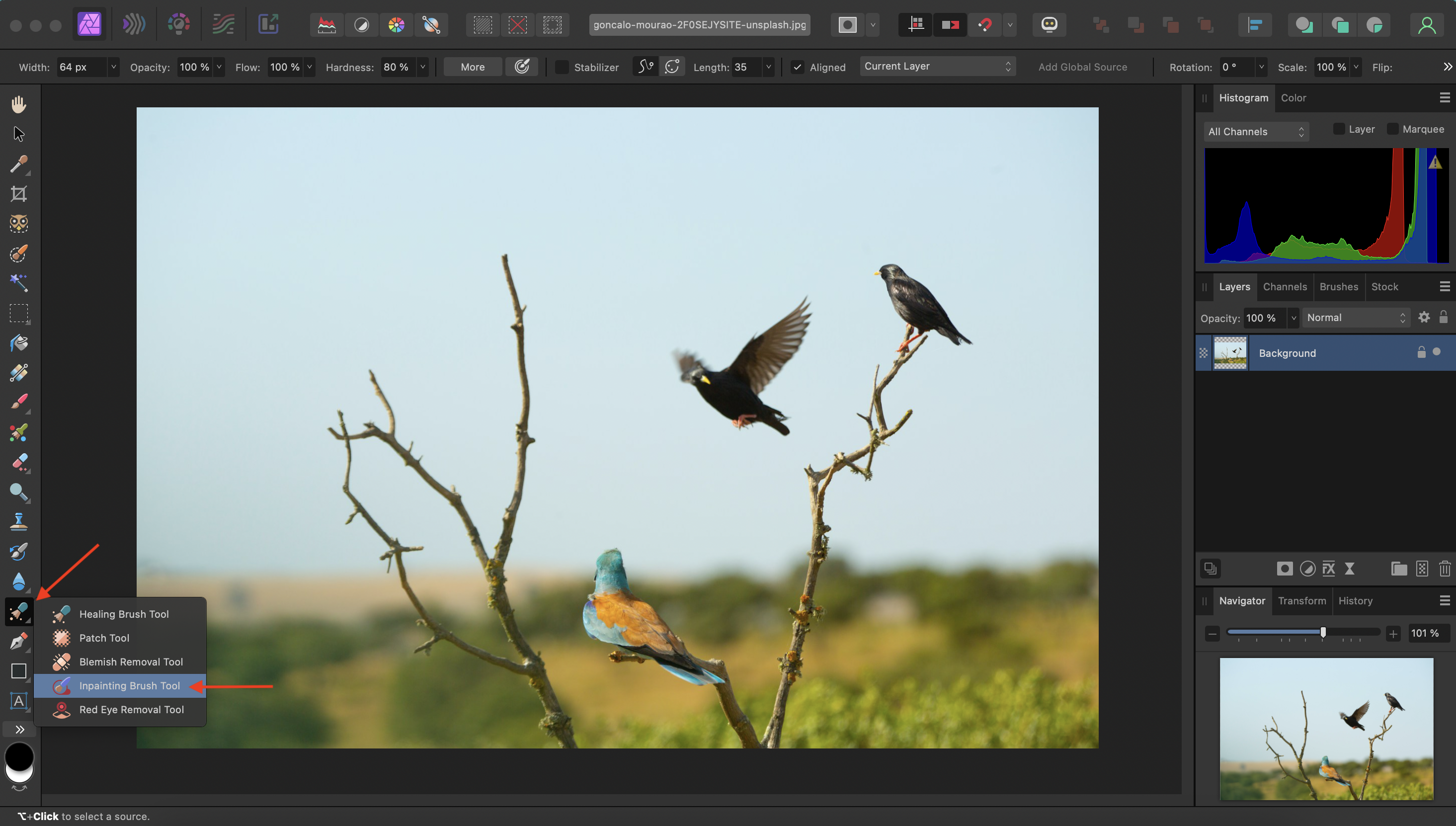
In the Tools panel (on the left), select the Inpainting Brush Tool.
-
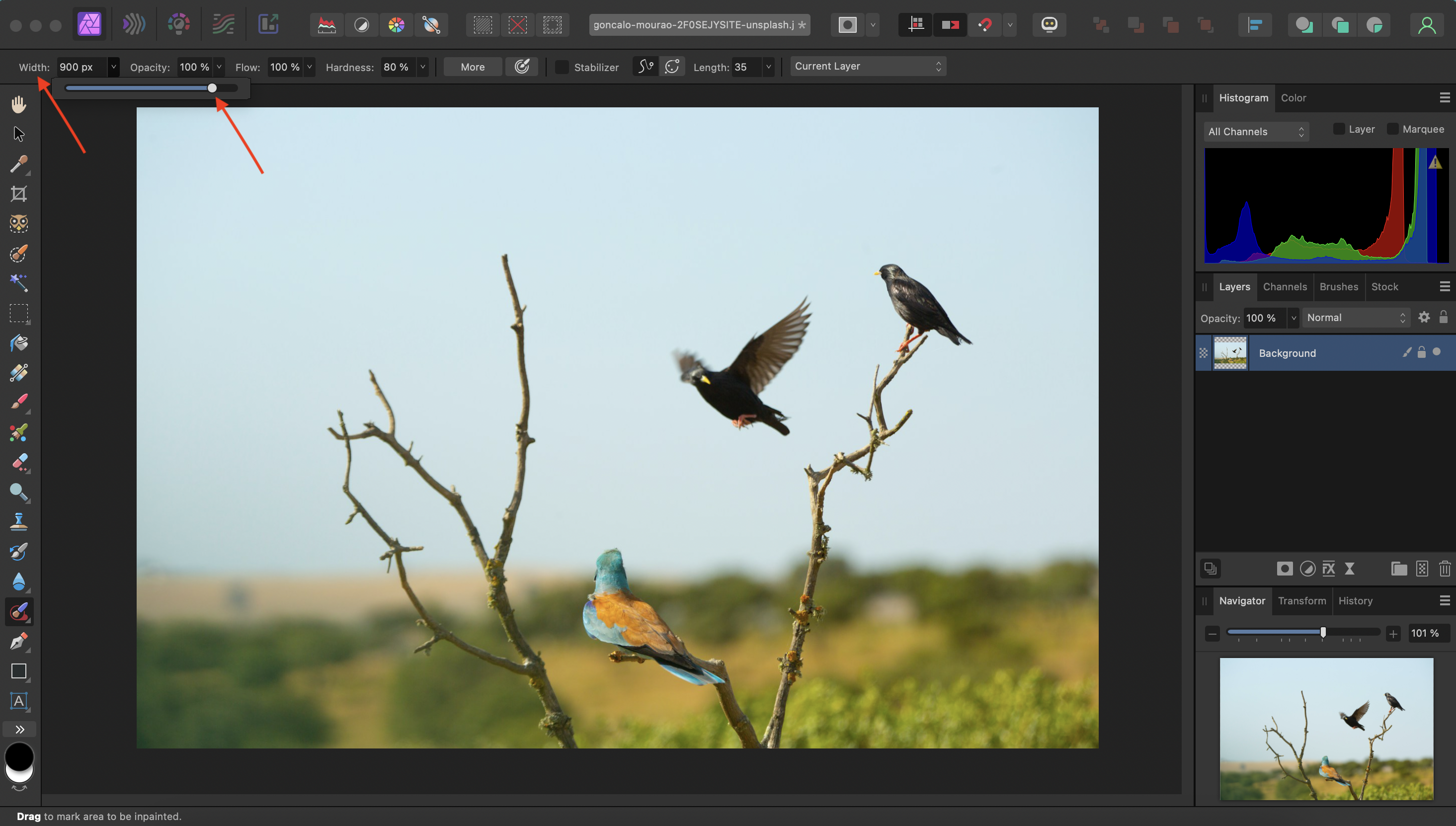
Adjust the brush width by selecting the "Width" dropdown menu and adjusting the size by dragging the toggle.
-
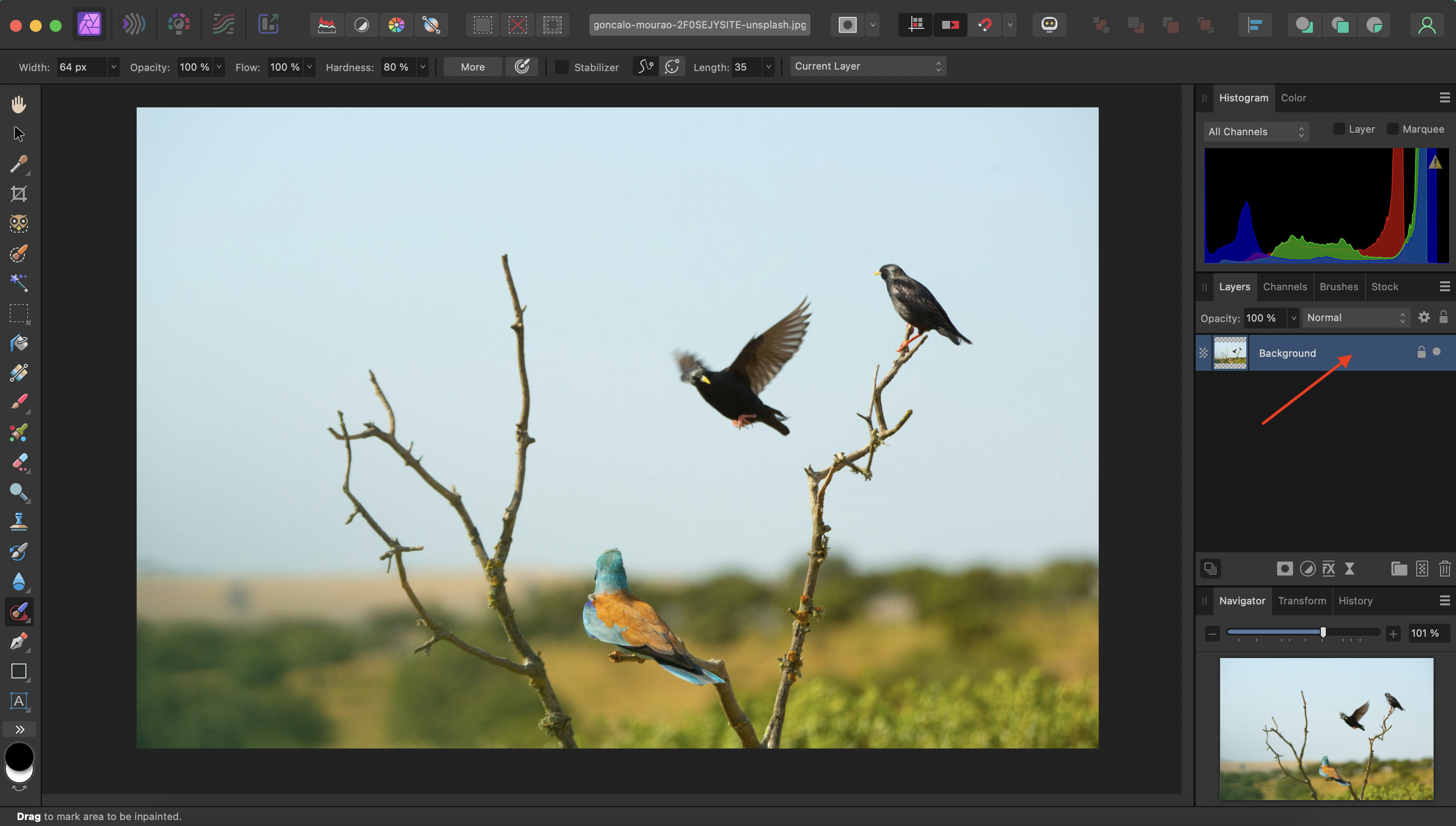
Ensure you’re working on the correct layer, typically the Background layer.
-
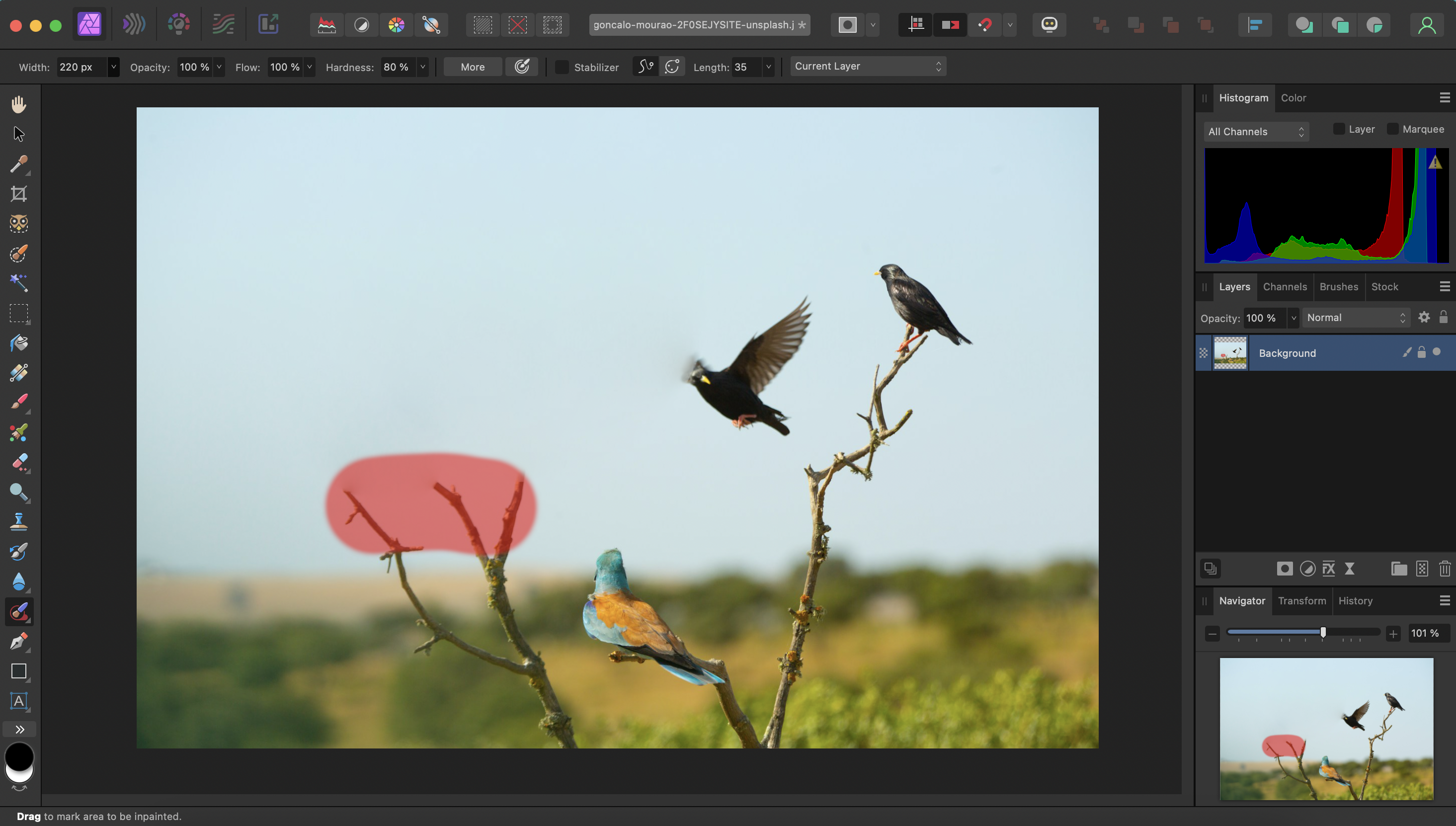
Simply paint over the object or person you want to remove (in this example, the branch).
-
Release the mouse button, and Affinity Photo will automatically replace the selected area with surrounding content.
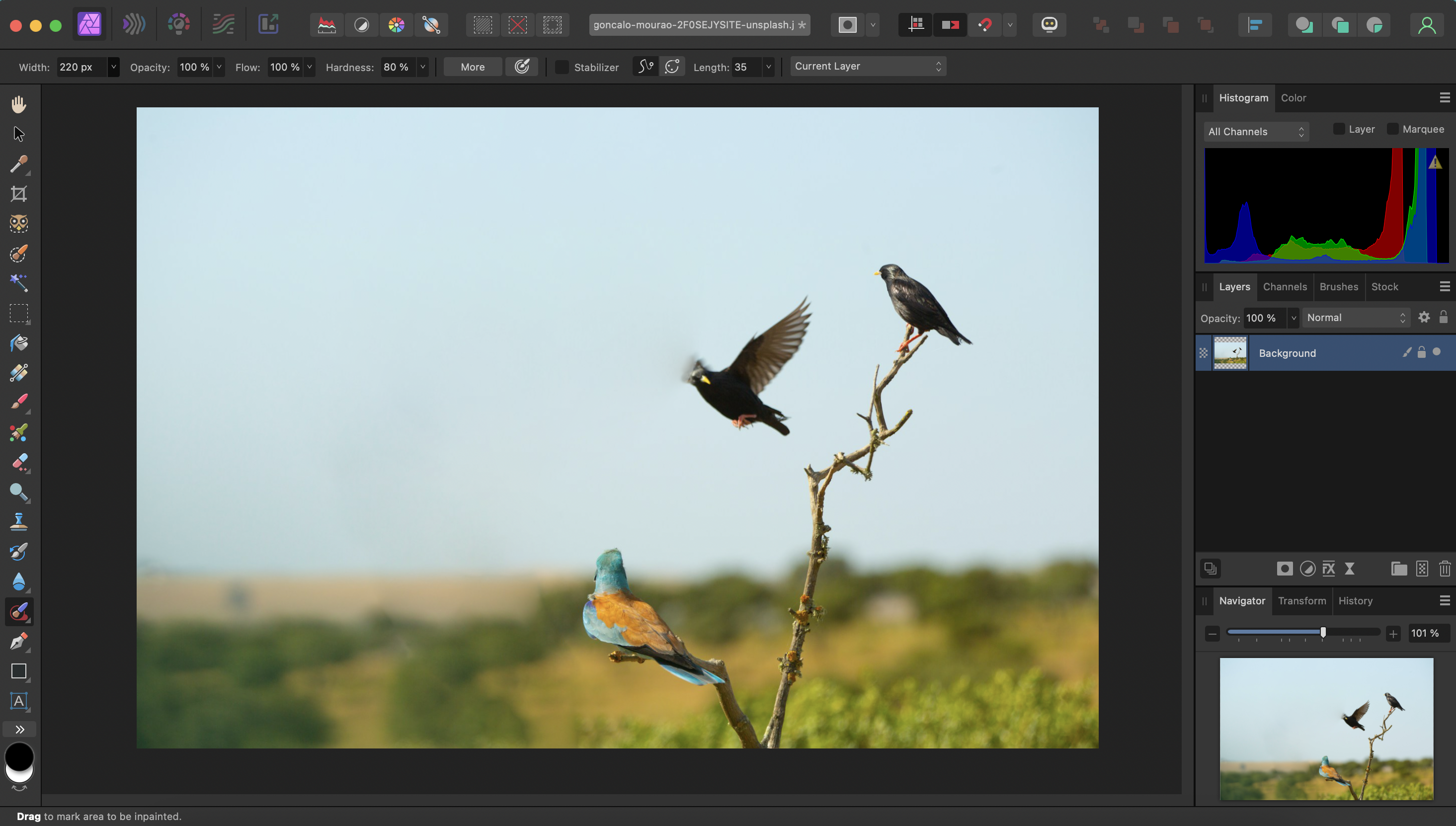
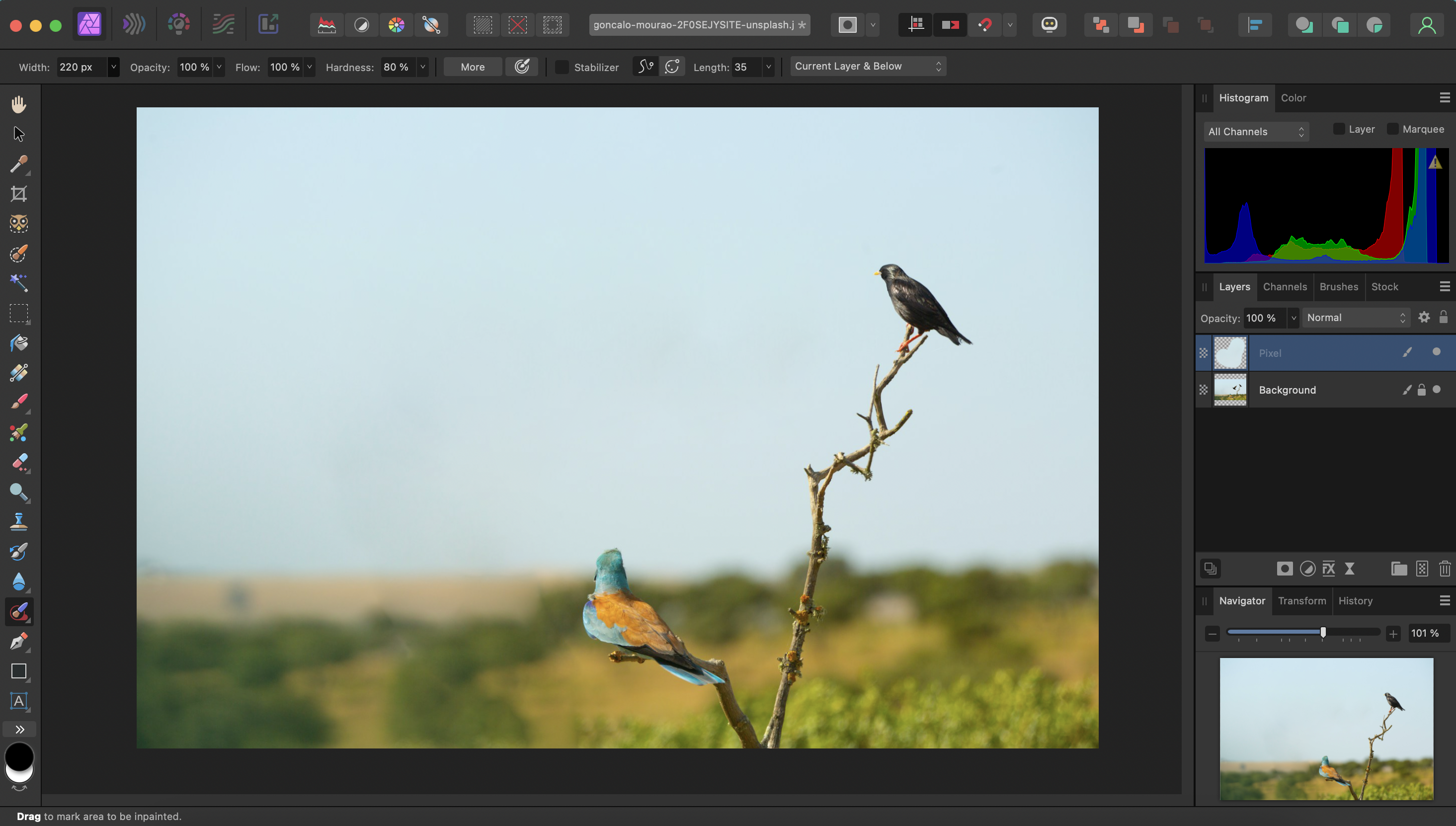
Now let's see how you can remove one of the birds in the image. For more control, you will need to:
-
Create a new pixel layer in the Layers panel
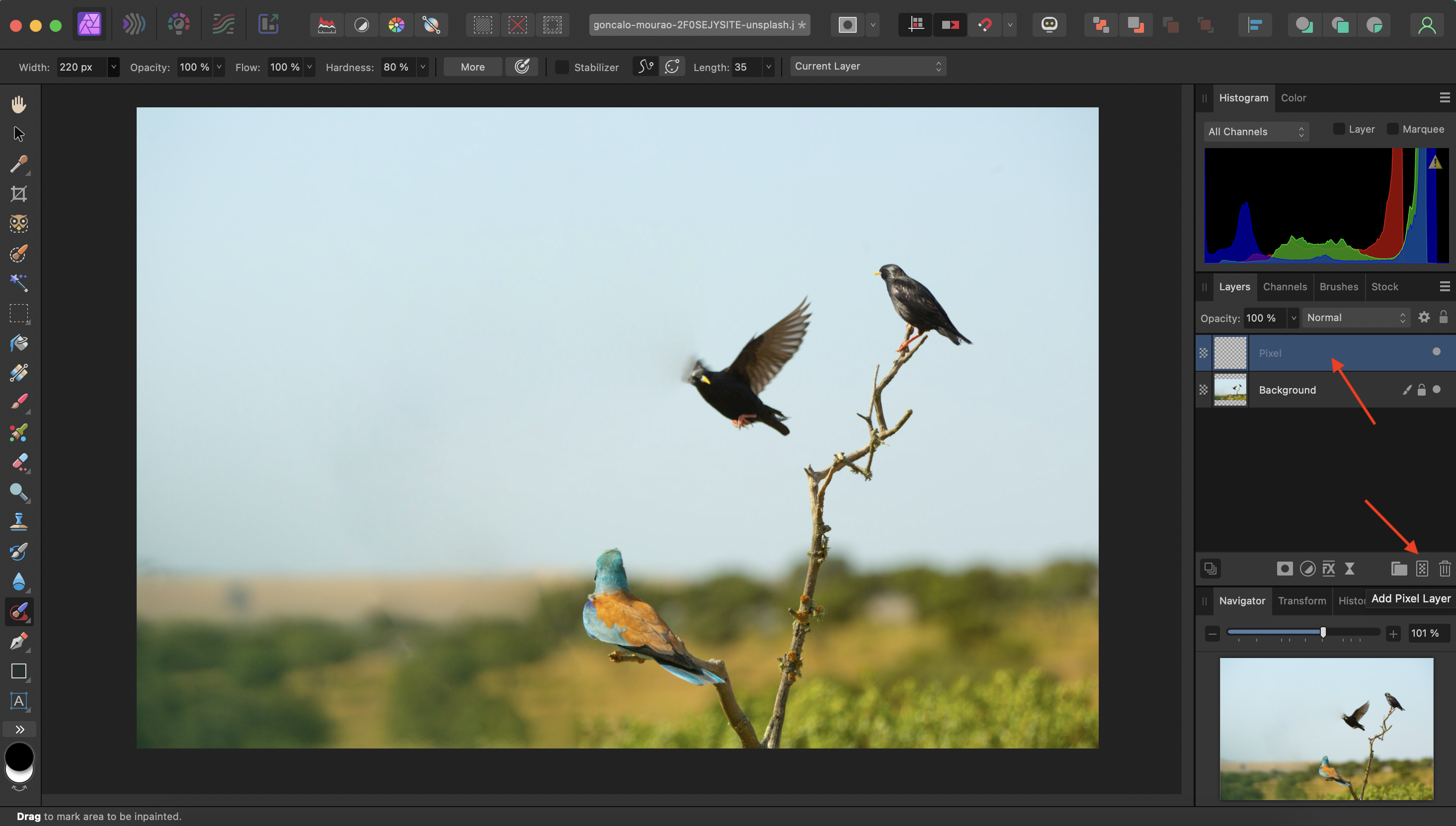
-
In the context toolbar, set the dropdown to Current Layer & Below
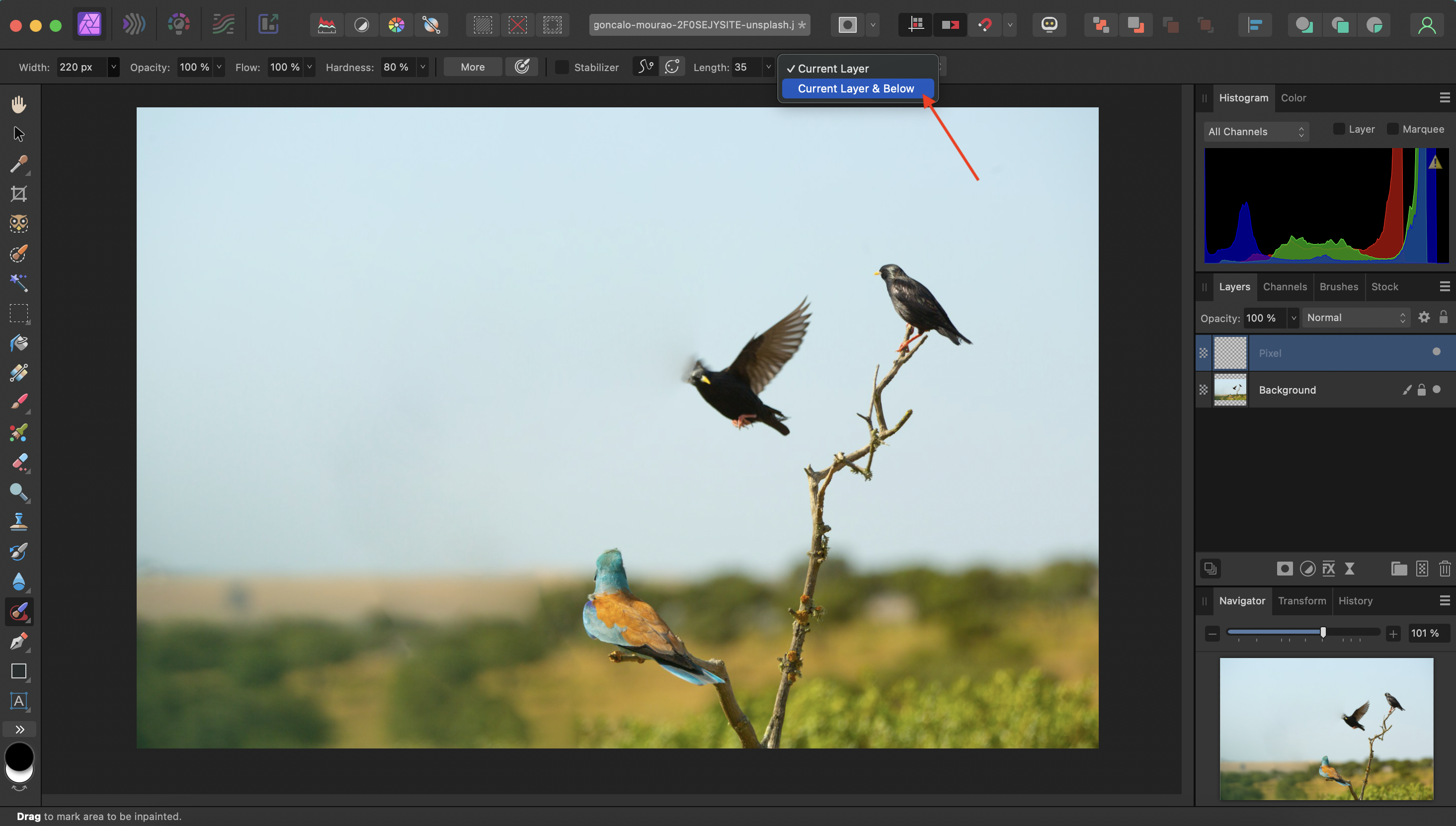
-
Then brush over the element you want to remove and release the mouse button
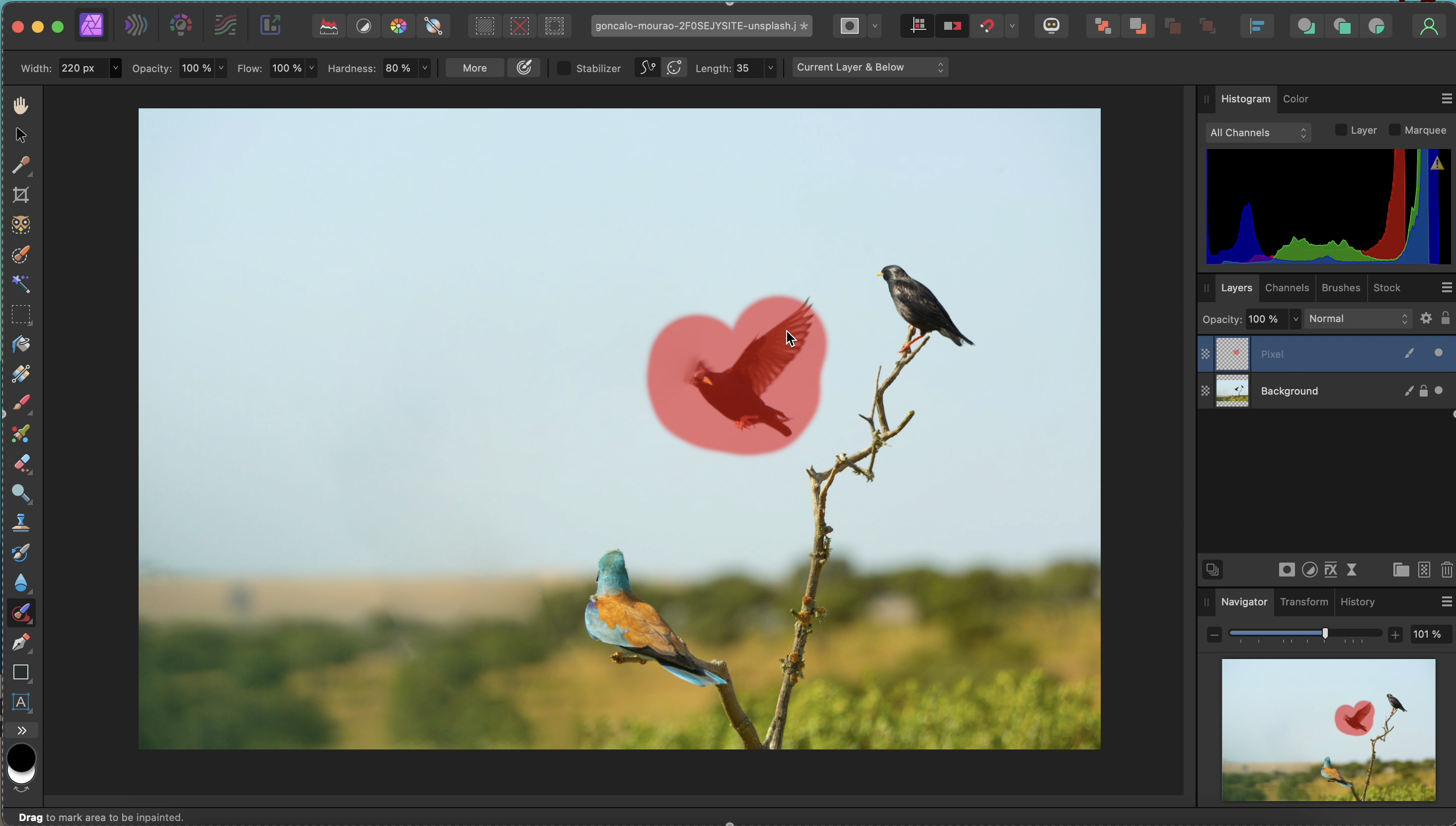
-
The person (or animal) will be removed.
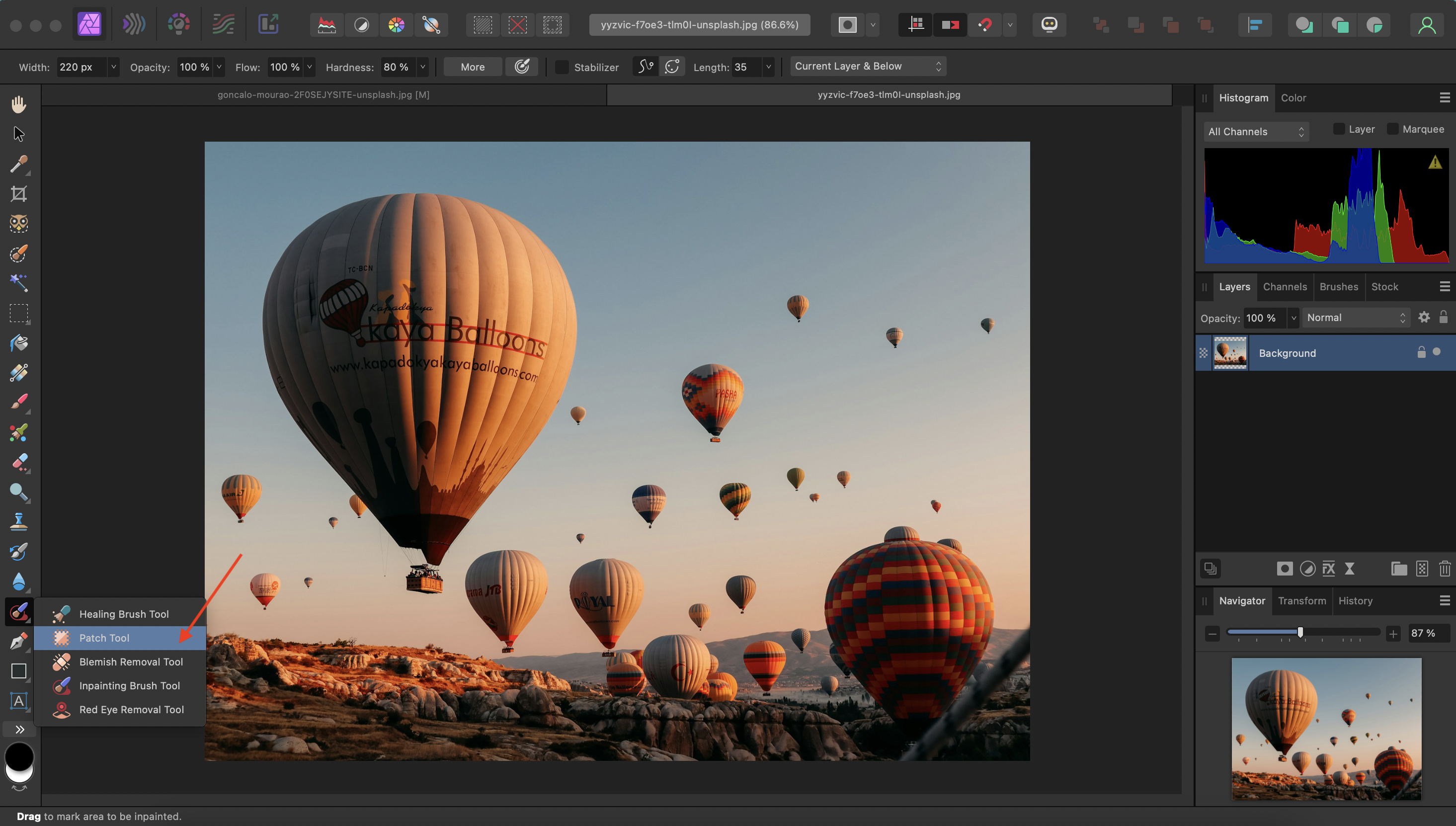
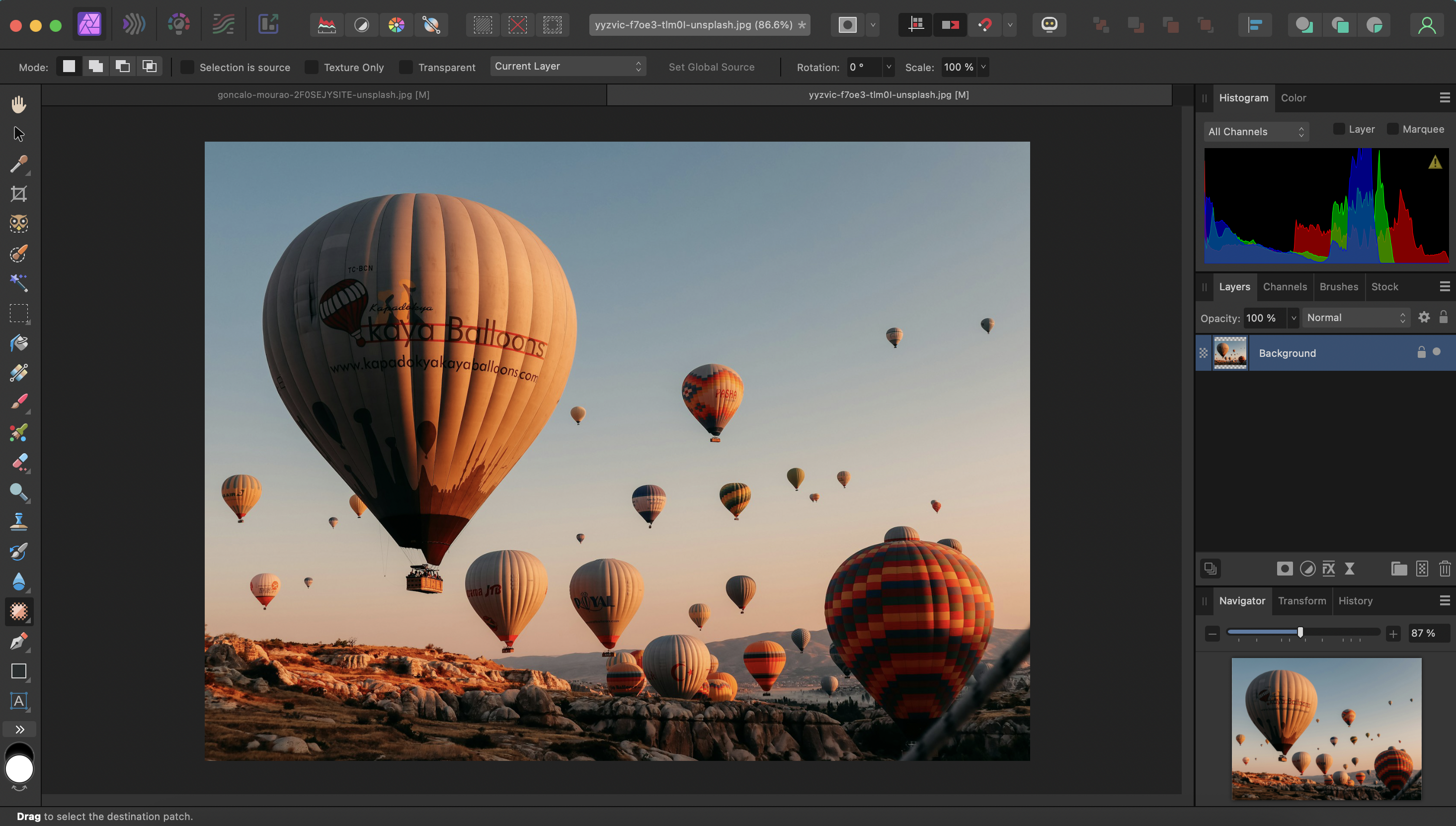
Now, let’s look into how to achieve this with the Patch Tool.
-
From the Tools panel, select the Patch Tool.
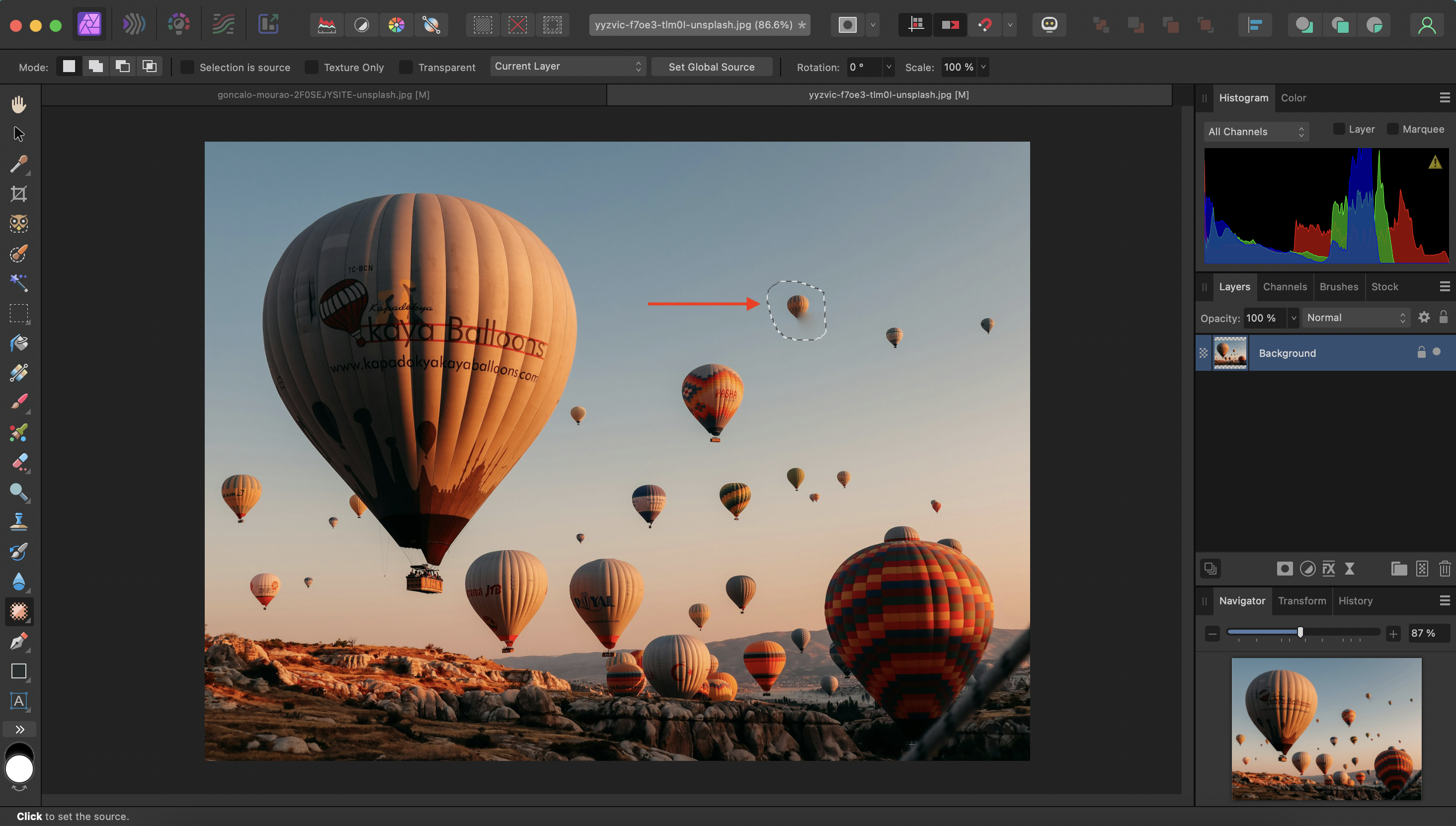
In the Layers panel, make sure the Background layer is selected.
-
Draw a selection around the object you’d like to remove.
-
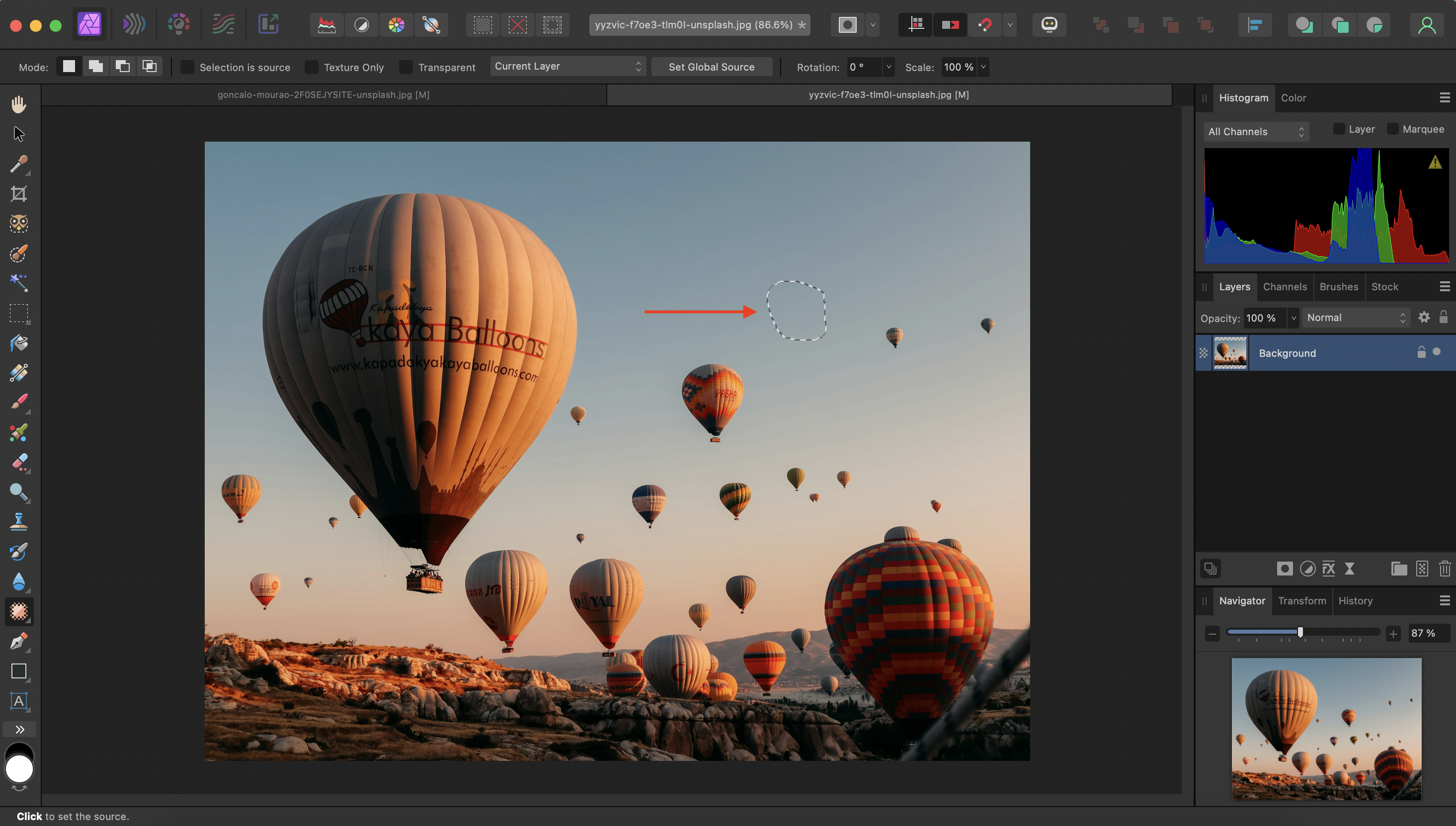
Move your mouse to another area of the image that has a texture you’d like to use as a replacement (for example, a clean patch of sky).
-
Double-click to confirm, and Affinity Photo will replace the unwanted object with the new texture.
From quick fixes to pro tools: Choose your method
No matter your skill level, there’s a solution for removing people or distractions from photos. If you want something fast and automatic, remove.bg can swap backgrounds in seconds, while Canva’s Magic Eraser makes it simple to brush away unwanted objects with just a few strokes. For those who prefer more creative control, Affinity Photo offers powerful tools like the Inpainting Brush and Patch Tool, and Photoshop takes it a step further with AI-powered features like Generative Fill.
Whether you’re after speed, simplicity, or full professional control, these options make it easier than ever to keep the focus exactly where you want it in your photos.
댓글
지금까지는 댓글이 없습니다.