remove.bg is delighted to show you its new upgrade, not only in terms of looks but especially in terms of functionality. Are you curious to learn more? Keep on reading!
목차
Editing just became easier with remove.bg’s new editor
The first update that is impossible not to notice is that remove.bg upgraded its editor interface.
The commands have moved from the right side to the top, making it easier to switch between the different functions. A few improvements have also been made.
Under the “cutout” tab you will now find the Magic Brush (erase/restore function) and an “erase distractions” button we will explain shortly.
Under "Background", you can find Magic Background (AI-generated backgrounds), as well as the photo and color galleries to choose from.
If you click on > Effects, you can select the blur and shadow options, as well as a new function we will explain later.
There are two further buttons, “adjust” and “design”, which we will also explain shortly.
What is noticeable is that all functions are easily accessible, which will make editing a lot easier. Enjoy the new look and feel of the editor, and explore more than just background removal!
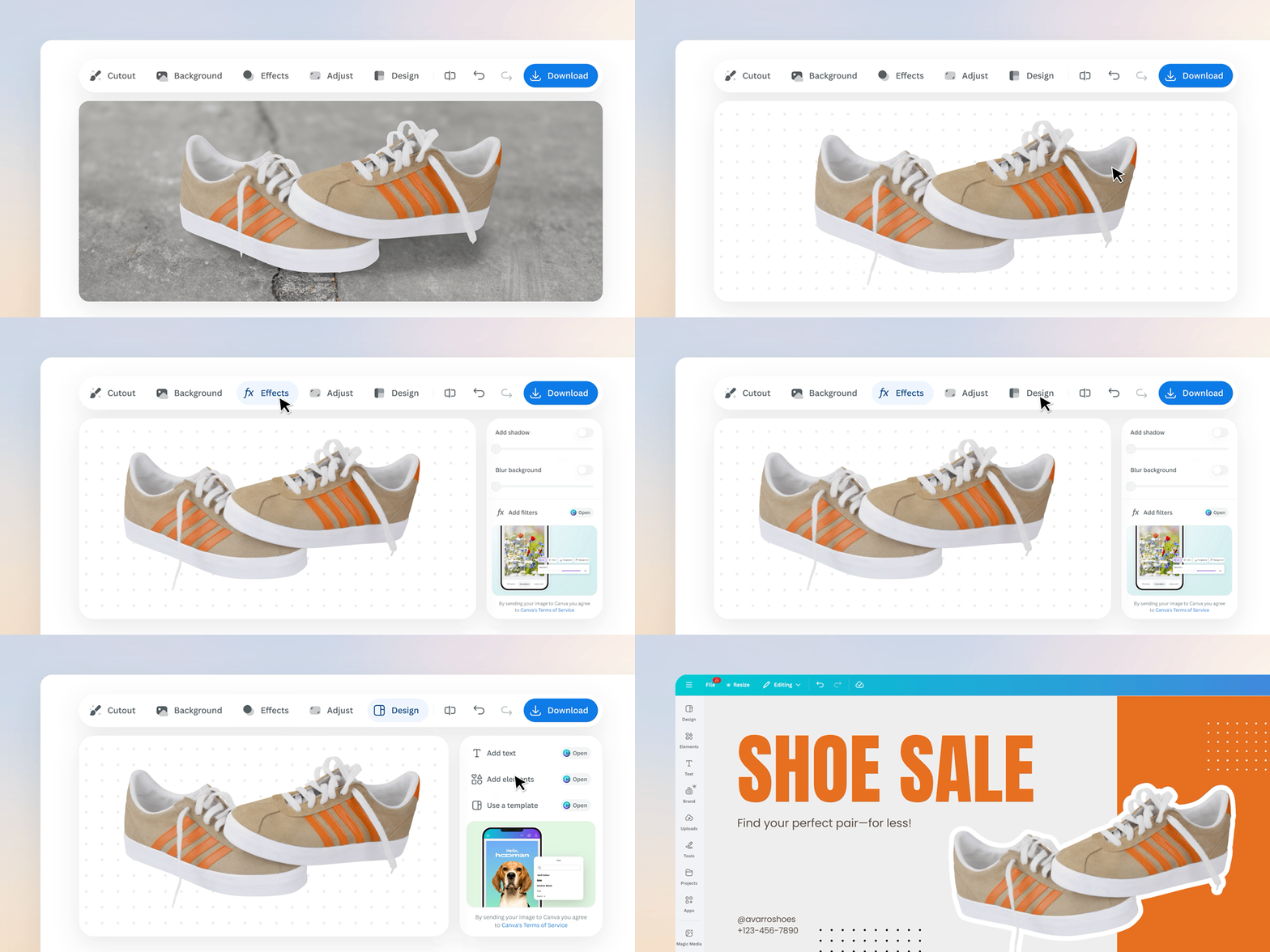
More than background removal
remove.bg has always been your go-to tool for background removal, but now it has evolved. You won’t need to look for a ton of different apps anymore, as you can pick what further editing you want to do to your image directly in the app, and you will be redirected to the Canva editor in just a few clicks. Exciting right?
Let us show you how.
Remove any distractions - keep the focus on your subject
Imagine you’ve taken a beautiful travel photo, but the background feels a little too busy. Maybe there are people walking by or distracting objects that pull attention away from you.
With remove.bg, cleaning up your image is easy.
Just go to Cutout > Erase Distractions. You’ll be redirected to Canva, where you can use a simple brush tool to remove anything you don’t want in the frame.
Adjust the brush size, paint over the unwanted elements, then click Erase, and let the AI do the rest. In seconds, your subject will become the clear star of the photo.
Effects that make your image shine
You can also apply a variety of different edits to the background and foreground of your image.
First things first: change the background directly on remove.bg. For instance, you can take a photo like this:
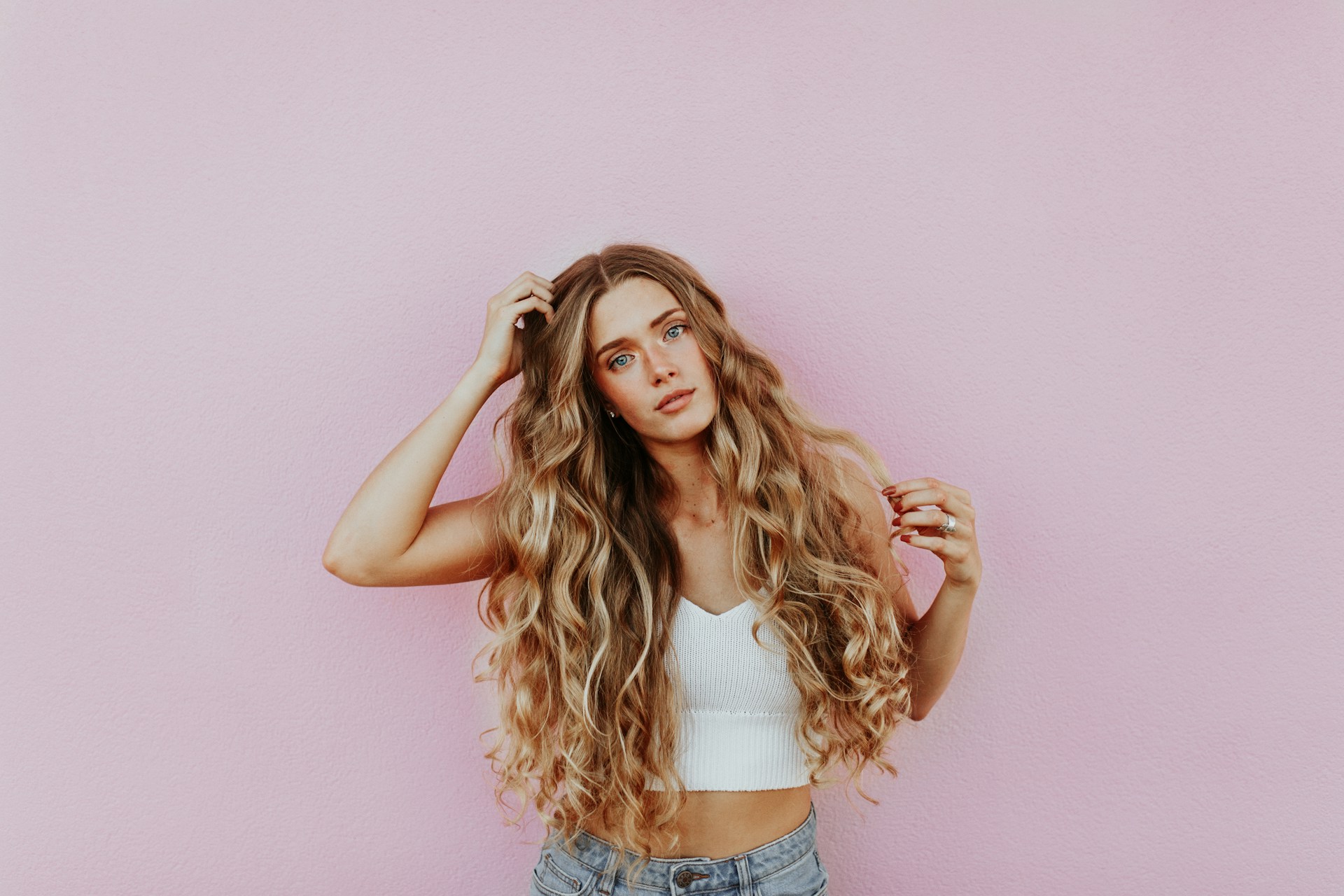
And turn it into this:
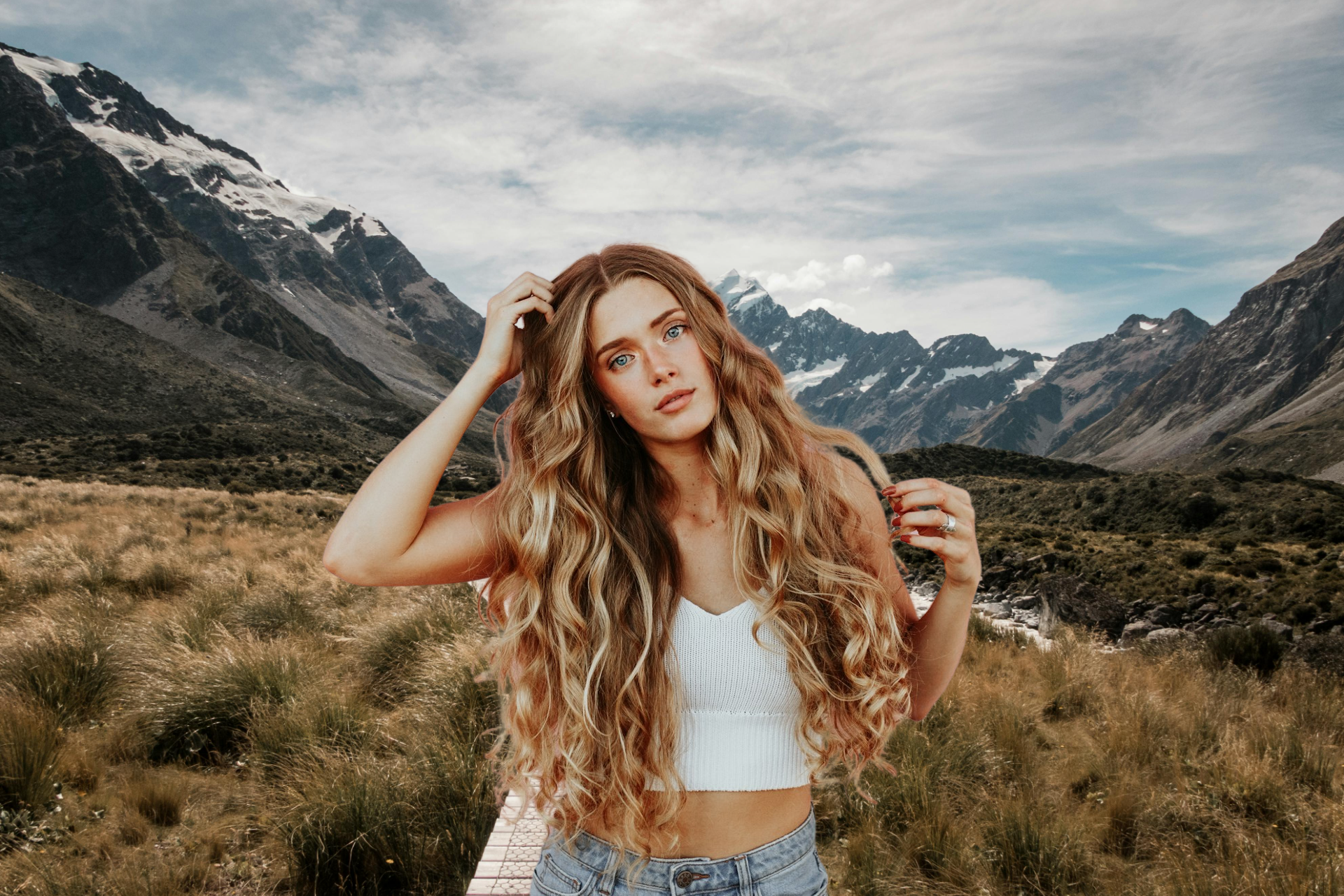
If that’s still not enough, you can keep on editing it.
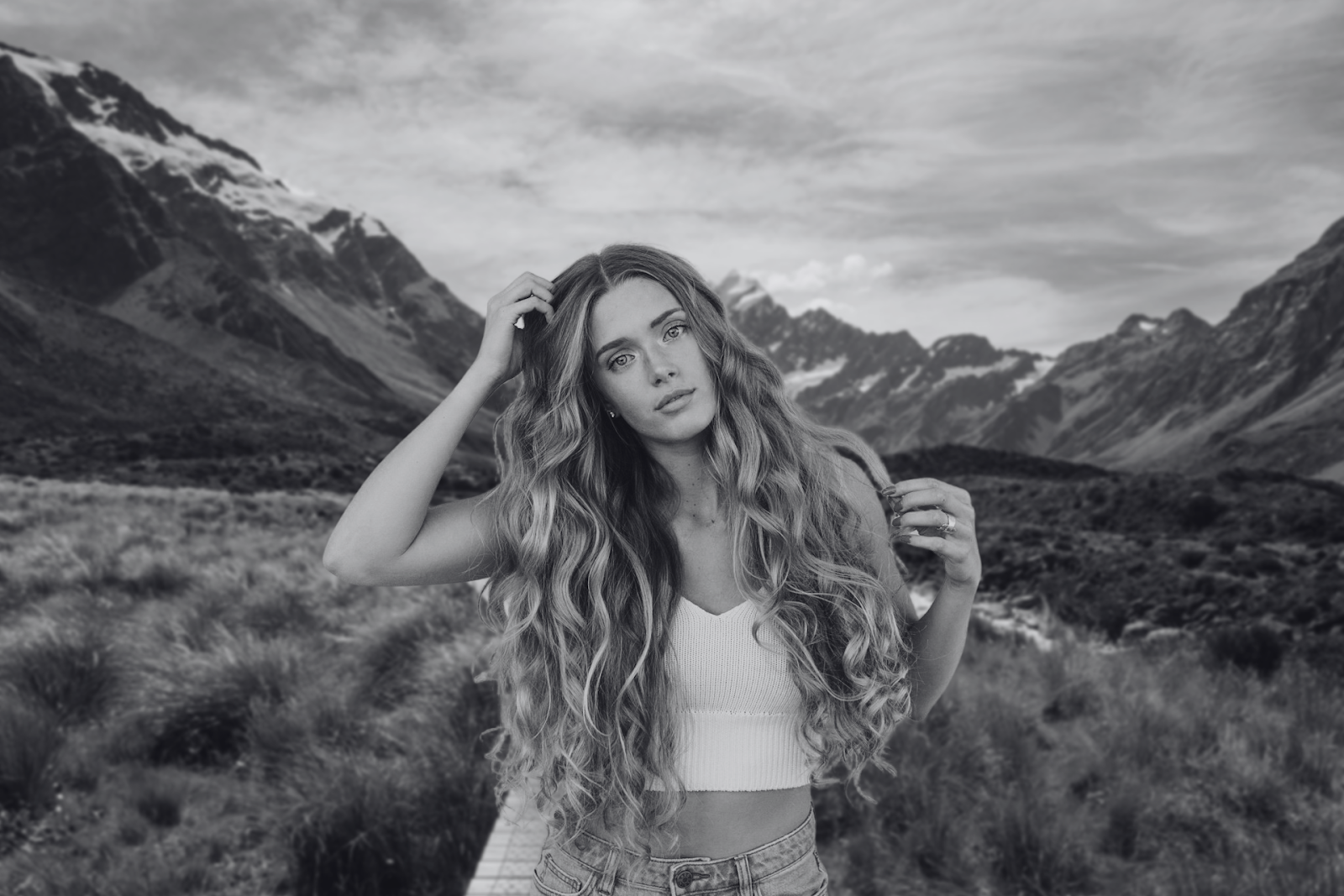
In the Effects tab, you’ll now find not only blur and shadow but also a new Filters option. Selecting it will take you straight into Canva’s editor, where you can experiment with a wide range of filters.
In this example:
We added a blur effect on remove.bg.
Then, in Canva, we selected the Flint filter.
The result? A more cinematic, polished look.
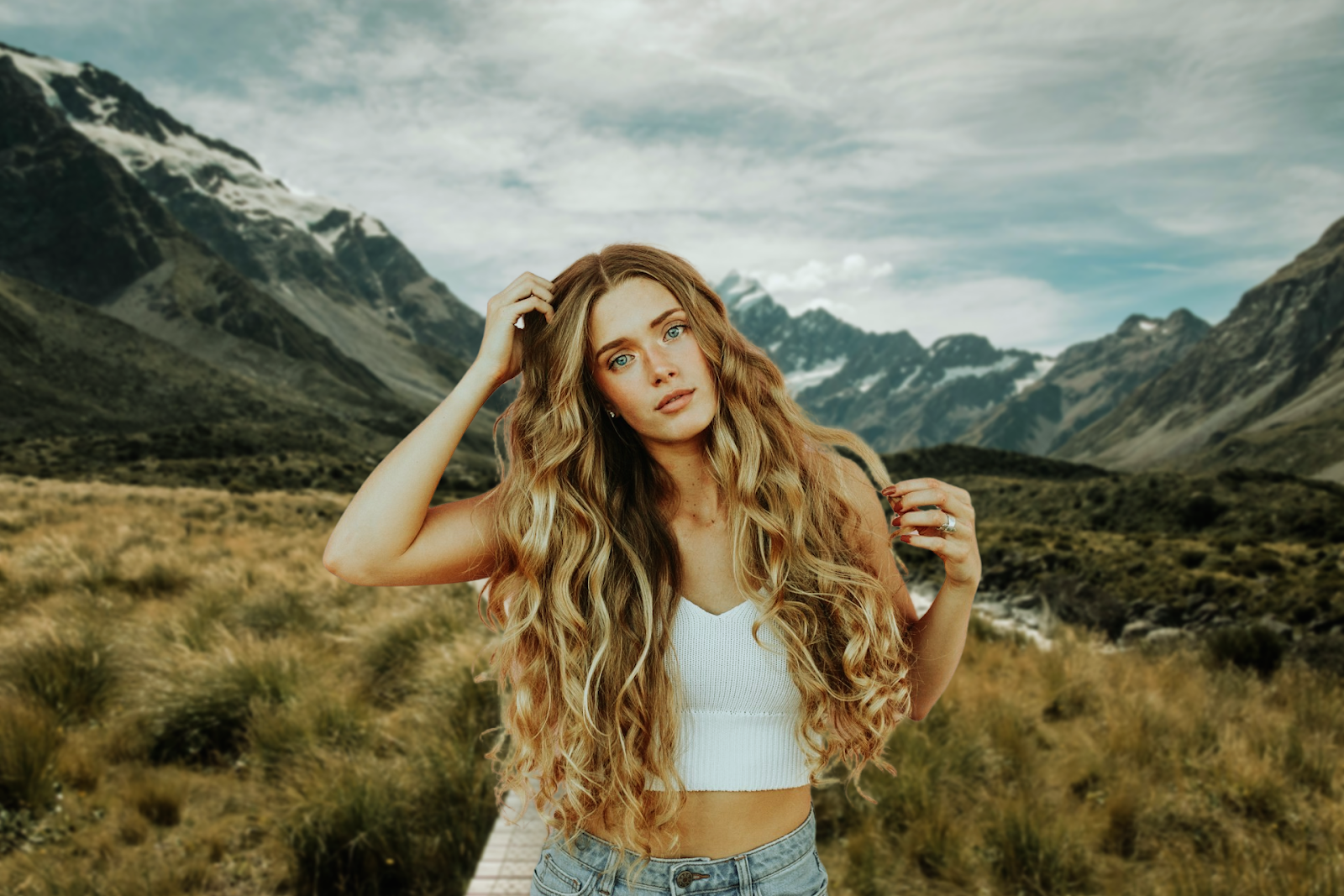
You could also go black and white, or explore dozens of other filter styles.
Fine-tune with adjustments
Back in remove.bg, let’s return to the original photo (with just a touch of background blur). Under the Adjust tab, you’ll find three tools:
Color & light
Crop & place
Expand image
Let us show you each one of them.
Color & light
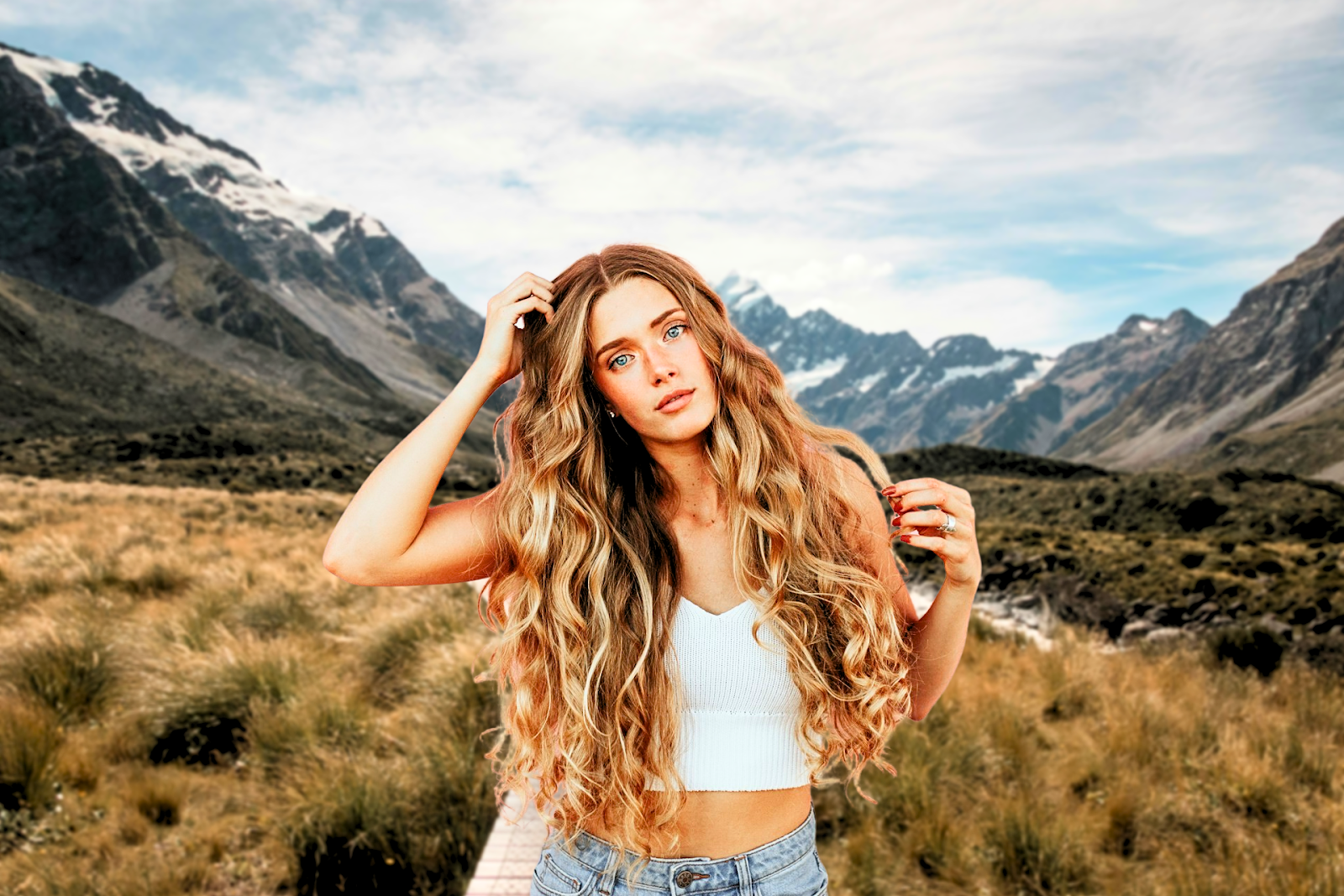
Here you can play with white balance, brightness, contrast, shadows, highlights, vibrance, and more. In our example, we gave the image a subtle boost in brightness and contrast, then fine-tuned shadows and whites for a balanced look. You can go natural, or exaggerate for a bold effect.
Crop and place
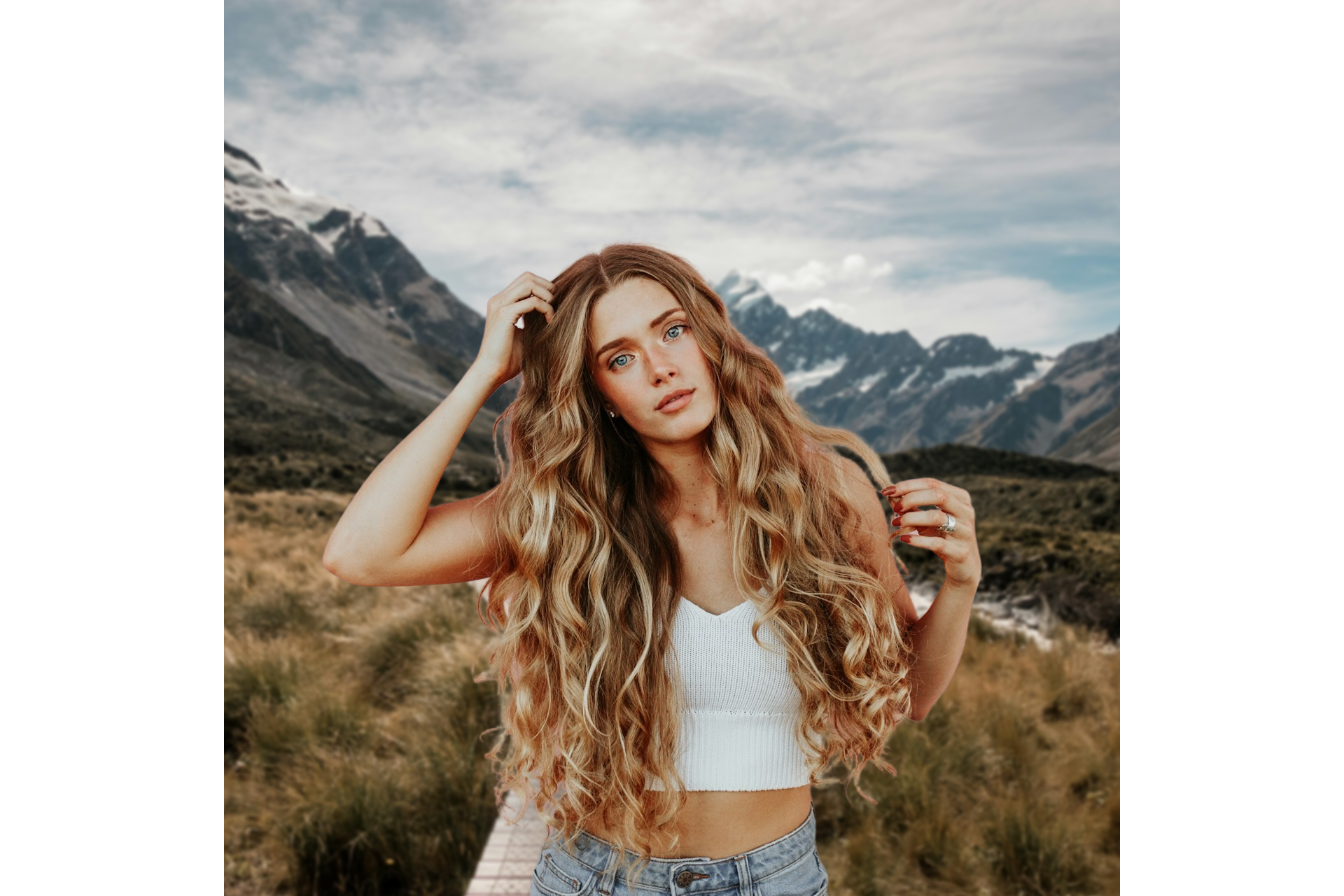
It's as straightforward as it sounds: you can crop your image freely or choose a preset ratio like 1:1, 16:9, or 5:4. You can also rotate your photo for perfect framing.
Expand
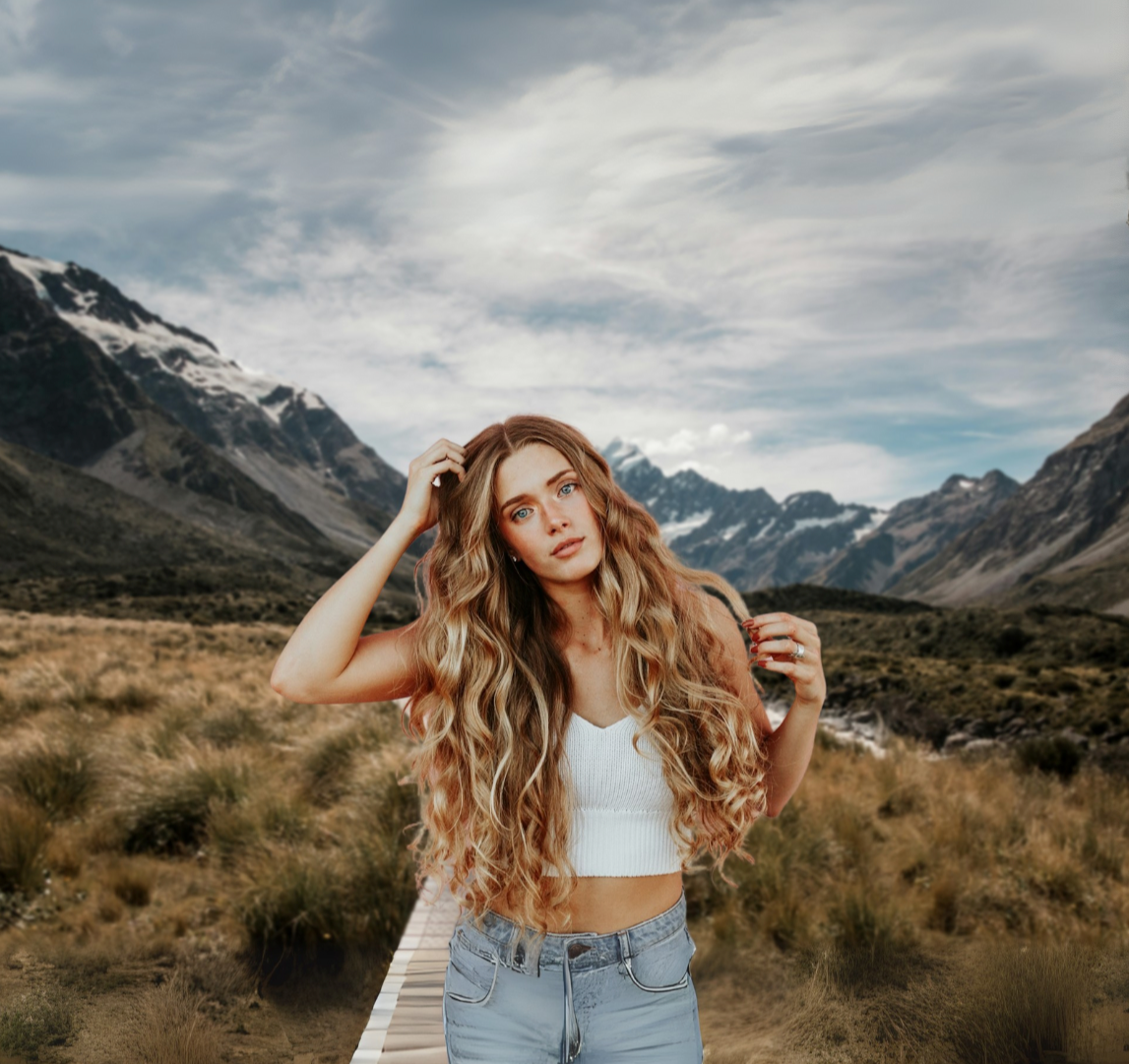
Need a wider frame? The Expand function uses AI to fill in the gaps, generating new content that matches your image. You’ll get four variations to choose from, so you can pick the one that fits best.
Turn your image into a design
The new Design tab gives you even more creative control.
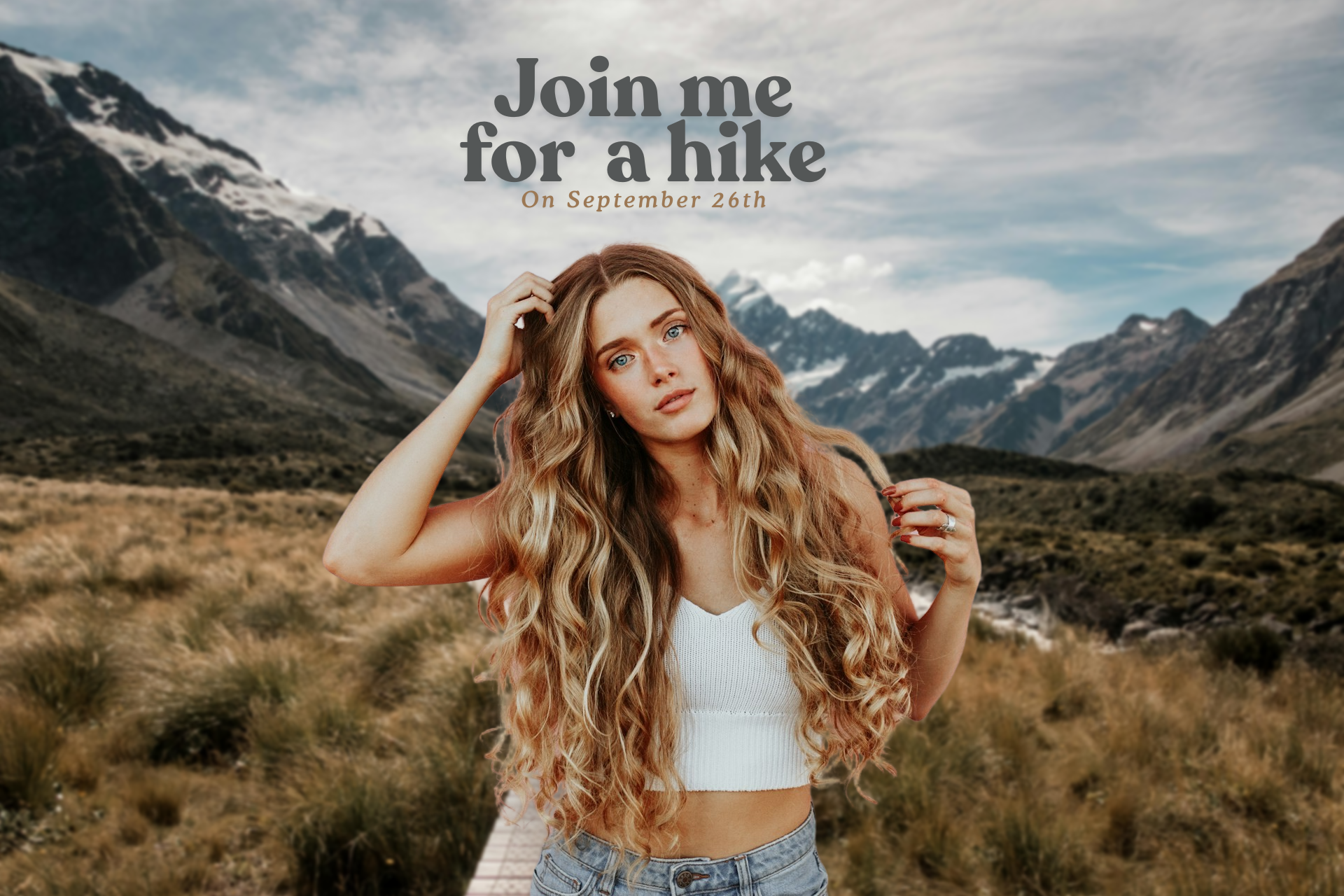
Add text
You can choose from a wide selection of fonts, colors, and styles. You can even auto-match text colors to your image for a cohesive look.
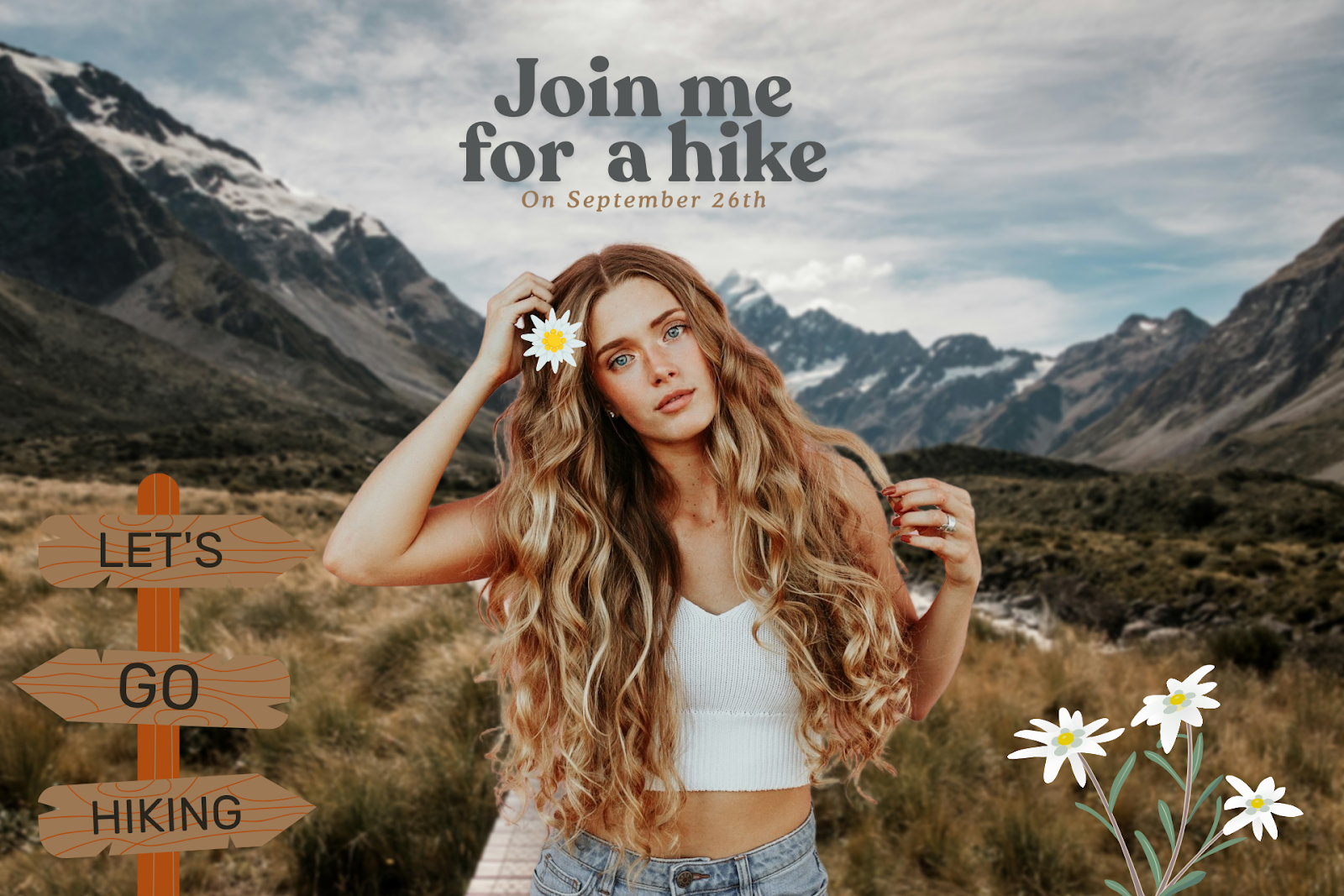
Add elements
Shapes, graphics, stickers, you name it. Combine them with text to build something unique.
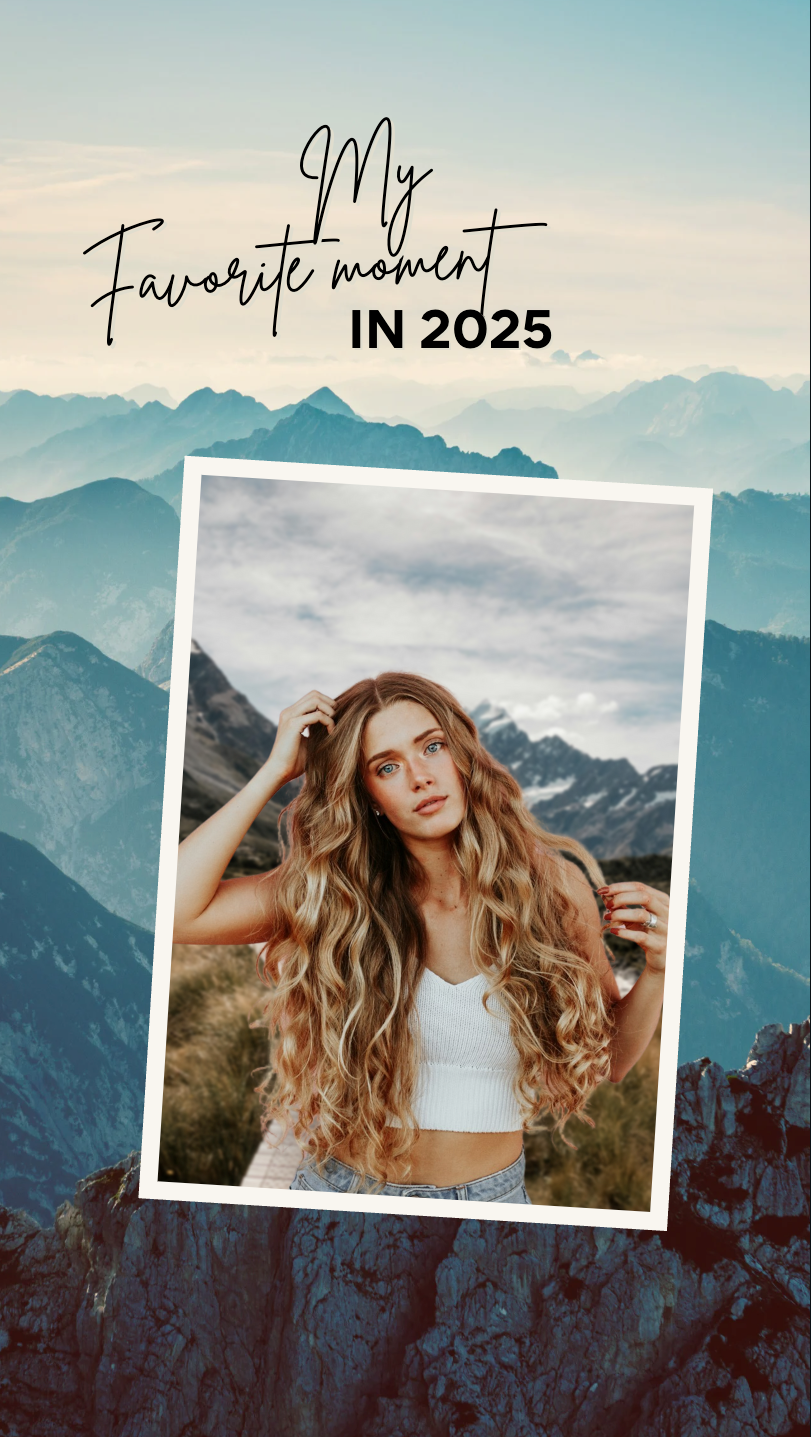
Use a template
Drop your image into ready-made templates for Instagram stories, social posts, posters, resumes, presentations, and much more.
With these options, your photo becomes more than just an image; it becomes a complete design.
The new remove.bg: More than you expected
With its redesigned interface and expanded features, remove.bg isn’t just a background remover anymore. It’s an all-in-one editing hub, letting you tweak, transform, and design all in just a few clicks.
So dive in, explore the new tools, and enjoy the fresh new way to edit.
댓글
지금까지는 댓글이 없습니다.