If you’re a sporty or outdoorsy person, chances are you’re already using Strava. After all, few things feel as satisfying as tracking your evening run or weekend hike, and sharing those achievements with friends.
But what if you want to post your Strava results on Instagram too? In this guide, we’ll show you how to create a Strava overlay, where your stats appear as a transparent layer on top of any image you choose. Perfect for Instagram Stories or posts.
Table of contents
How to create a Strava overlay for Instagram stories
Creating this effect is much easier than it looks. All you need is a screenshot of your Strava results and a background removal tool.
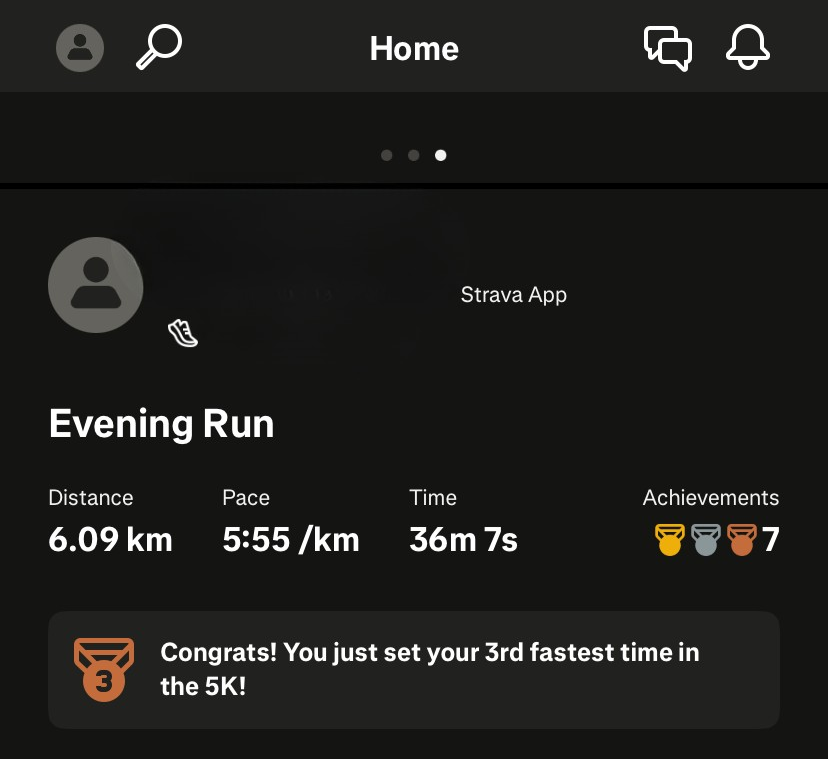
1. Take a screenshot of your Strava activity
Crop it any way you want. Whatever you keep in the screenshot will appear in your final overlay, so if you only want the core stats without titles or extra details, crop them out now.
2. Remove the background
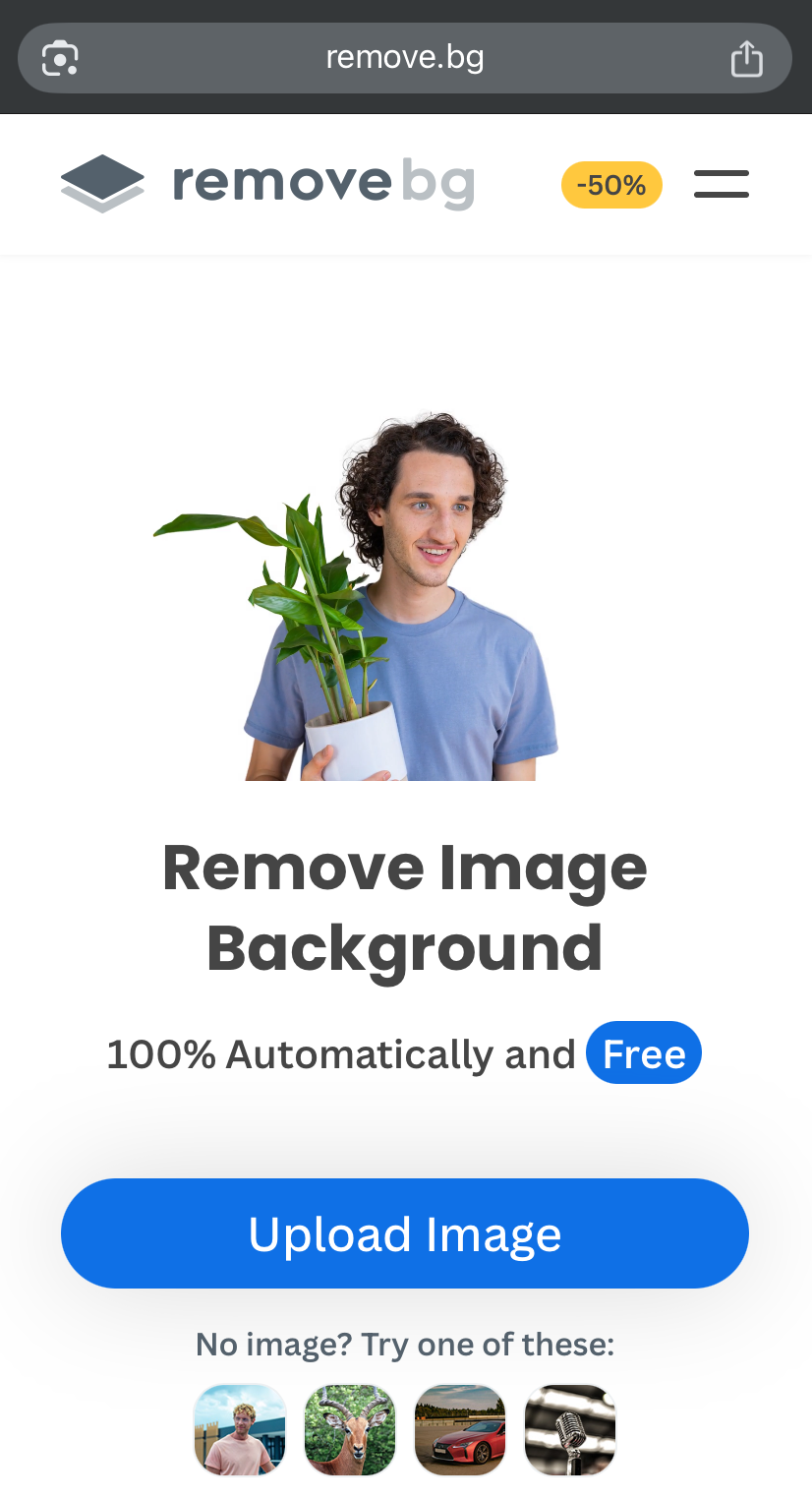
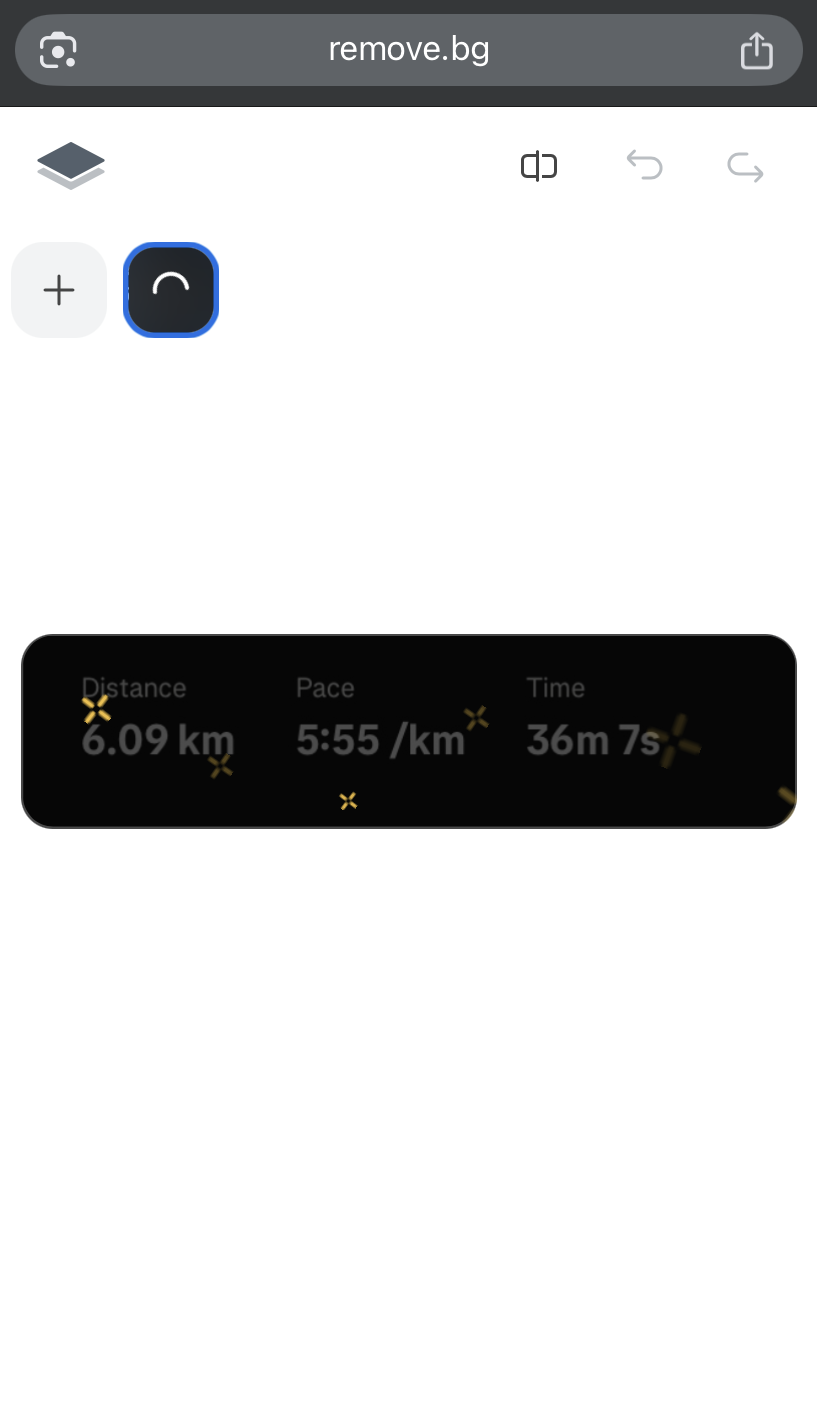
Upload your screenshot to remove.bg. The background will be removed automatically, leaving you with a clean, transparent Strava PNG.
3. Download the image
Download the preview (free) to your phone.
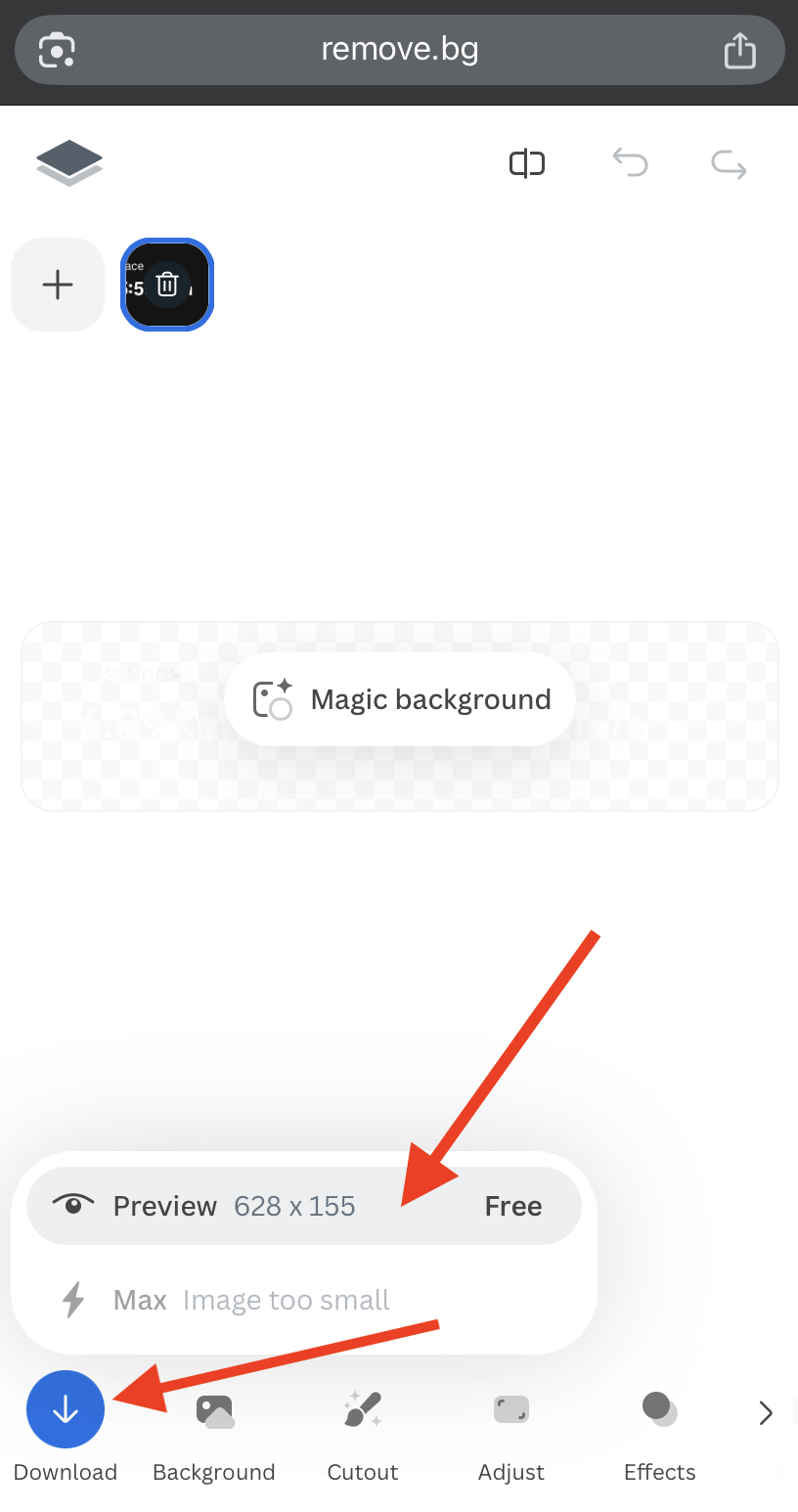
4. Copy the transparent Strava PNG
Open the file in your gallery and tap “Copy.”
On iPhones, you’ll find this option under the three dots in the top-right corner.
5. Open Instagram and start a Story
Go to + > Story and upload the photo you want as your background, for example, a landscape from your run or hike.
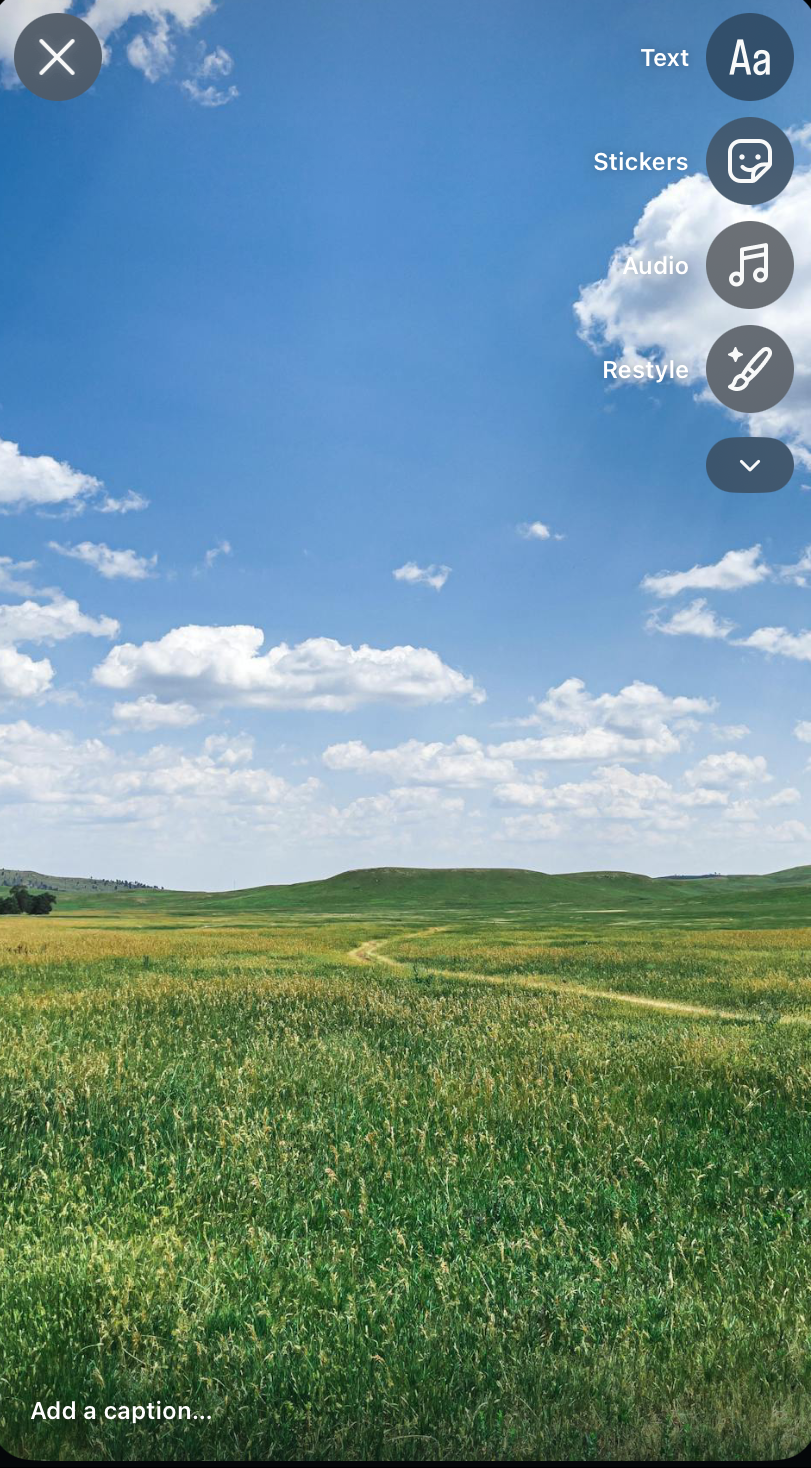
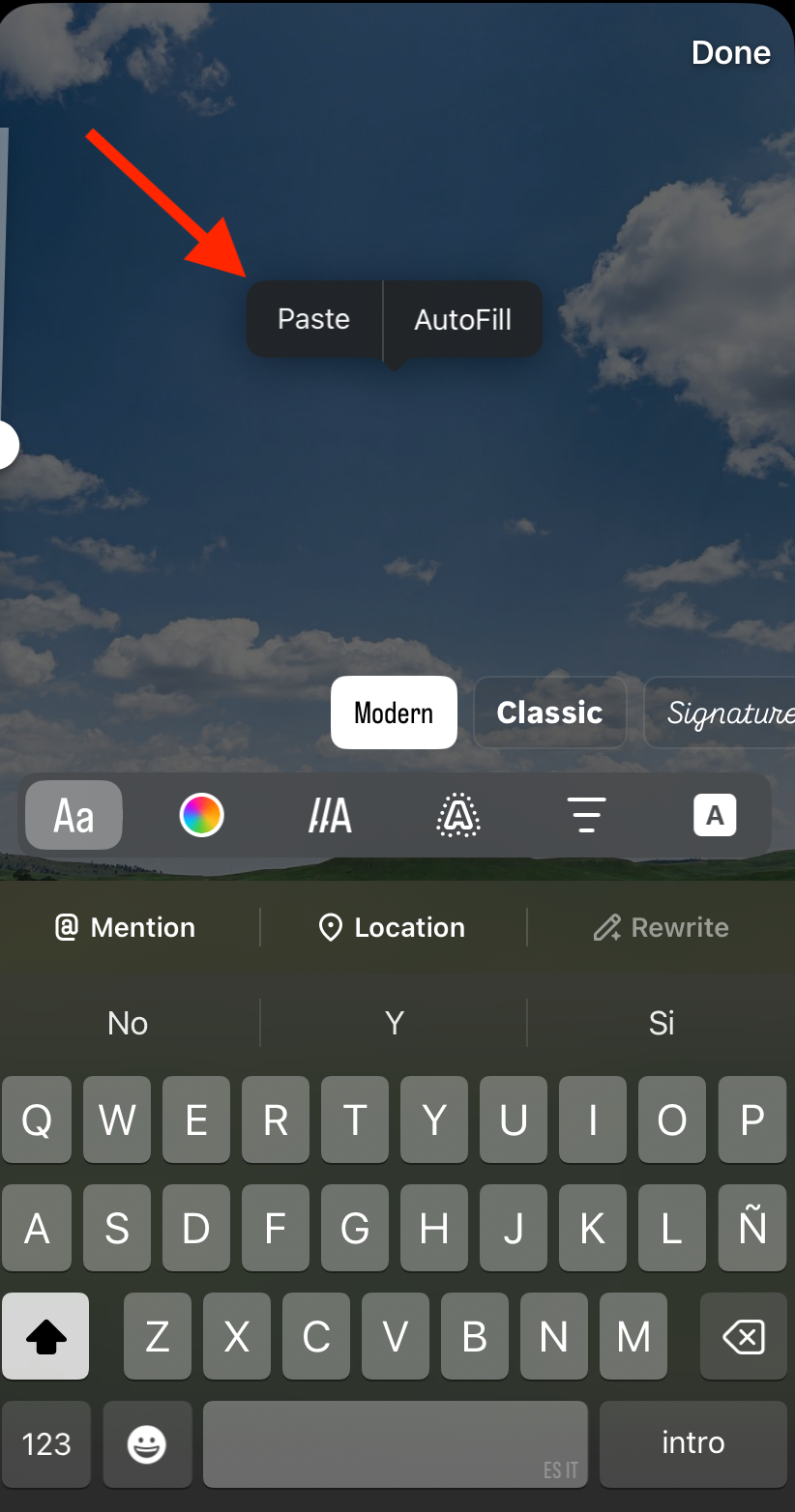
6. Paste the overlay
Tap anywhere on the screen until the “Paste | AutoFill” command appears. Choose Paste, and your Strava stats will be added on top of your background image.
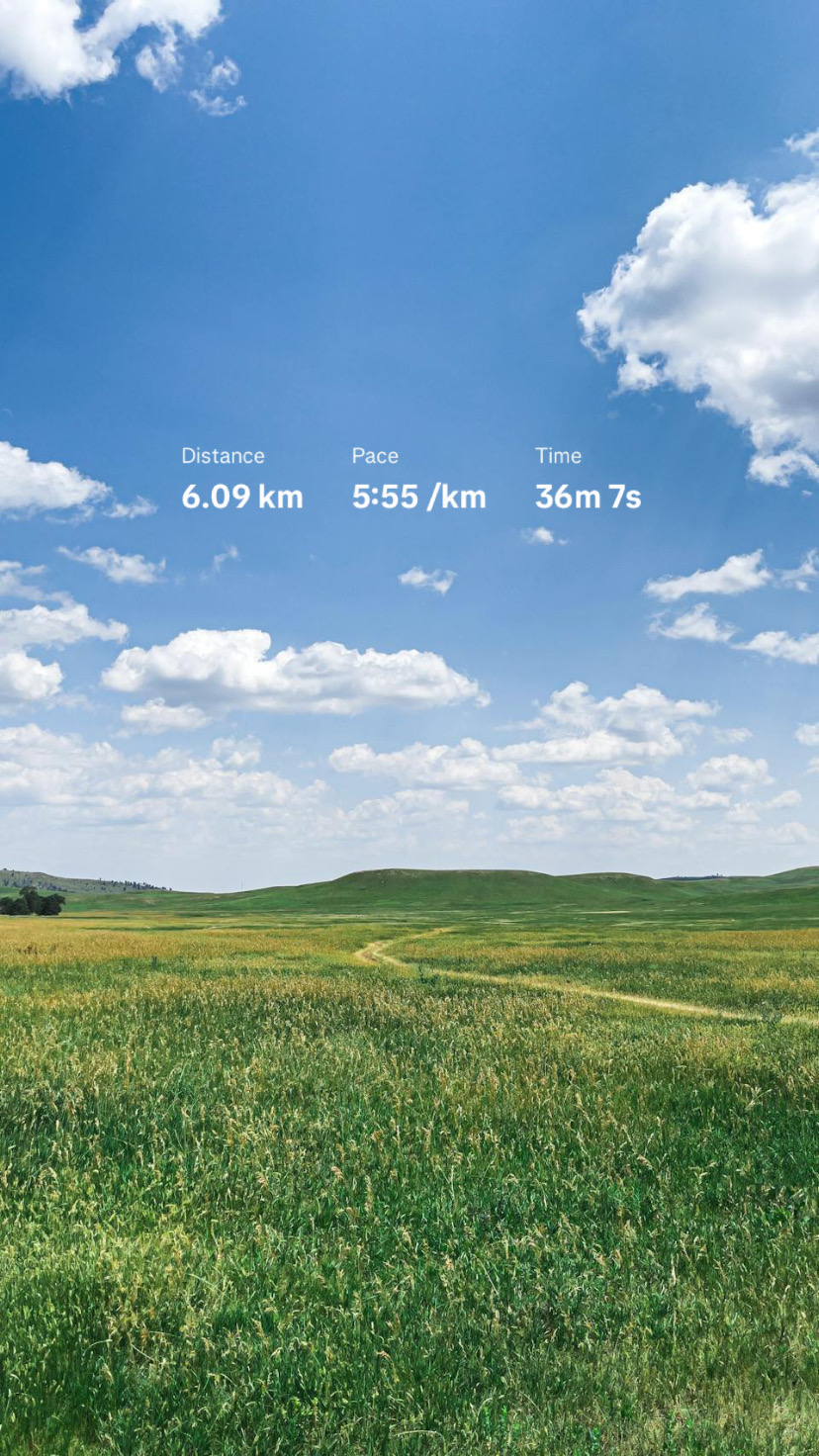
That’s it! Your Strava overlay story is ready to share.
How to use Strava Stickers for Instagram stories
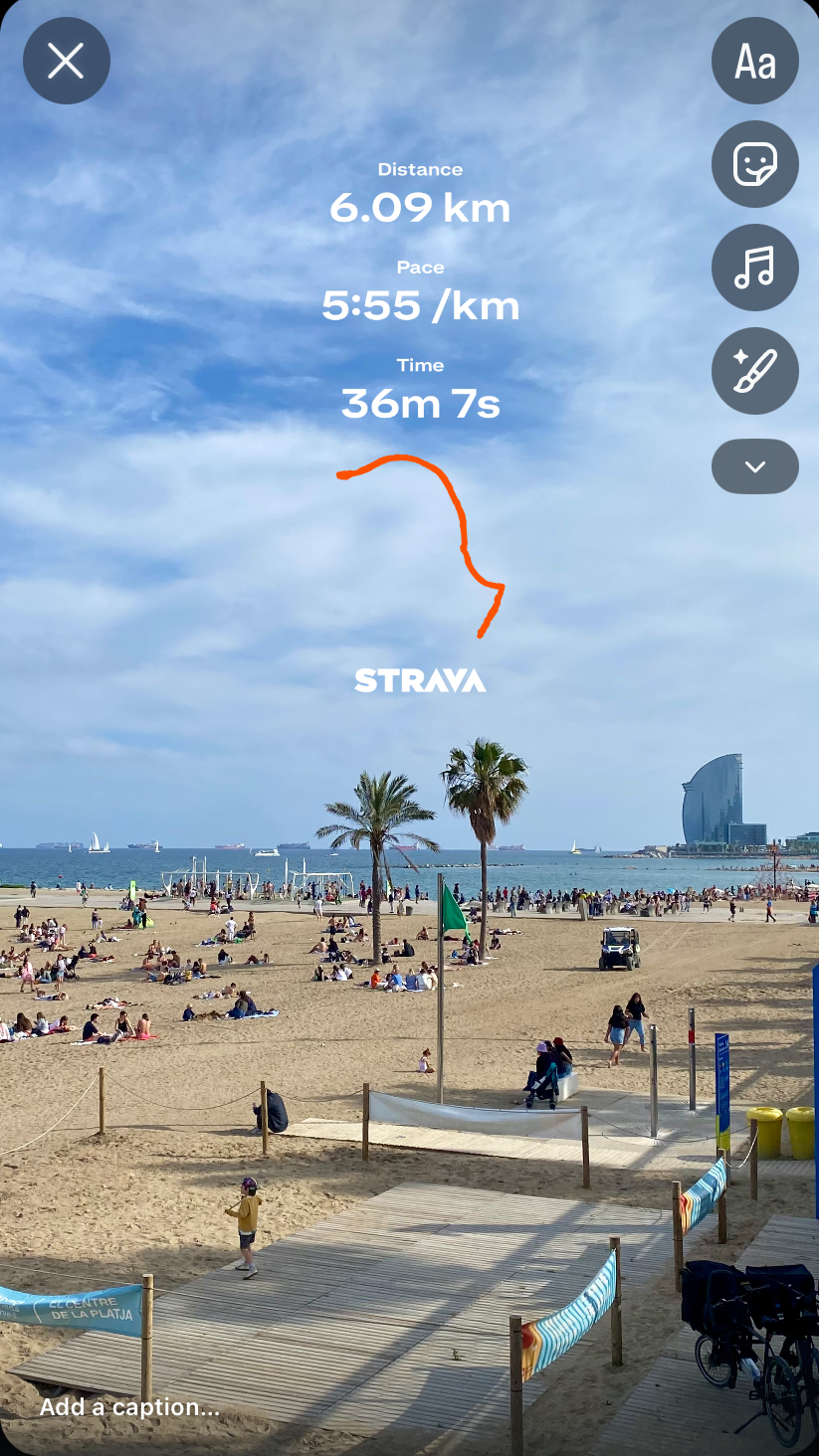
Strava’s Stats Stickers allow you to layer your activity stats (with route included) on top of any image, directly inside Instagram Stories. It’s a simple way to make your posts more personal, expressive, and visually engaging.
Step 1: Share your activity from Strava
-
Open the Strava app and go to the activity you want to showcase.
(Make sure the visibility is set to “Followers” or “Everyone.”)
-
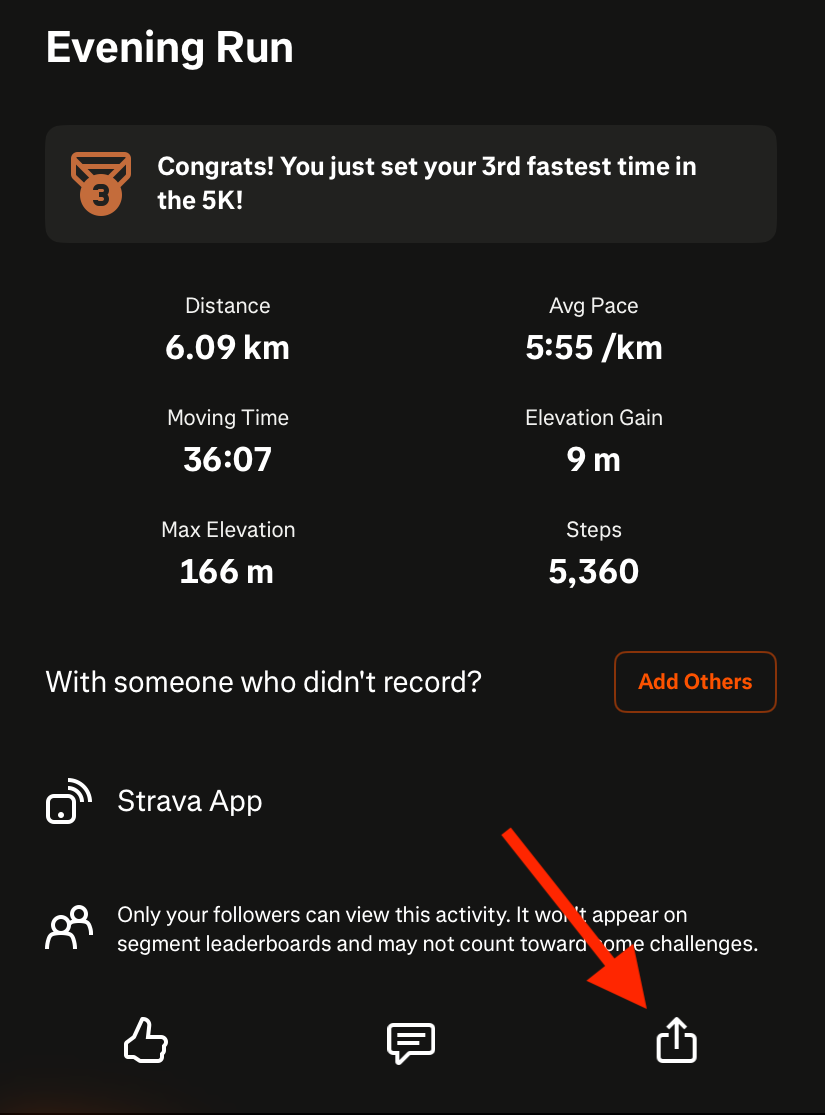
Tap the Share icon.
-
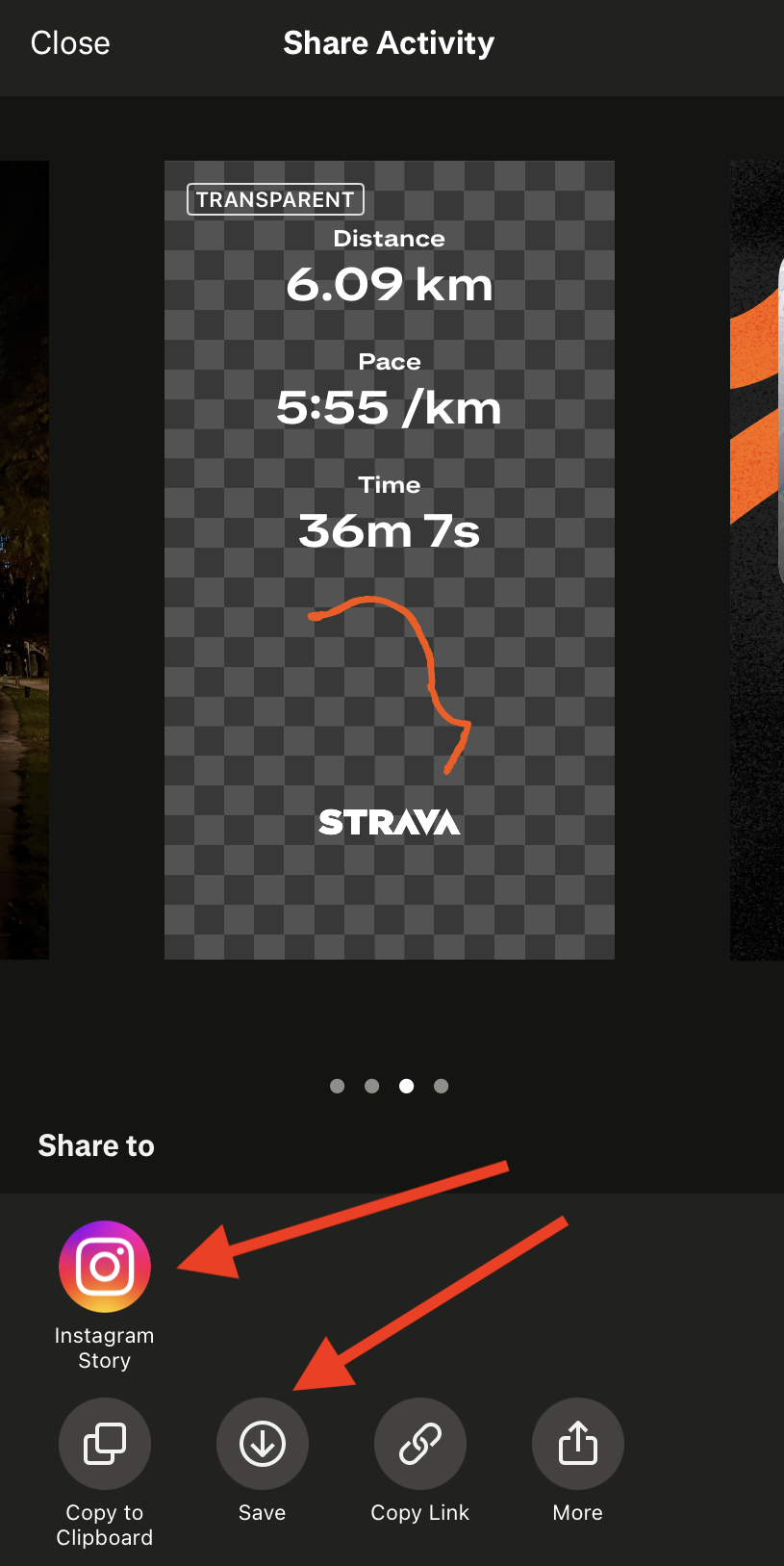
Select Instagram Stories. This automatically opens up Instagram with a ready-made Stats Sticker you can place on your Story.
Tip: If you prefer posting later, you can save the Stats Sticker to your camera roll and upload it manually when you're ready.
Step 2: Choose your background image
-
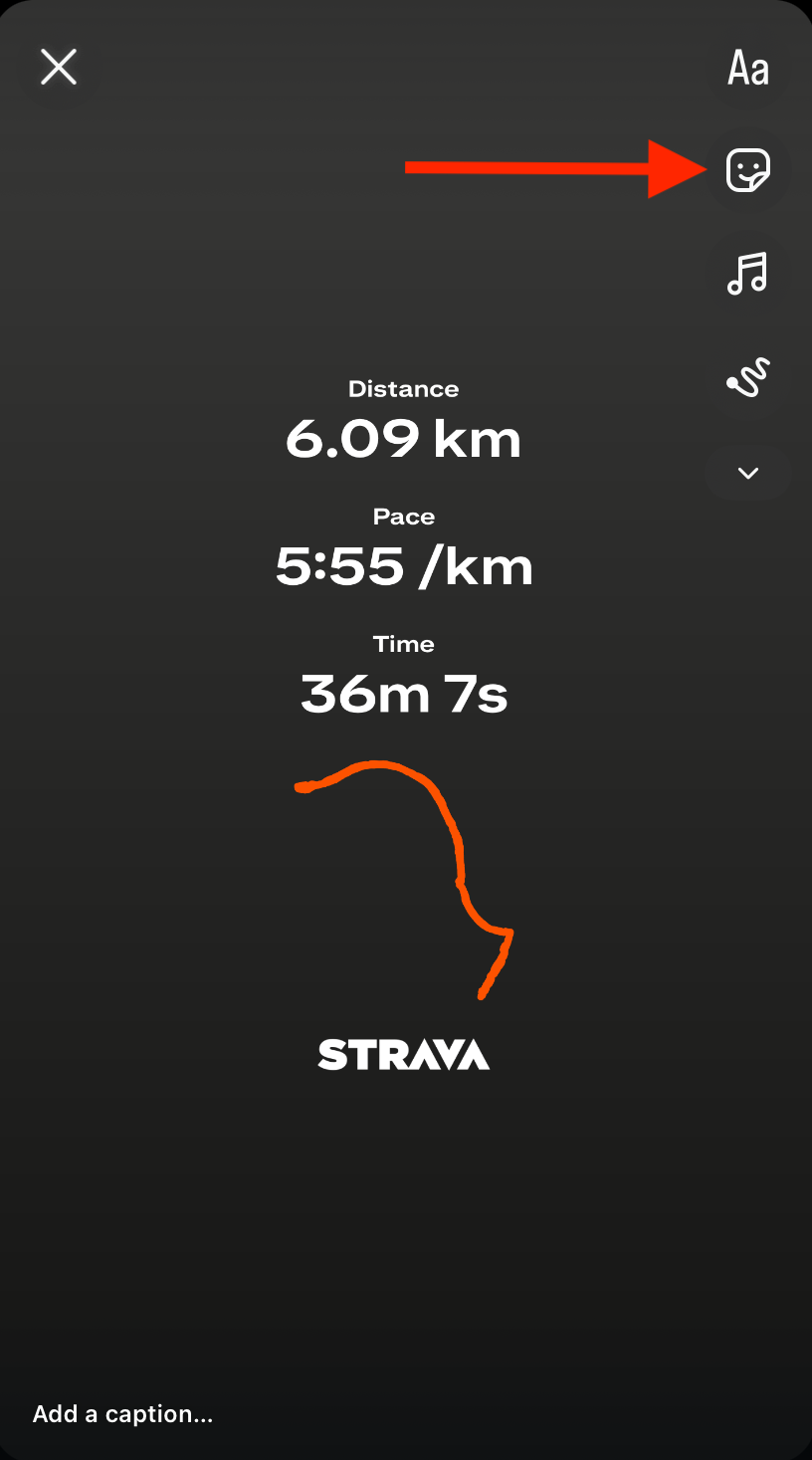
In Instagram Stories, tap the sticker icon (the square smiley face in the top-right corner).
-
Select the Photo sticker (iOS) or Gallery sticker (Android).
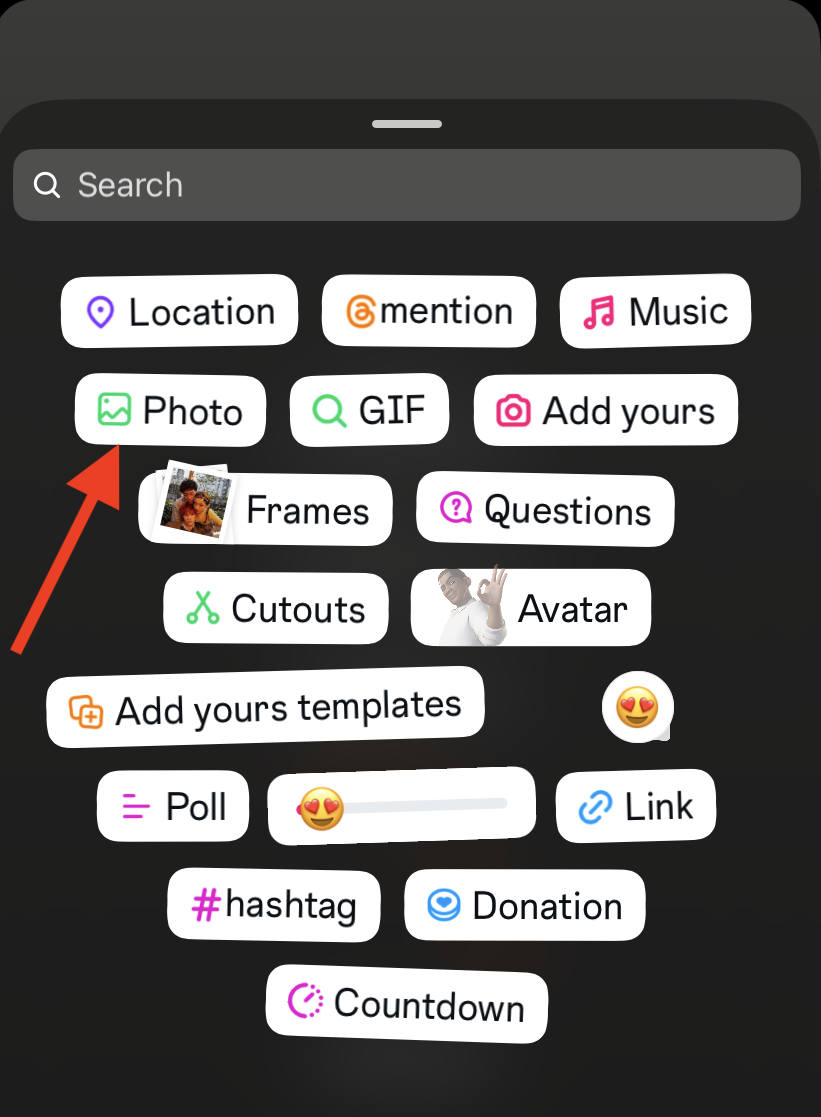
Choose the image you want to use from your camera roll (a workout selfie or a landscape shot, anything you want).
Step 3: Customize your layout
Your Strava Stats Sticker will appear on your screen. Drag, resize, or reposition it as needed.
Adjust the background photo or add more image stickers for extra flair.
Tap on a layer to bring it forward or send it behind your stats to create a clean, polished layout.
How to remove the background of your Strava stats for an Instagram post
You can use the same approach for posts, but here’s another helpful method using Canva.
1. Open Canva
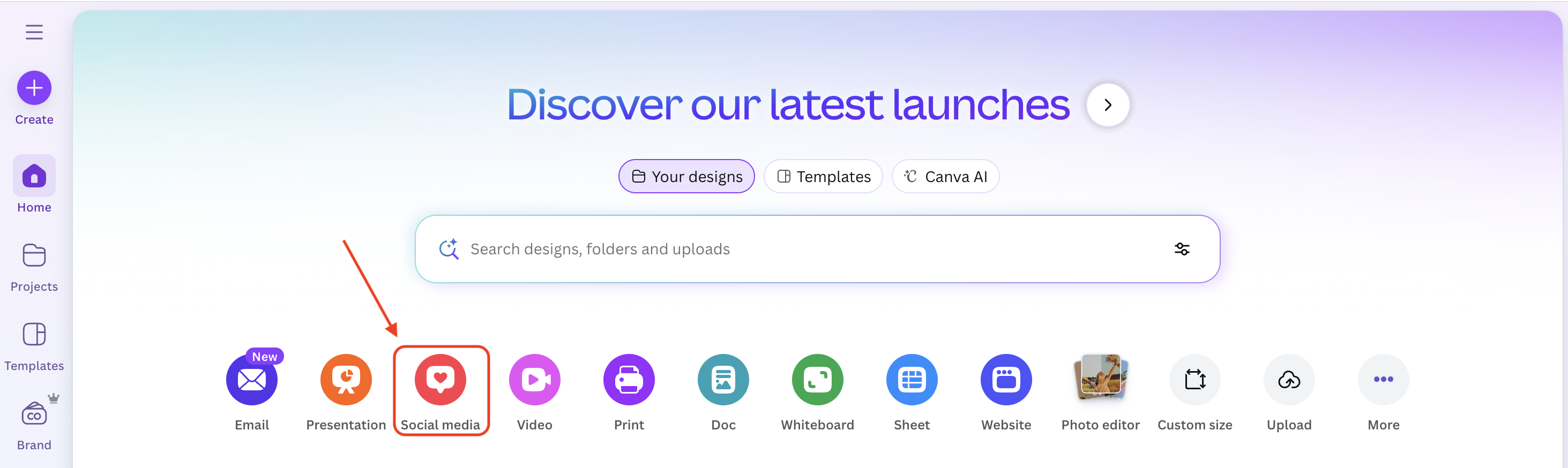
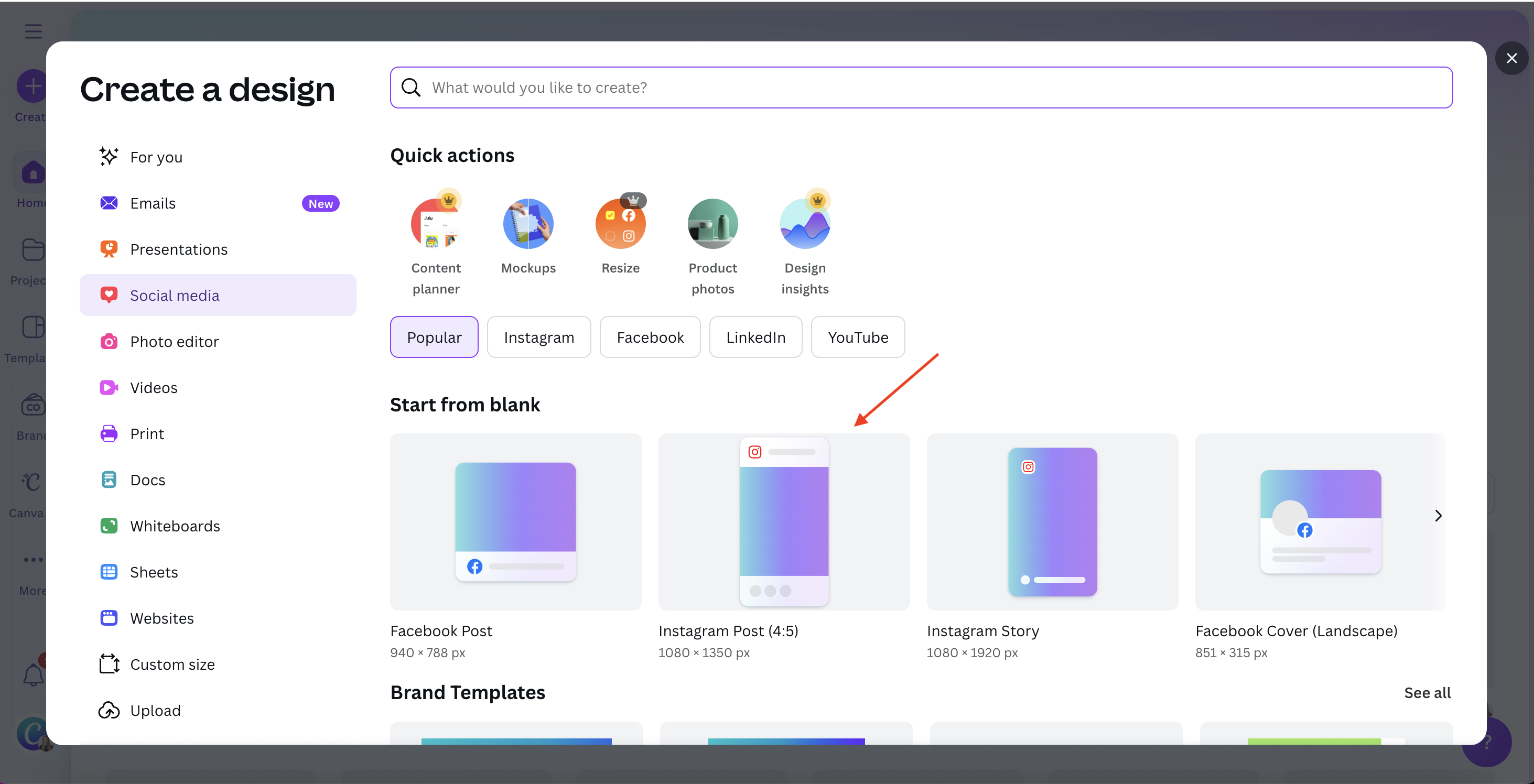
Go to Canva and select Social Media > Instagram Post.
2. Upload your images
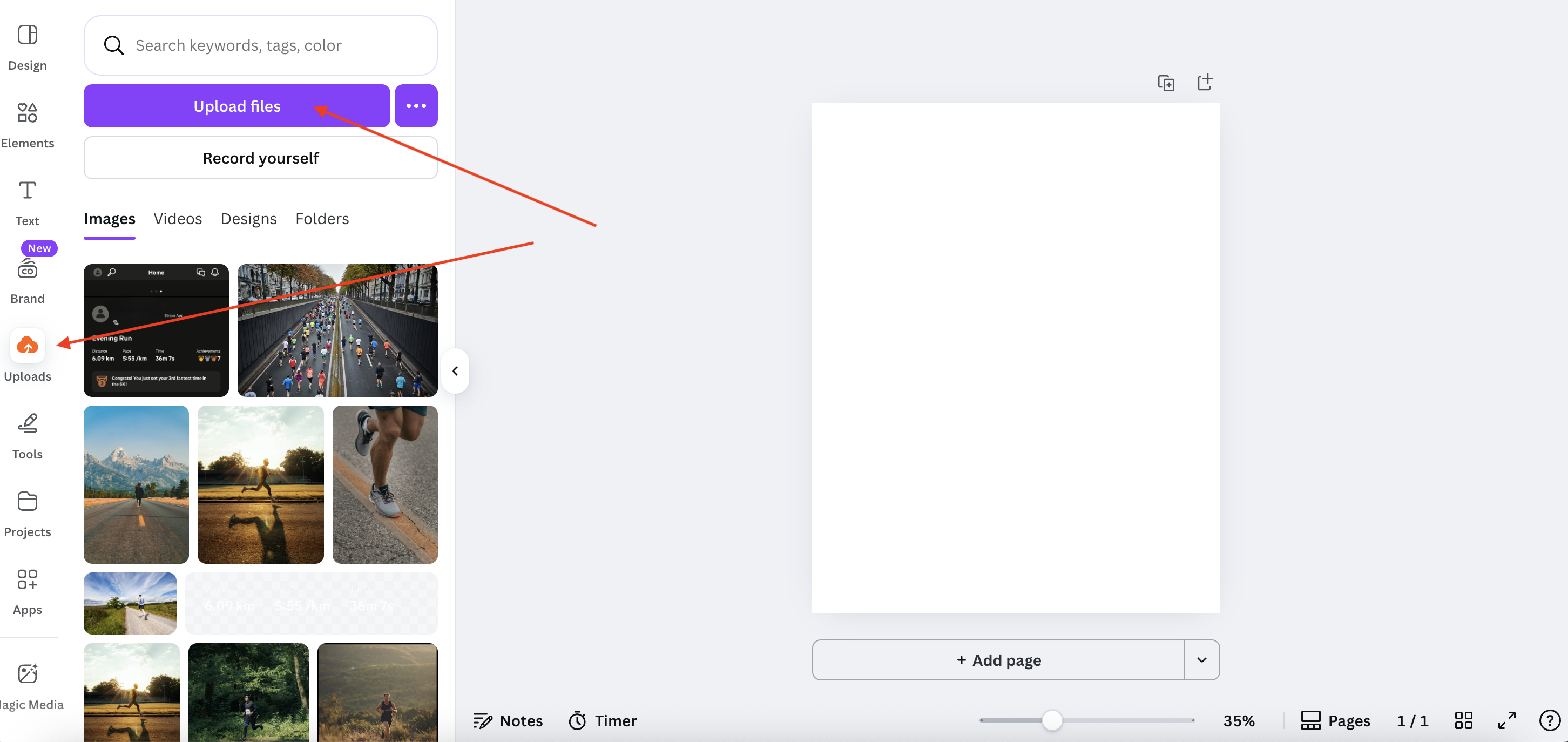
Click Uploads > Upload files, and upload:
Your main photo (e.g., a running photo)
Your Strava screenshot
3. Add your main image
Select the photo you want as your background.
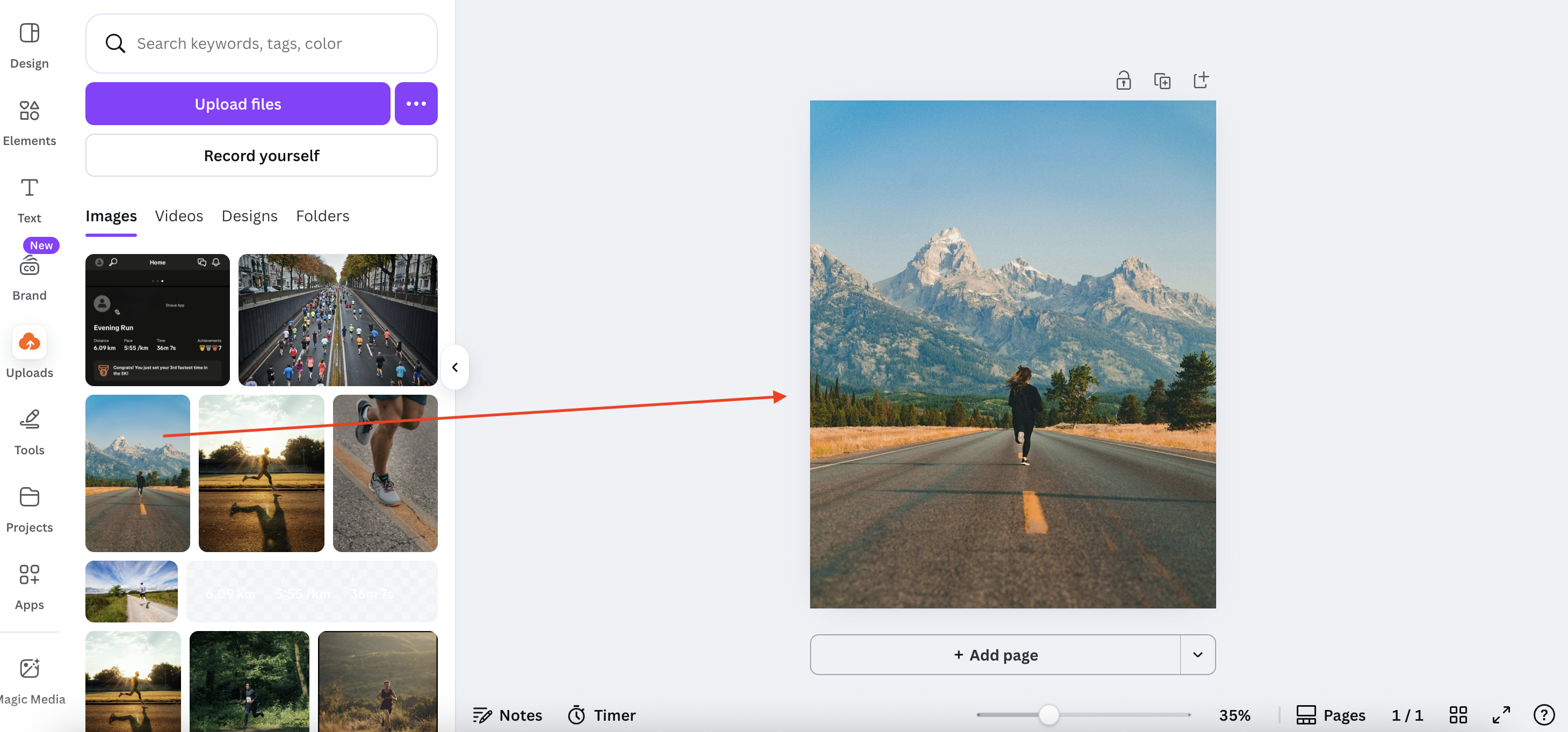
4. Add your Strava screenshot and remove the background
Click on the Strava screenshot to place it on top.
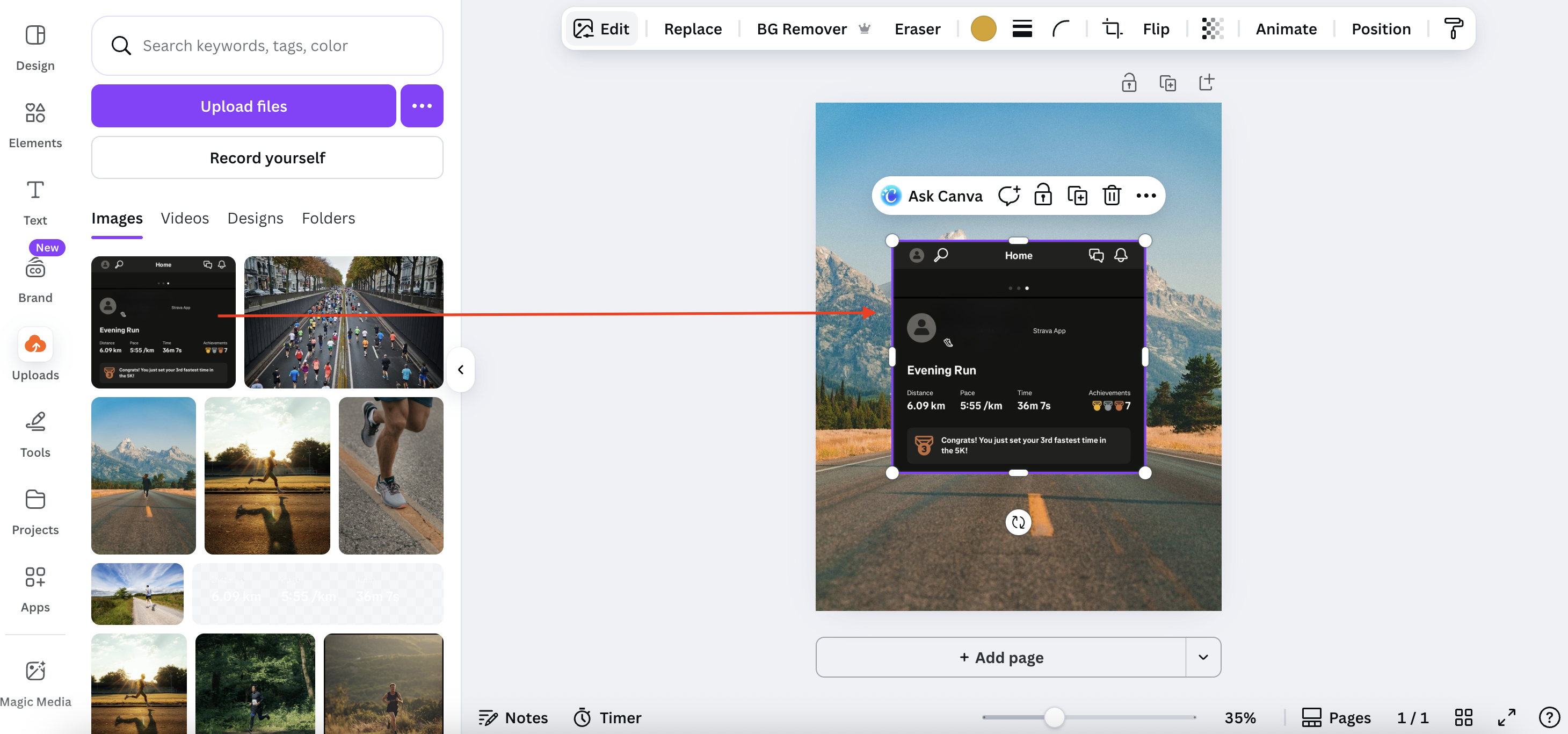
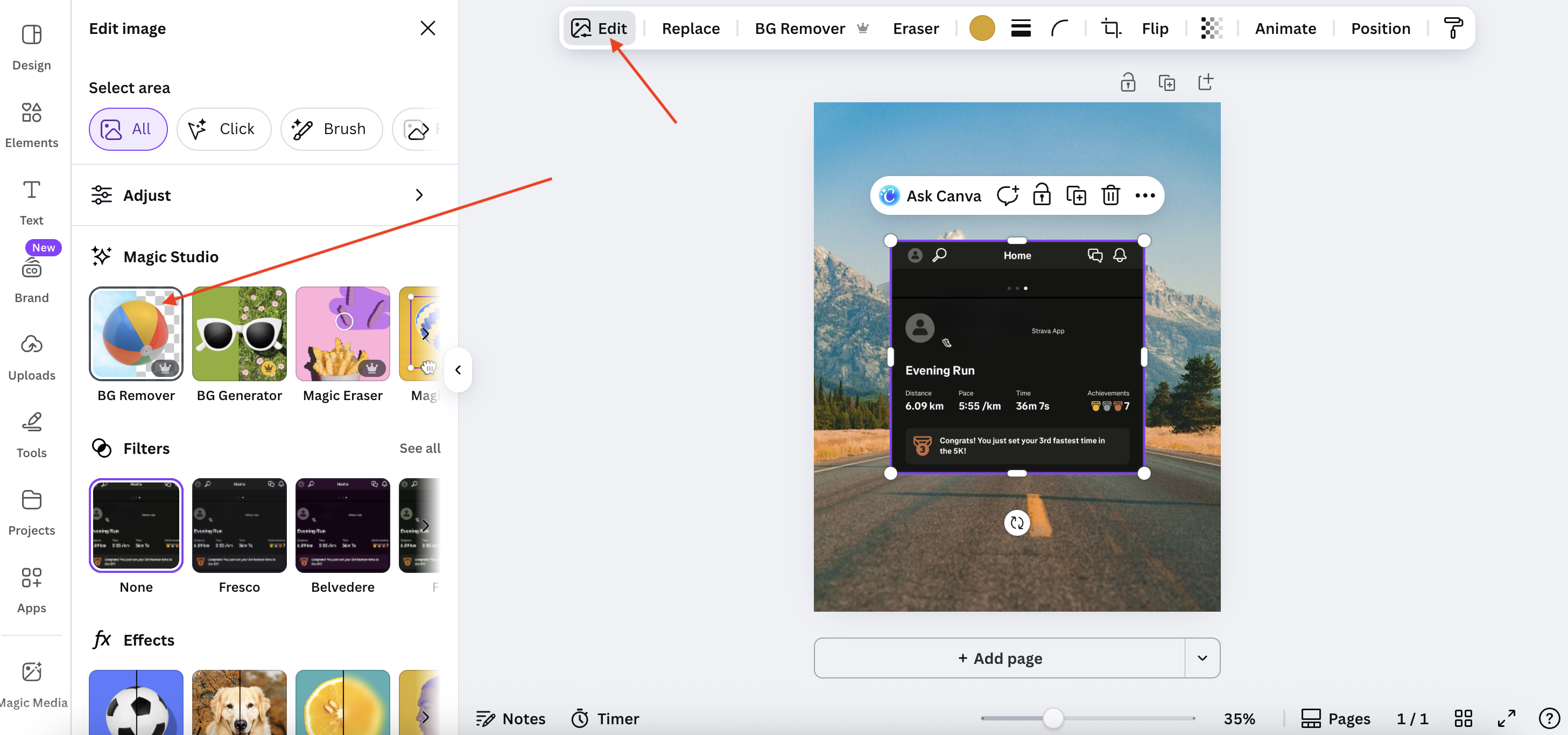
Double-click it to open editing options, then select Edit > BG Remover. This removes the background and turns your stats into a clean overlay.
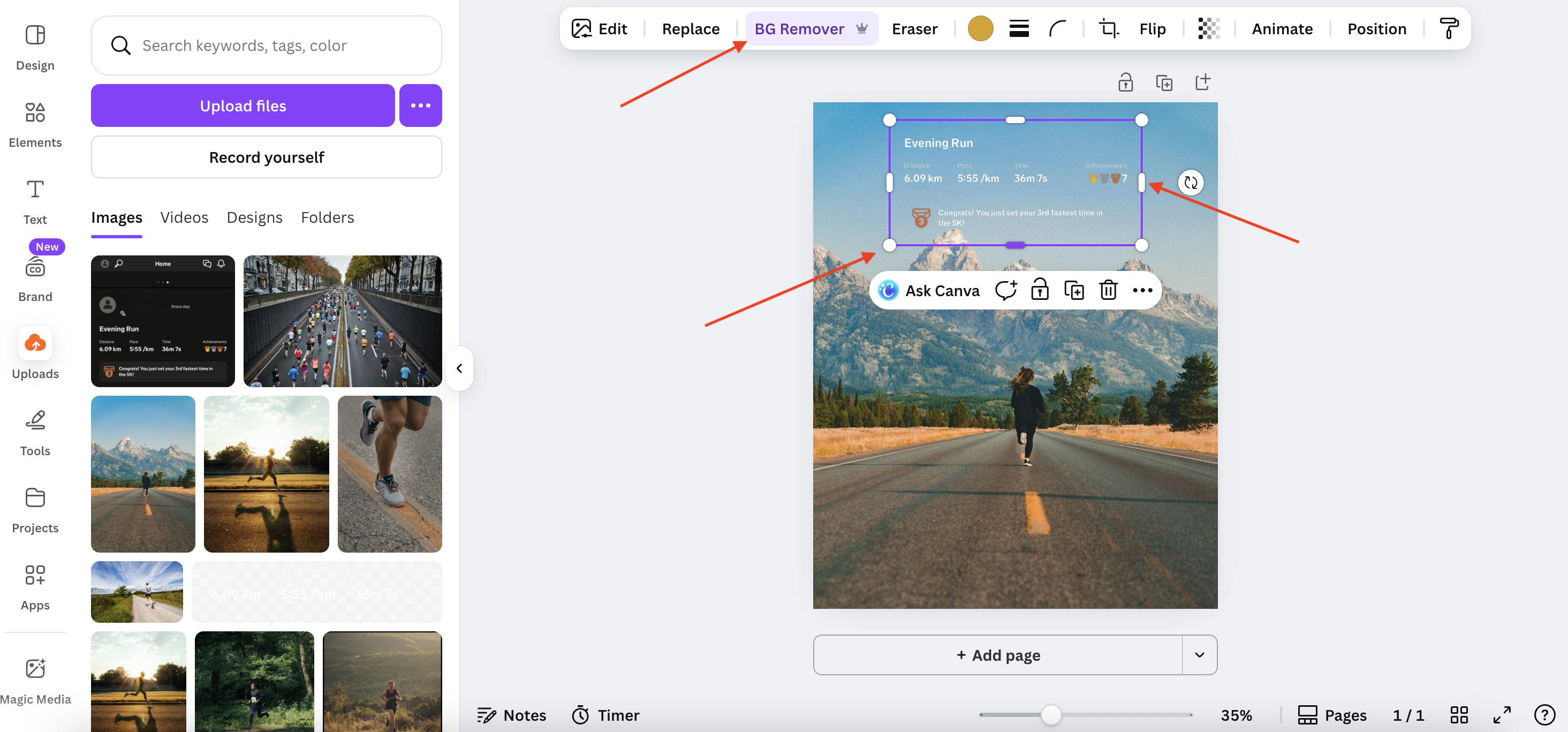
5. Adjust the overlay
Resize or crop the image using the corner dots and side handles until it looks just right.
6. Download your post
Click Share > Download, choose your file type (PNG, JPG, etc.), and hit Download again.
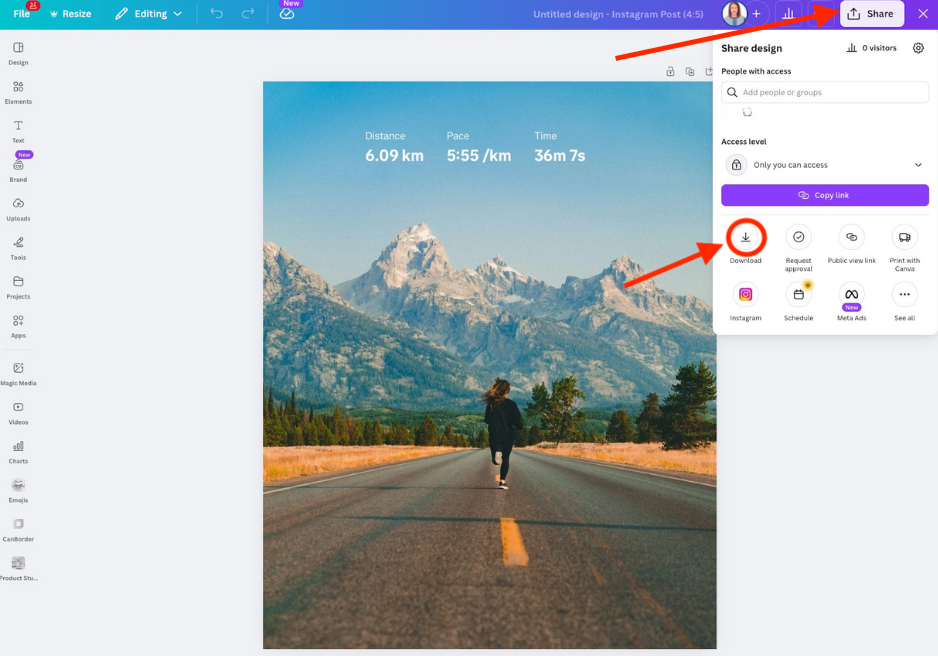
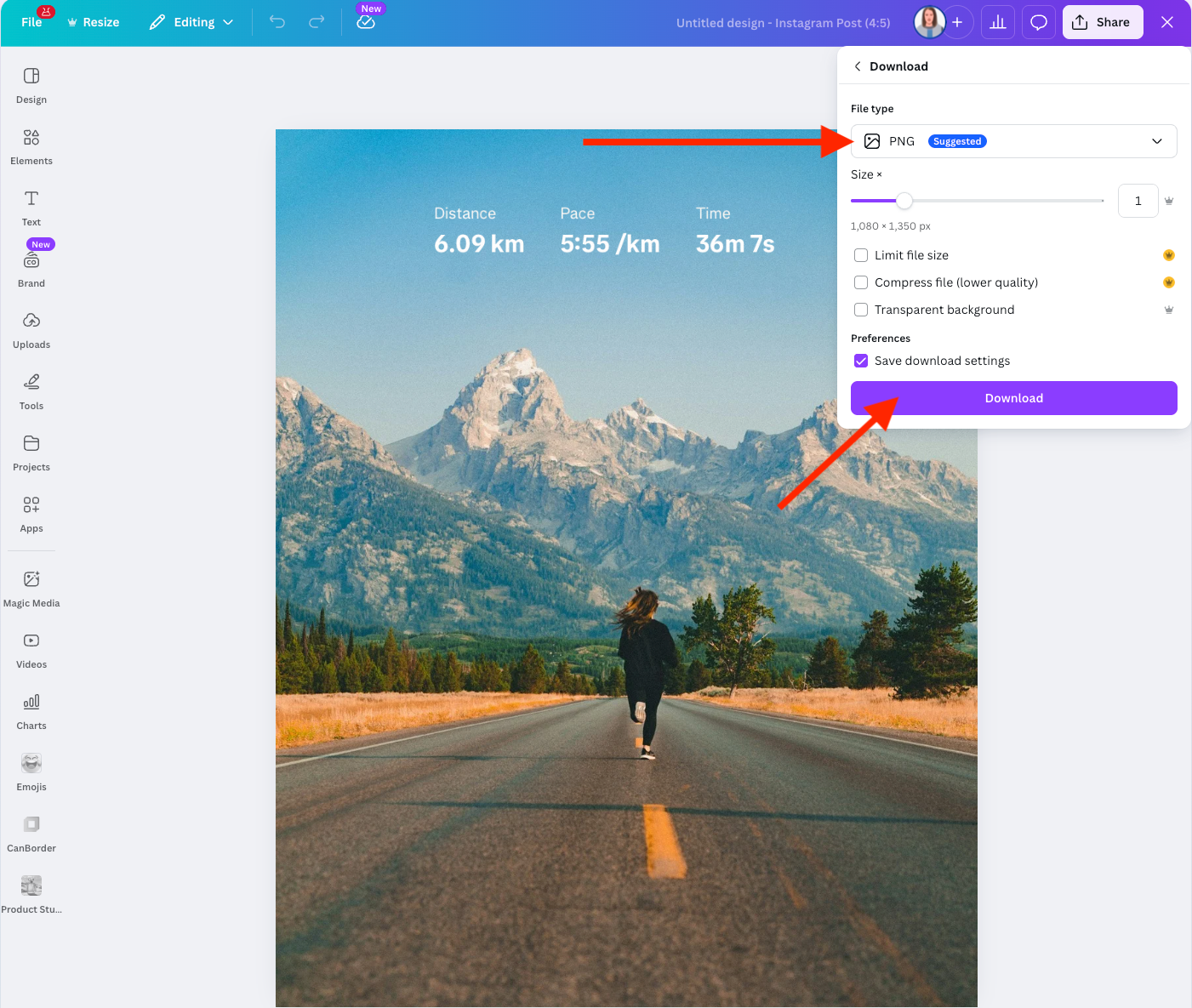
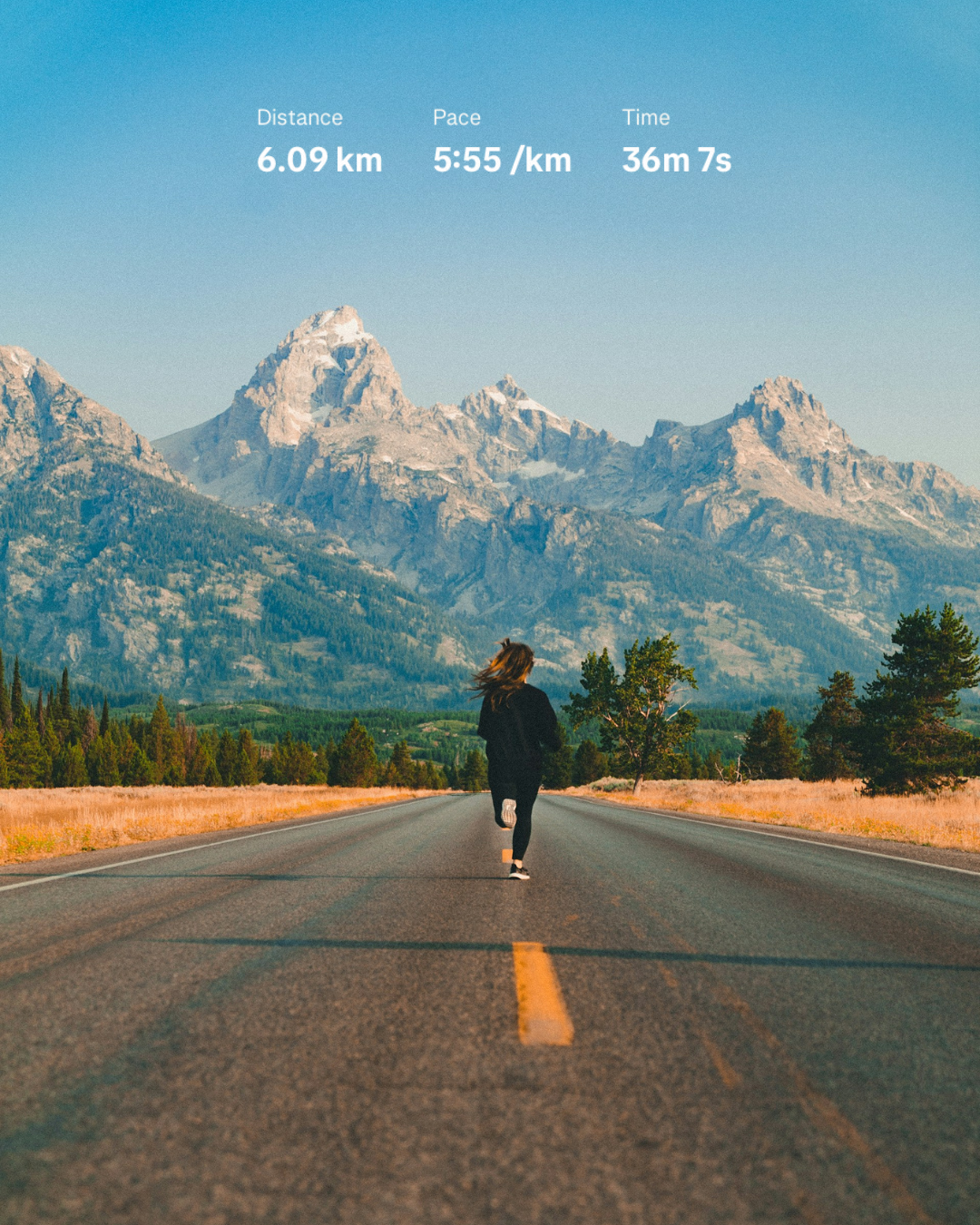
Voilà! Your Strava overlay Instagram post is ready to be published.
Pro version: Automate editing with the Strava plugin
If you’re editing Strava overlays often, doing it manually can get repetitive. In that case, consider using remove.bg’s Strava plugin to automate the process.
Here’s how to set it up:
Sign up for a remove.bg account.
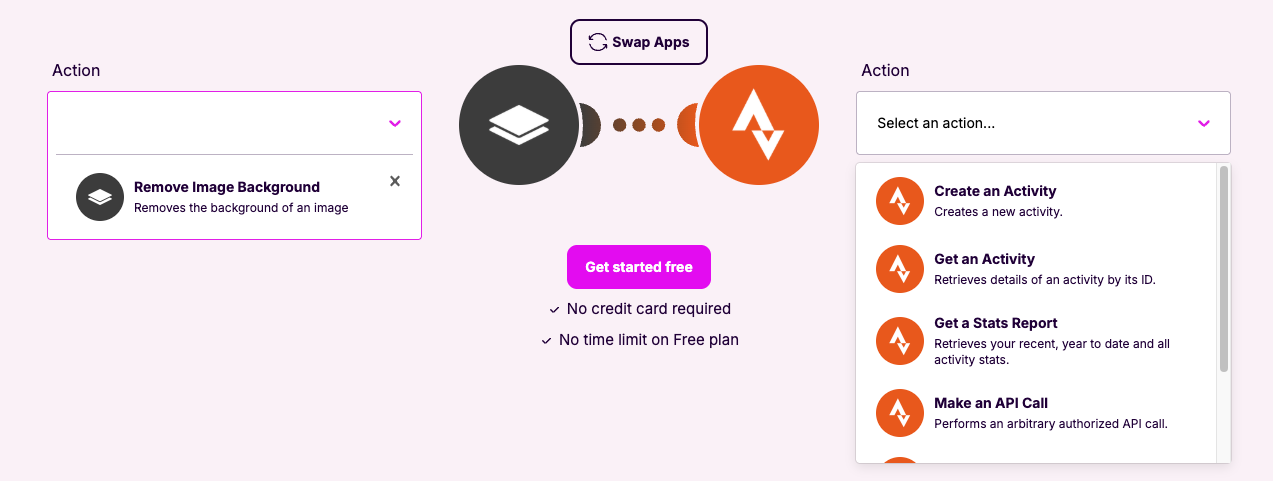
Go to Make and log in (or create a new account).
In Make, connect remove.bg to Strava.
-
Create your own workflow by choosing triggers, actions, and searches. For example:
When a new Strava activity is detected
Automatically remove the background
Save or post the edited overlay
This setup is perfect for athletes who want a consistent style or regularly post their activity summaries.
And there you have it
Three different ways to create Strava overlays for Instagram, from quick manual edits to full automation. Choose the one that fits your workflow best, share your progress with friends and followers, and keep the motivation going.
Have fun, and happy workouts!
Comments
No comments so far.