Wenn du sportlich aktiv bist oder gerne draußen unterwegs bist, nutzt du wahrscheinlich schon Strava. Schließlich gibt es kaum etwas Befriedigenderes, als deinen Abendlauf oder deine Wochenendwanderung zu verfolgen und diese Erfolge mit Freunden zu teilen.
Aber was, wenn du deine Strava-Ergebnisse auch auf Instagram teilen möchtest? In diesem Leitfaden zeigen wir dir, wie du einen Strava-Overlay erstellst, bei dem deine Statistiken als transparente Schicht über jedem Bild erscheinen, das du auswählst. Perfekt für Instagram Stories oder Beiträge.
Inhaltsübersicht
So erstellst du einen Strava-Overlay für Instagram Stories
Diesen Effekt zu erstellen ist viel einfacher, als es aussieht. Alles, was du brauchst, ist ein Screenshot deiner Strava-Ergebnisse und ein Tool zur Hintergrundentfernung.
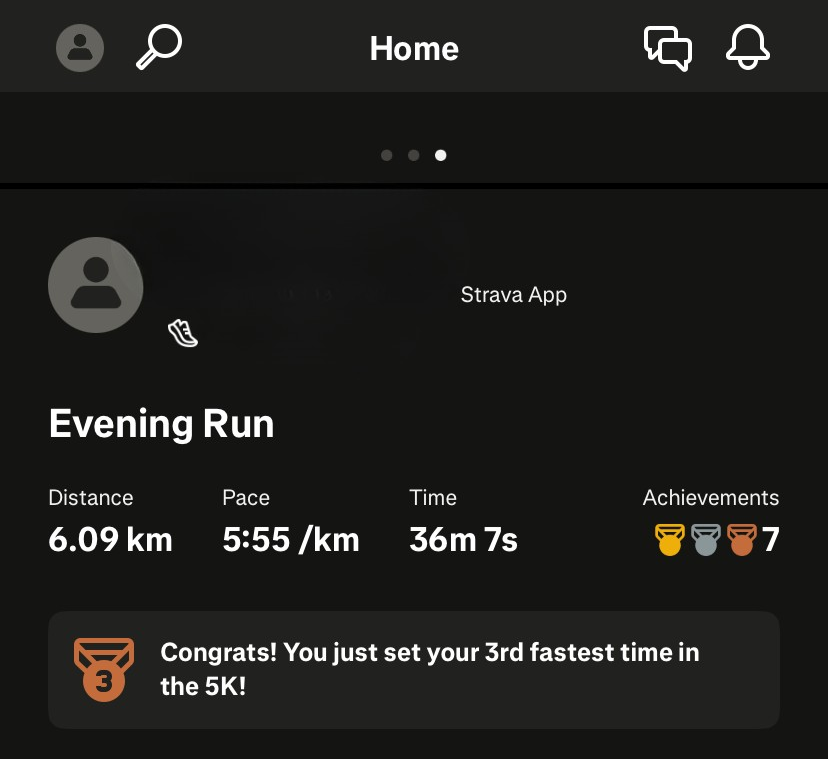
1. Mache einen Screenshot deiner Strava-Aktivität
Schneide ihn nach Belieben zu. Alles, was du im Screenshot behältst, erscheint in deinem finalen Overlay. Wenn du also nur die Kernstatistiken ohne Titel oder Zusatzinfos möchtest, schneide diese jetzt heraus.
2. Hintergrund entfernen
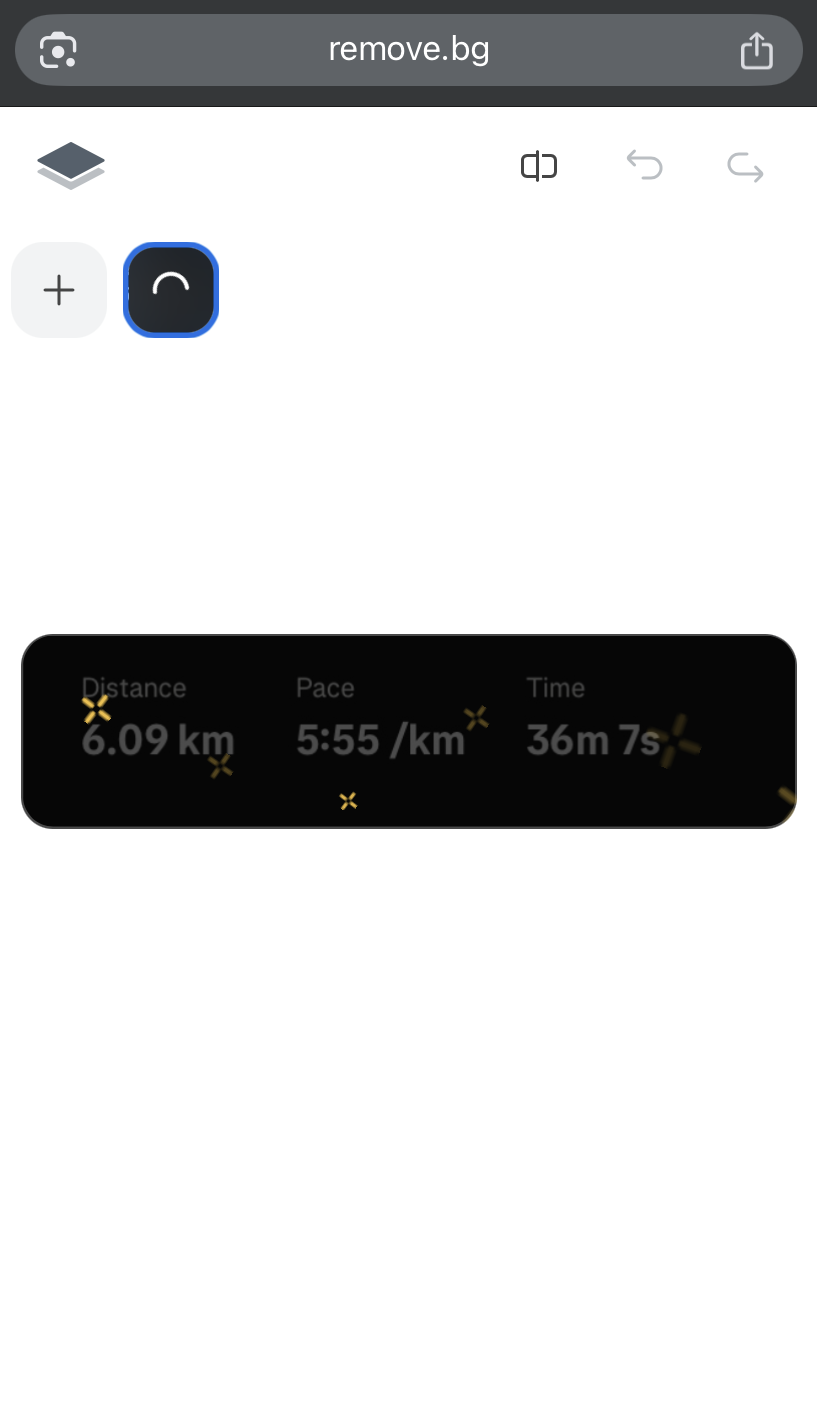
Lade deinen Screenshot auf remove.bg hoch. Der Hintergrund wird automatisch entfernt und du erhältst ein sauberes, transparentes Strava-PNG.

3. Das Bild herunterladen
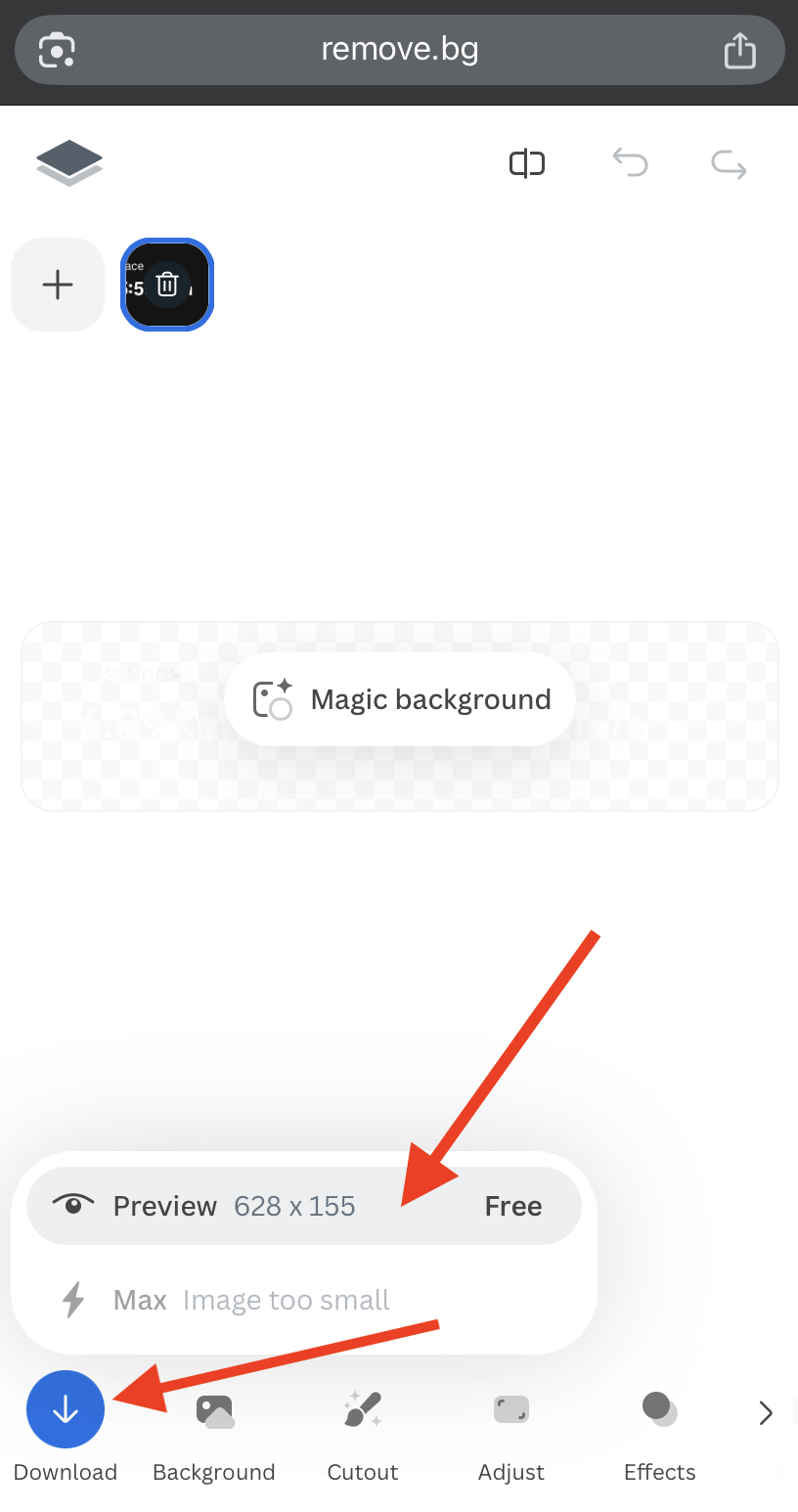
Lade die Vorschau (kostenlos) auf dein Handy herunter.
4. Das transparente Strava-PNG kopieren
Öffne die Datei in deiner Galerie und tippe auf „Kopieren."
Auf iPhones findest du diese Option unter den drei Punkten in der oberen rechten Ecke.
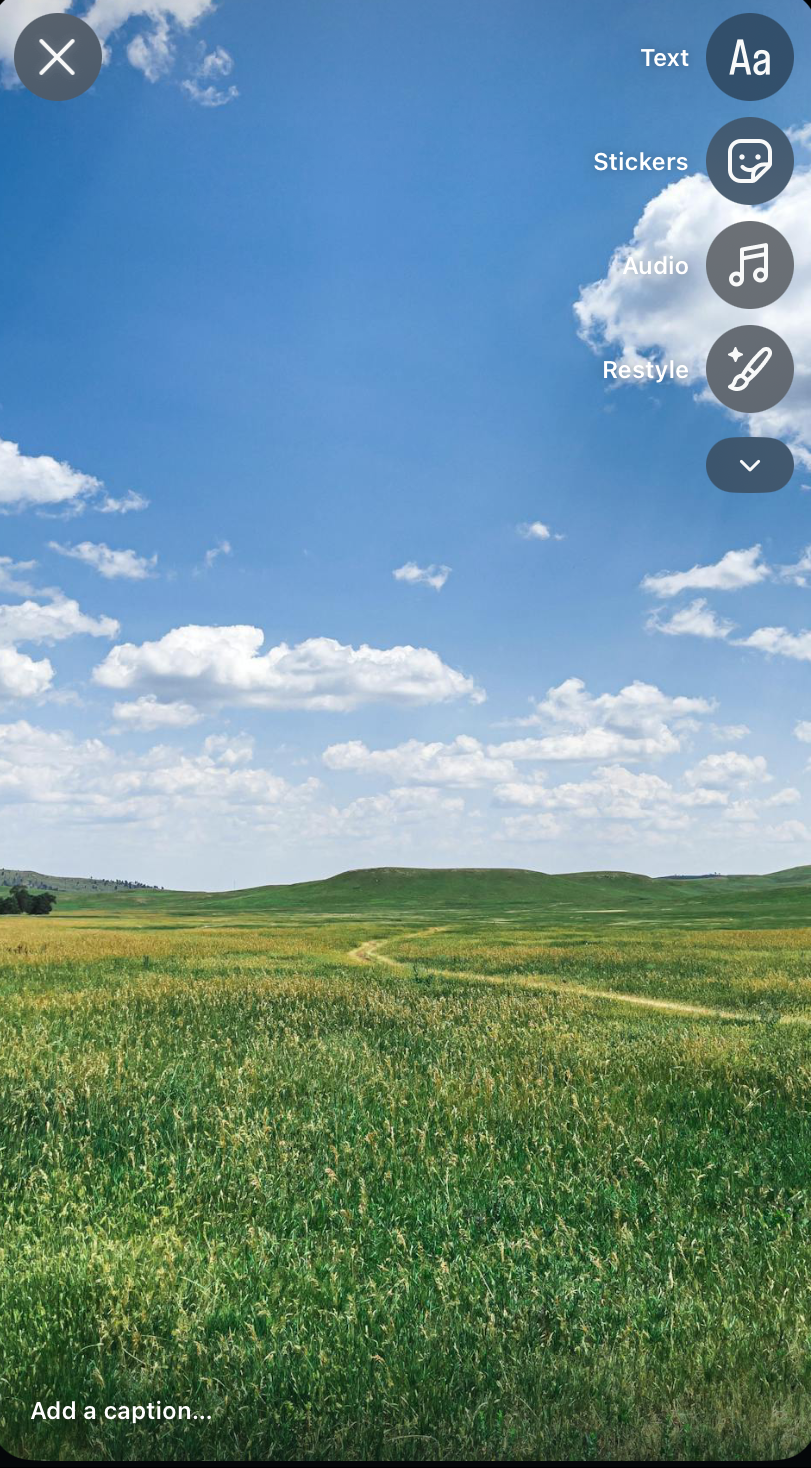
5. Instagram öffnen und eine Story starten
Gehe zu + > Story und lade das Foto hoch, das du als Hintergrund verwenden möchtest, z. B. eine Landschaft von deinem Lauf oder deiner Wanderung.
6. Overlay einfügen
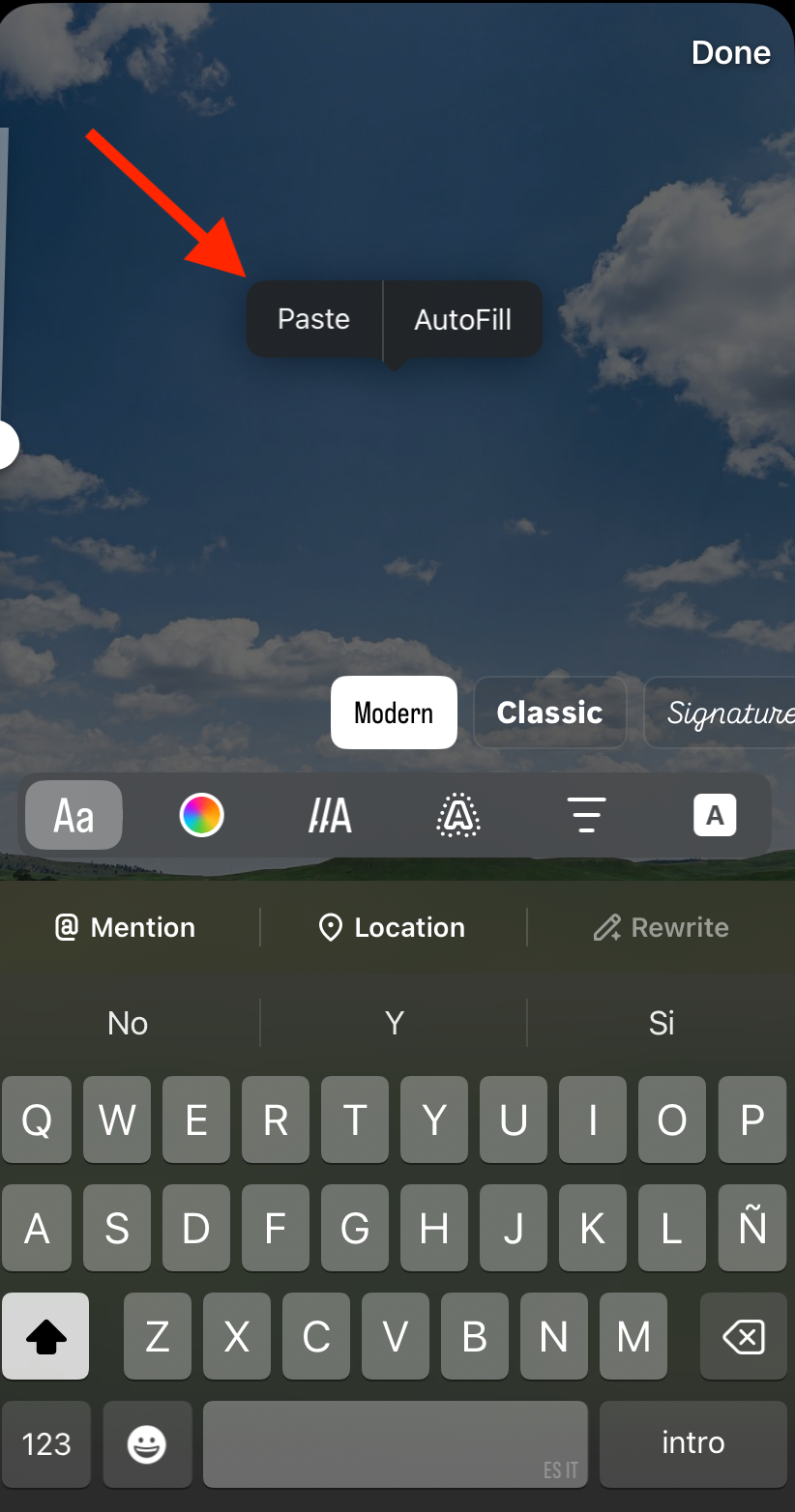
Tippe irgendwo auf den Bildschirm, bis der Befehl „Einfügen | AutoFill" erscheint. Wähle Einfügen und deine Strava-Statistiken werden über dein Hintergrundbild gelegt.
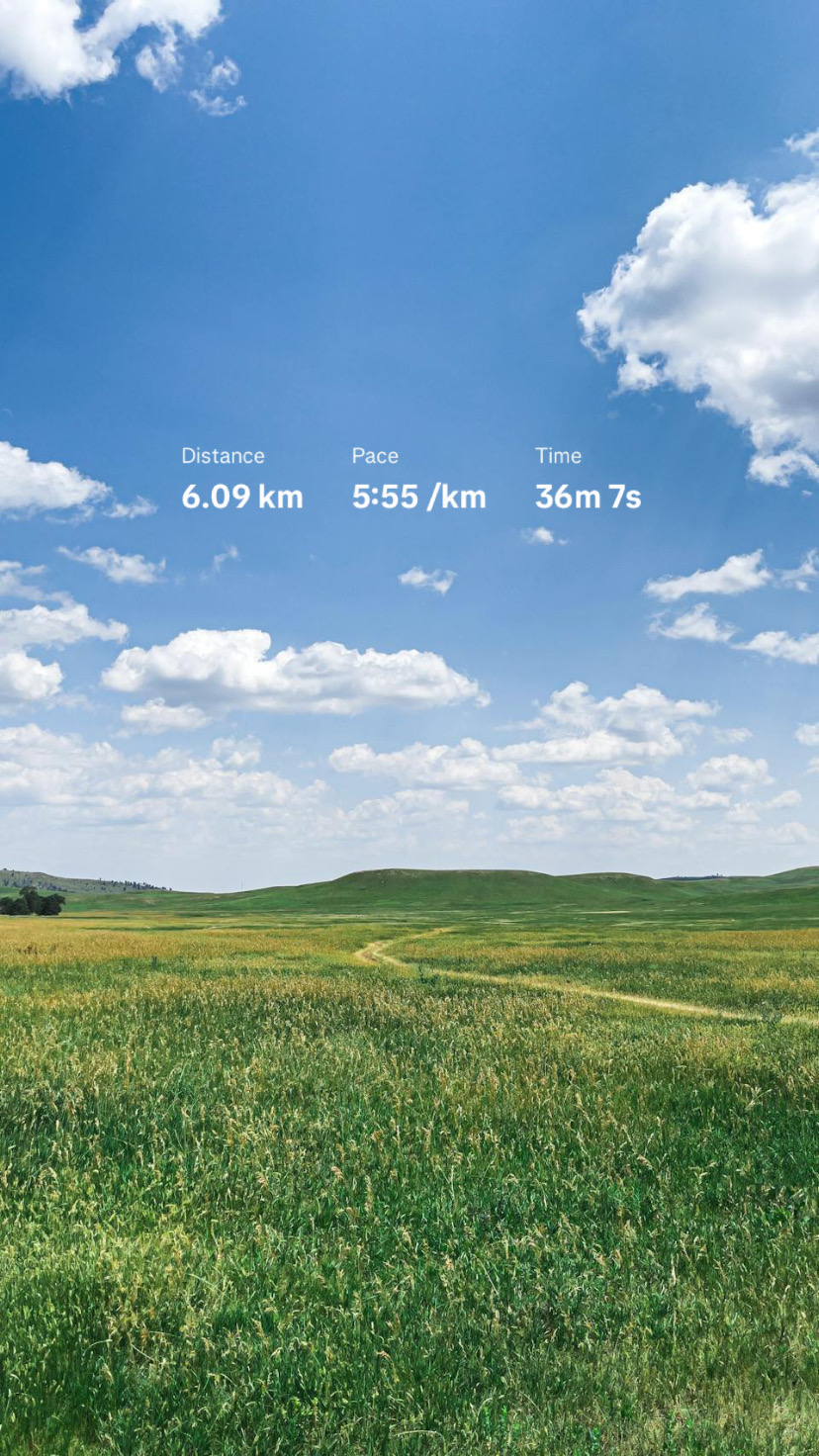
Das war's! Deine Strava-Overlay-Story ist fertig zum Teilen.
So verwendest du Strava-Sticker für Instagram Stories
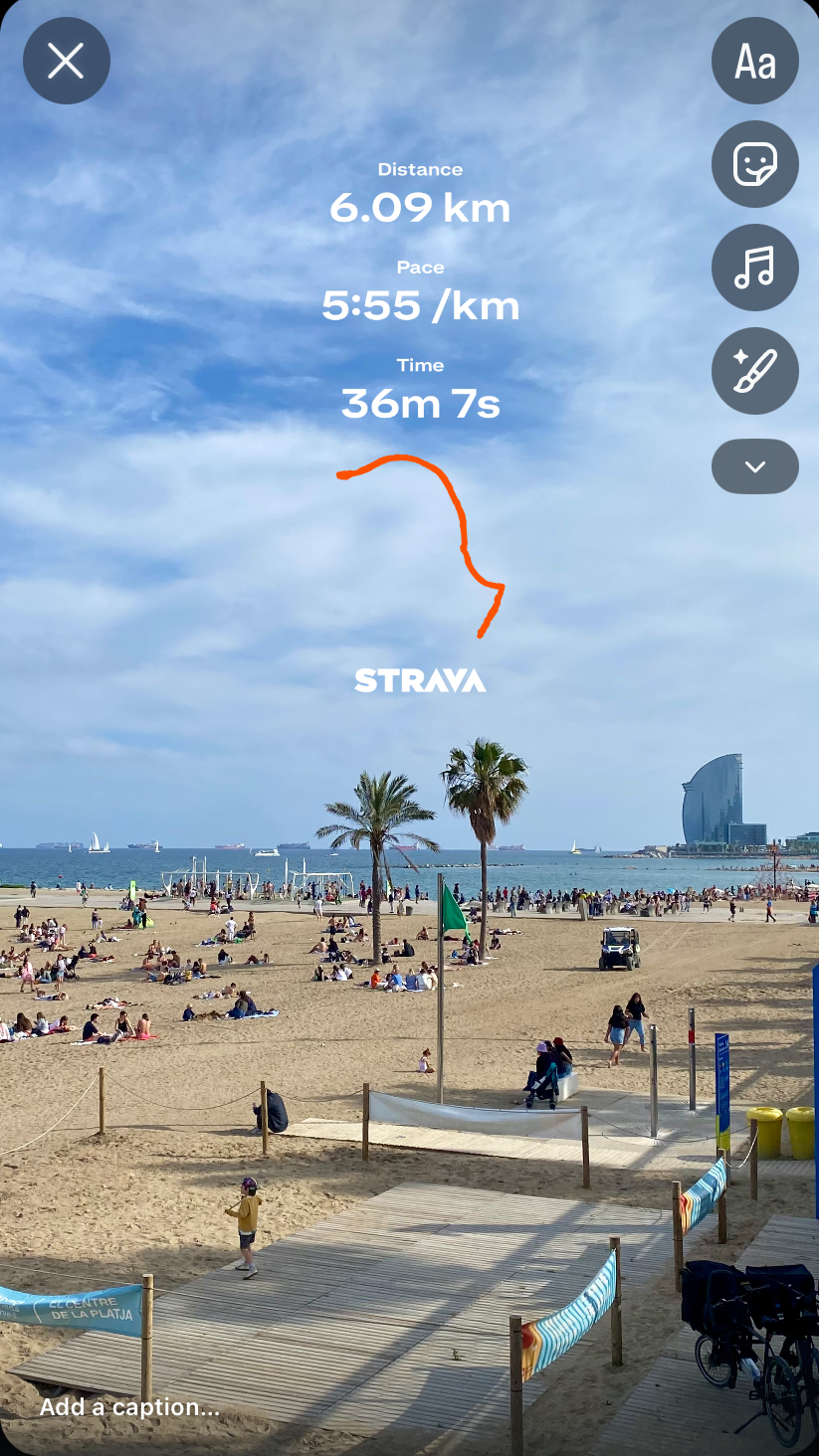
Stravas Stats-Sticker ermöglichen es dir, deine Aktivitätsstatistiken (einschließlich Route) direkt in Instagram Stories über jedes beliebige Bild zu legen. Eine einfache Möglichkeit, deine Beiträge persönlicher, ausdrucksvoller und visuell ansprechender zu gestalten.
Schritt 1: Teile deine Aktivität aus Strava
-
Öffne die Strava-App und gehe zu der Aktivität, die du präsentieren möchtest.
(Stelle sicher, dass die Sichtbarkeit auf „Follower" oder „Alle" eingestellt ist.)
Tippe auf das Teilen-Symbol.
-
Wähle Instagram Stories. Dadurch öffnet sich Instagram automatisch mit einem fertigen Stats-Sticker, den du in deiner Story platzieren kannst.
Tipp: Wenn du lieber später posten möchtest, kannst du den Stats-Sticker in deiner Kamerarolle speichern und ihn manuell hochladen, wenn du bereit bist.
Schritt 2: Wähle dein Hintergrundbild
Tippe in Instagram Stories auf das Sticker-Symbol (das quadratische Smiley in der oberen rechten Ecke).
Wähle den Foto-Sticker (iOS) oder den Galerie-Sticker (Android).
Wähle das gewünschte Bild aus deiner Kamerarolle (ein Trainings-Selfie, ein Landschaftsfoto — was auch immer du möchtest).
Schritt 3: Passe dein Layout an
Dein Strava-Stats-Sticker erscheint auf deinem Bildschirm. Ziehe ihn, ändere seine Größe oder positioniere ihn nach Bedarf neu.
Passe das Hintergrundfoto an oder füge weitere Bild-Sticker hinzu, um dem Ganzen das gewisse Etwas zu verleihen.
Tippe auf eine Ebene, um sie nach vorne zu bringen oder hinter deine Statistiken zu verschieben und so ein sauberes, poliertes Layout zu erstellen.
So entfernst du den Hintergrund deiner Strava-Statistiken für einen Instagram-Beitrag
Du kannst dieselbe Methode für Beiträge verwenden, aber hier ist eine weitere hilfreiche Methode mit Canva.
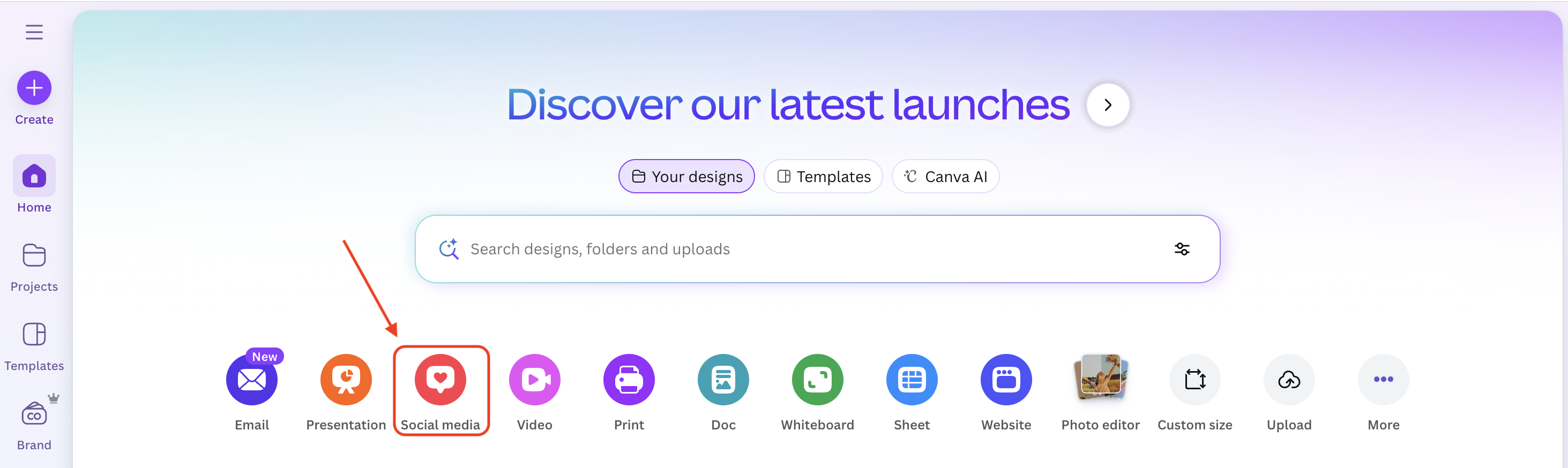
1. Canva öffnen
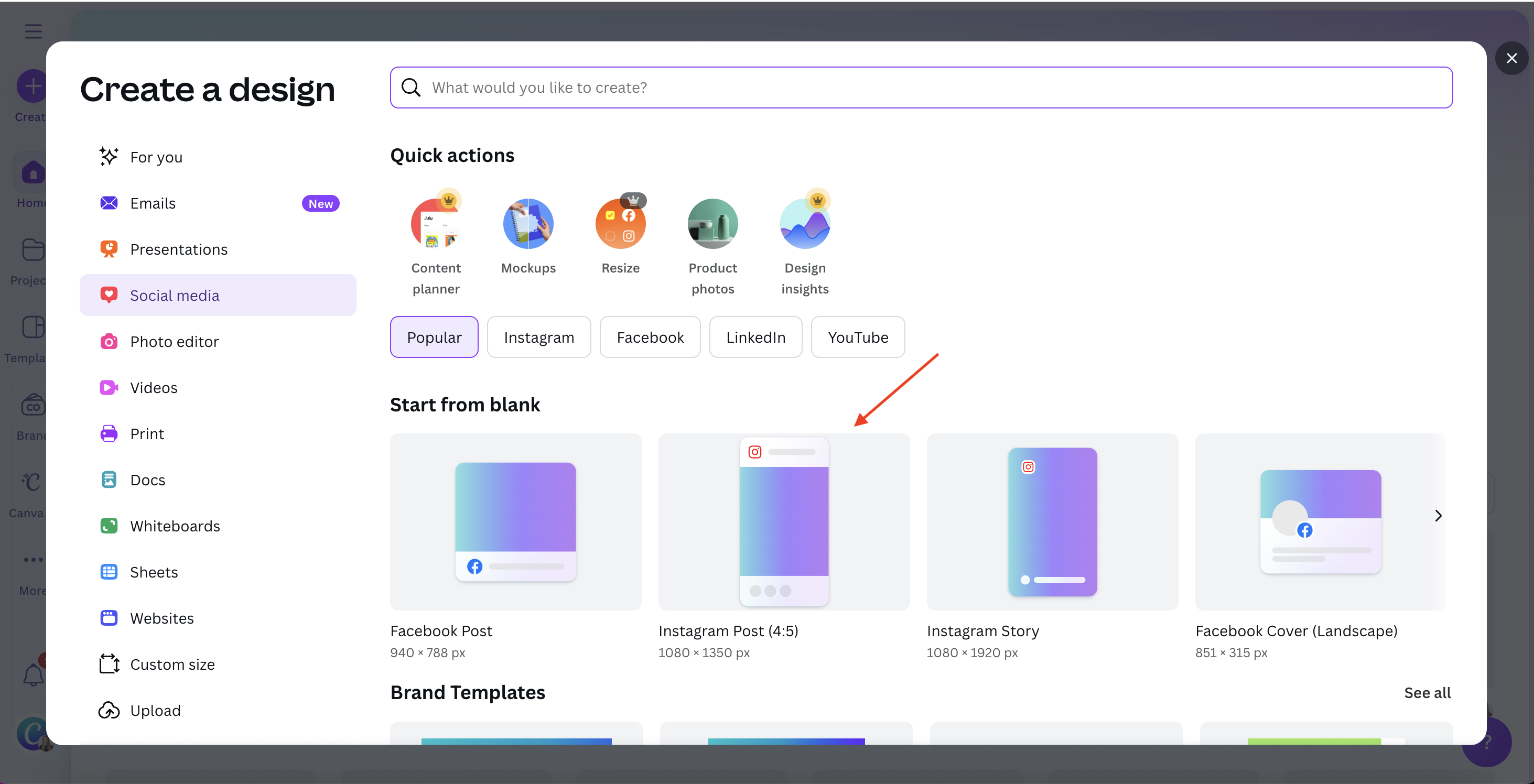
Gehe zu Canva und wähle Social Media > Instagram-Beitrag.
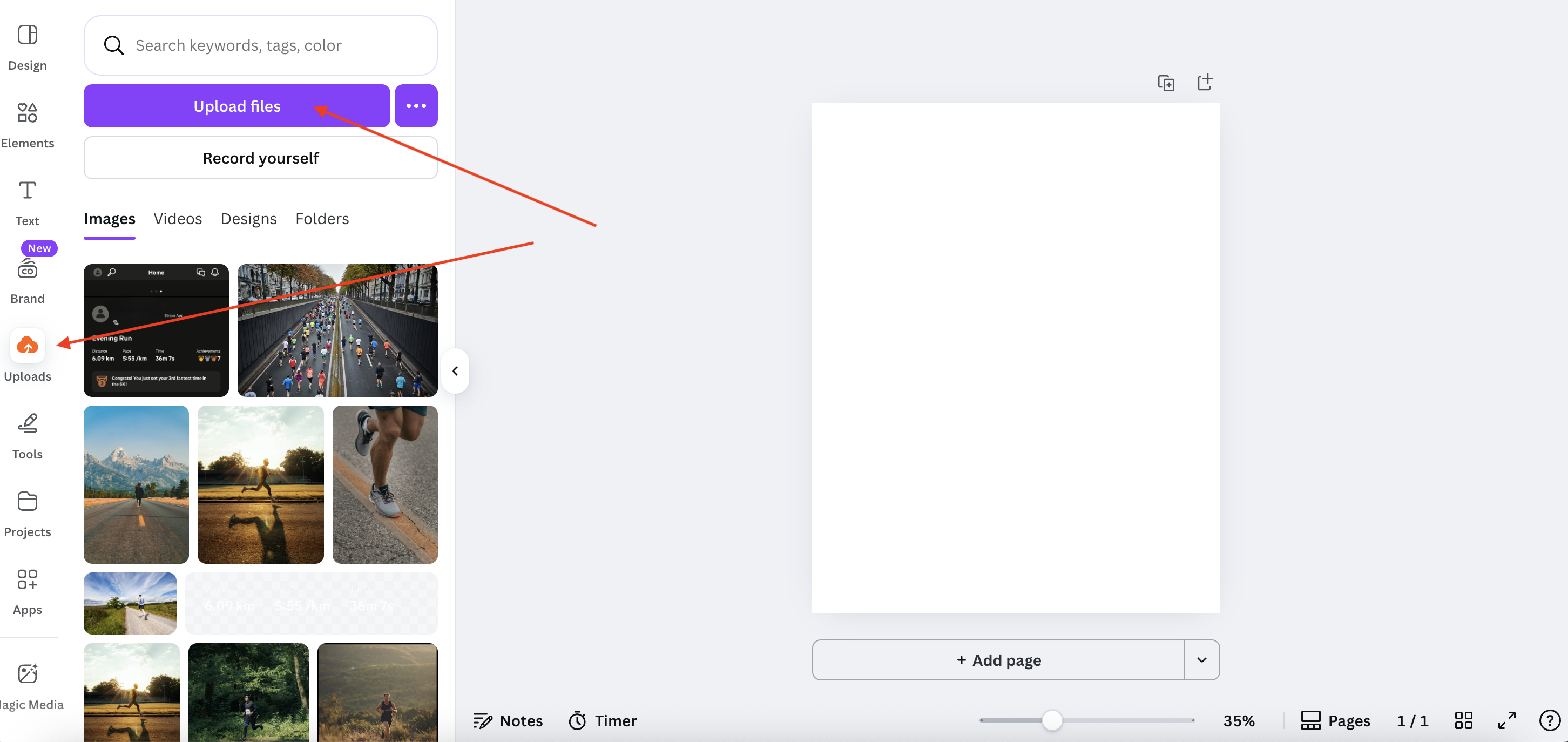
2. Deine Bilder hochladen
Klicke auf Hochladen > Dateien hochladen und lade hoch:
Dein Hauptfoto (z. B. ein Laufbild)
Dein Strava-Screenshot
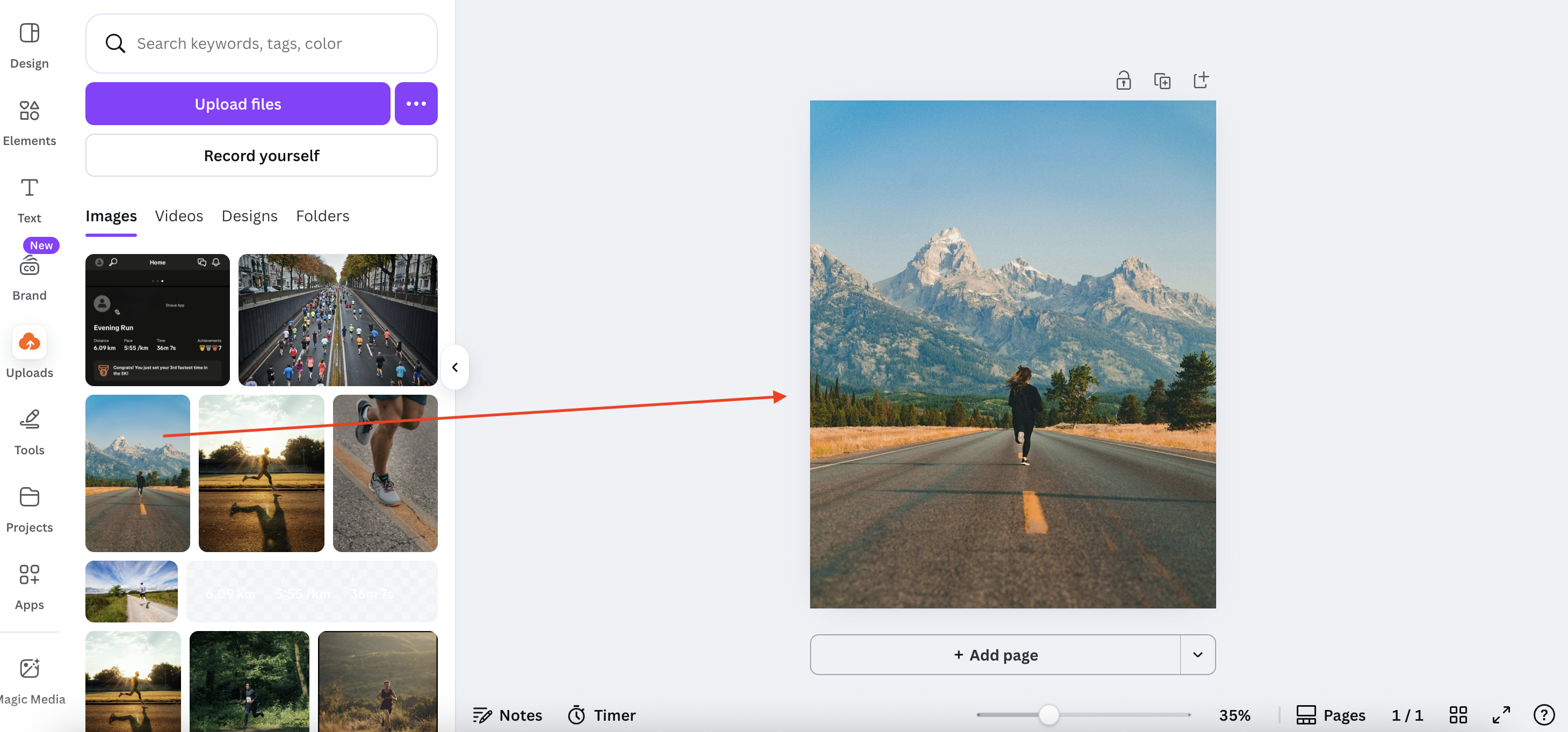
3. Dein Hauptbild hinzufügen
Wähle das Foto aus, das du als Hintergrund verwenden möchtest.
4. Deinen Strava-Screenshot hinzufügen und den Hintergrund entfernen
Klicke auf den Strava-Screenshot, um ihn oben zu platzieren.
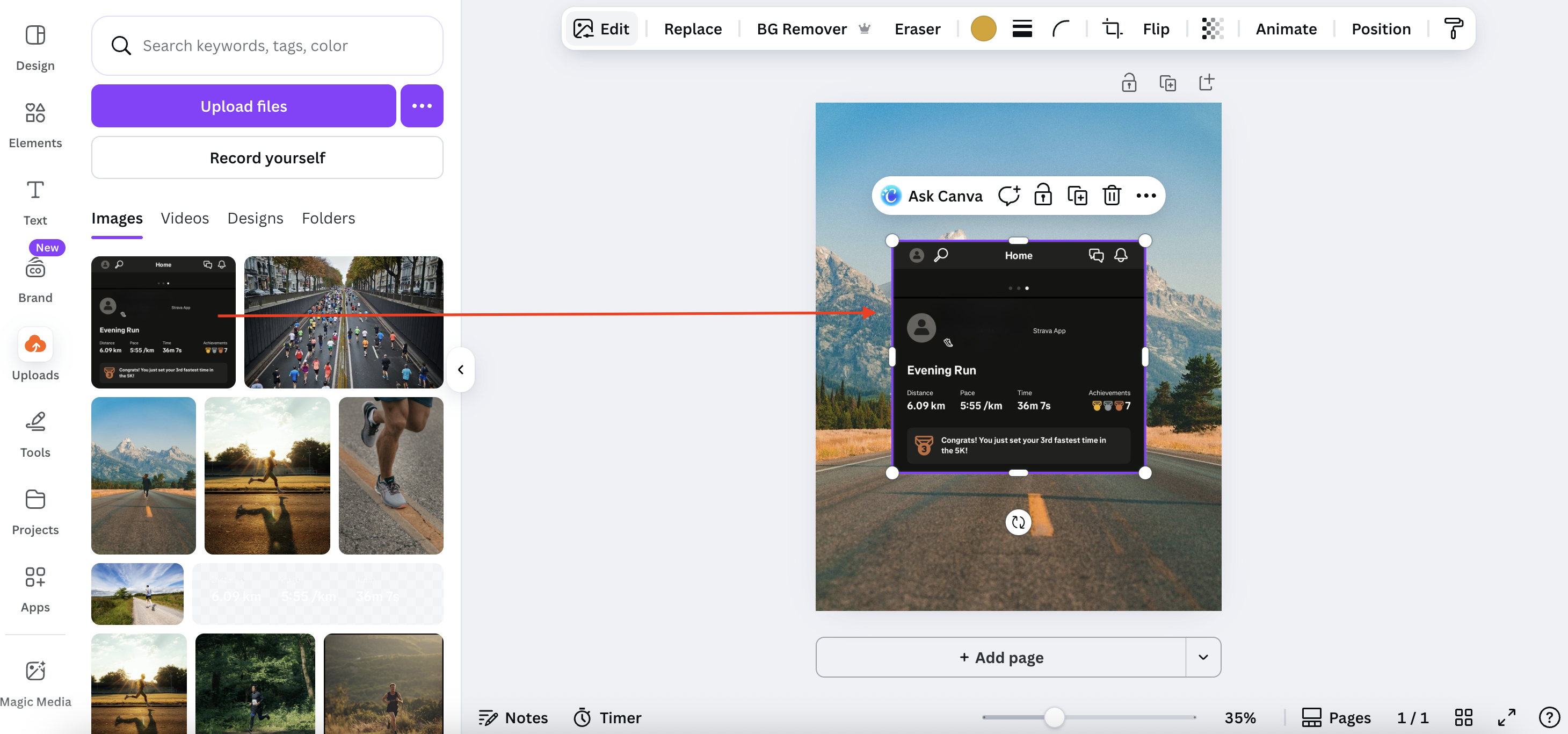
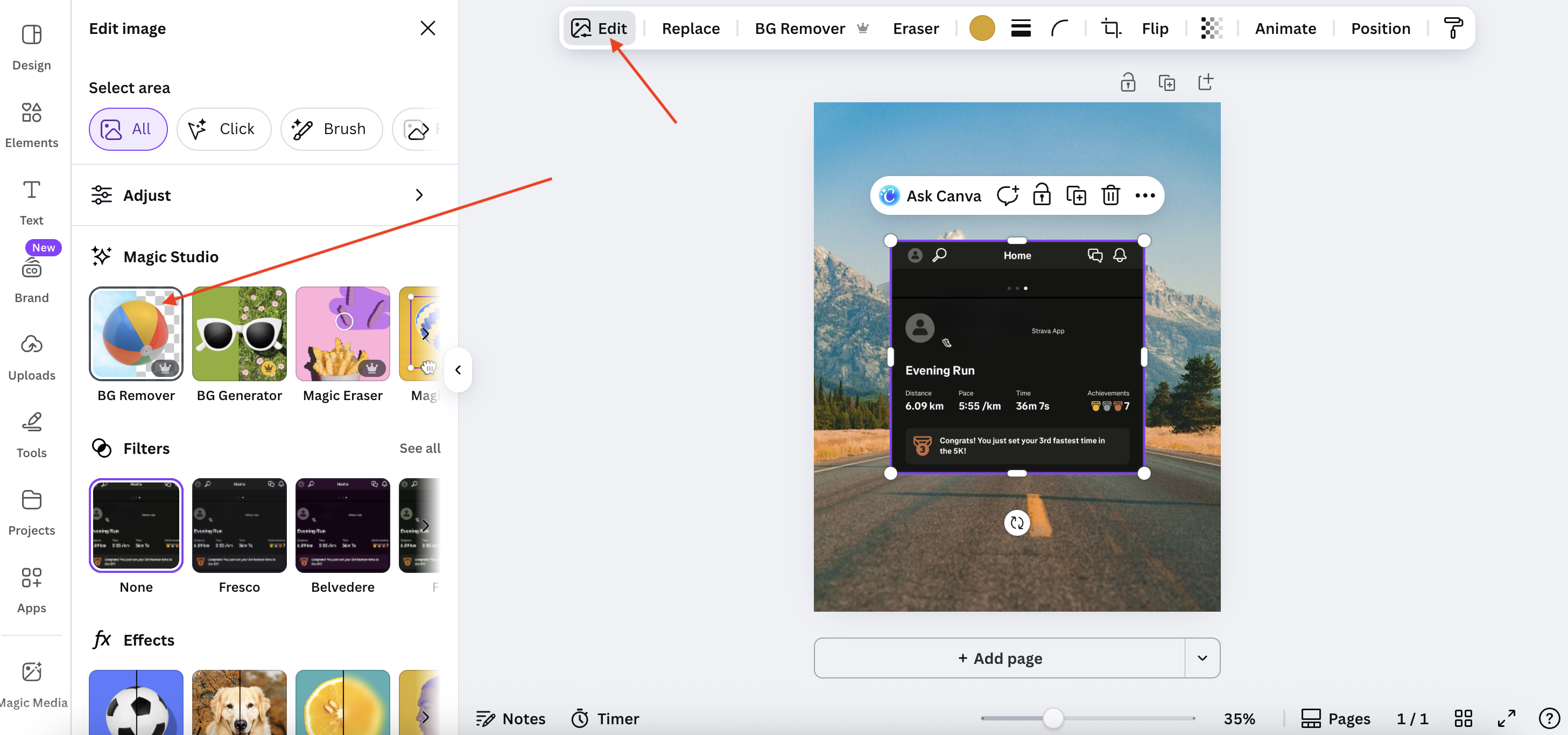
Doppelklicke darauf, um die Bearbeitungsoptionen zu öffnen, und wähle dann Bearbeiten > BG Remover. Dadurch wird der Hintergrund entfernt und deine Statistiken in einen sauberen Overlay verwandelt.
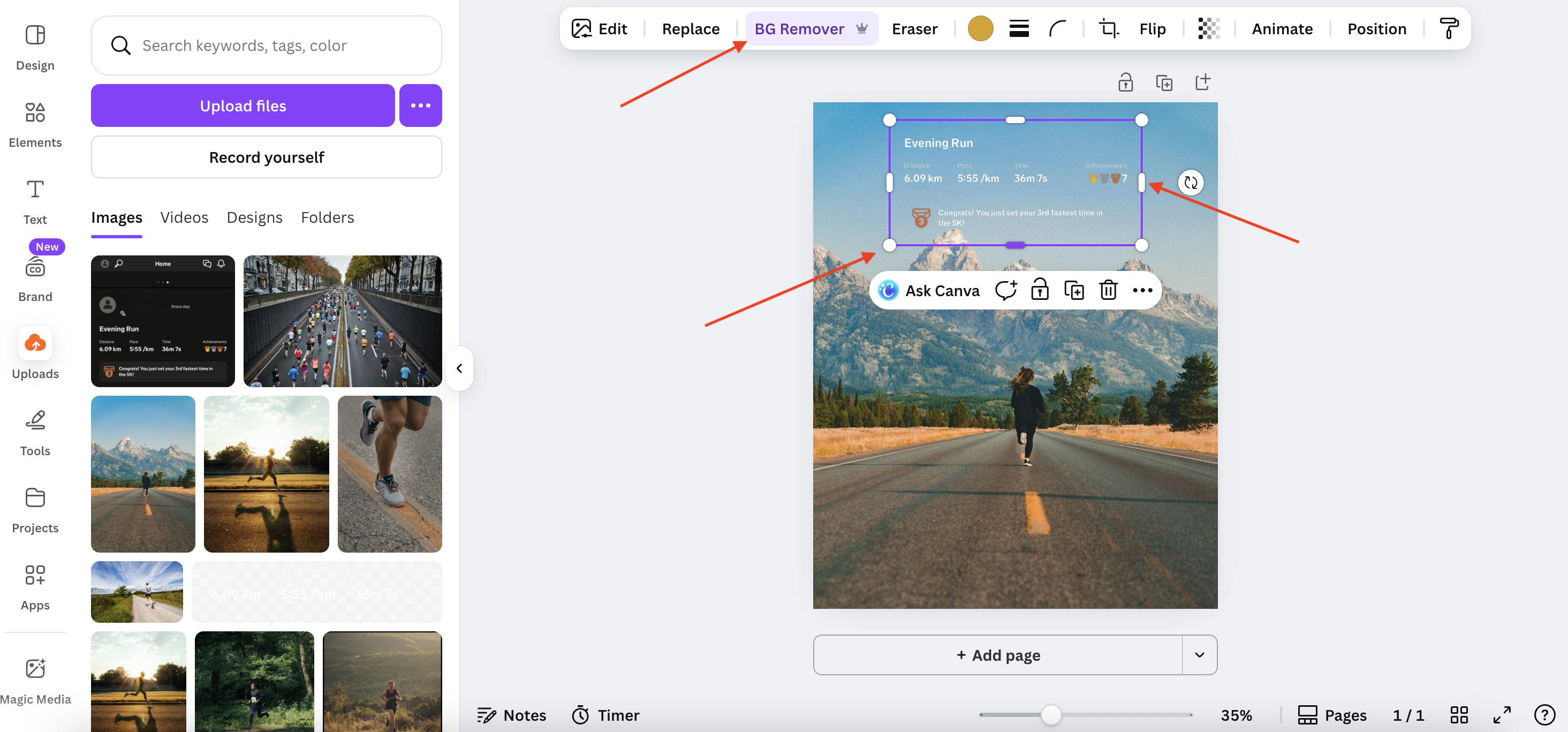
5. Den Overlay anpassen
Ändere die Größe oder schneide das Bild mithilfe der Eckpunkte und seitlichen Griffe zu, bis es perfekt aussieht.
6. Deinen Beitrag herunterladen
Klicke auf Teilen > Herunterladen, wähle deinen Dateityp (PNG, JPG usw.) und klicke erneut auf Herunterladen.
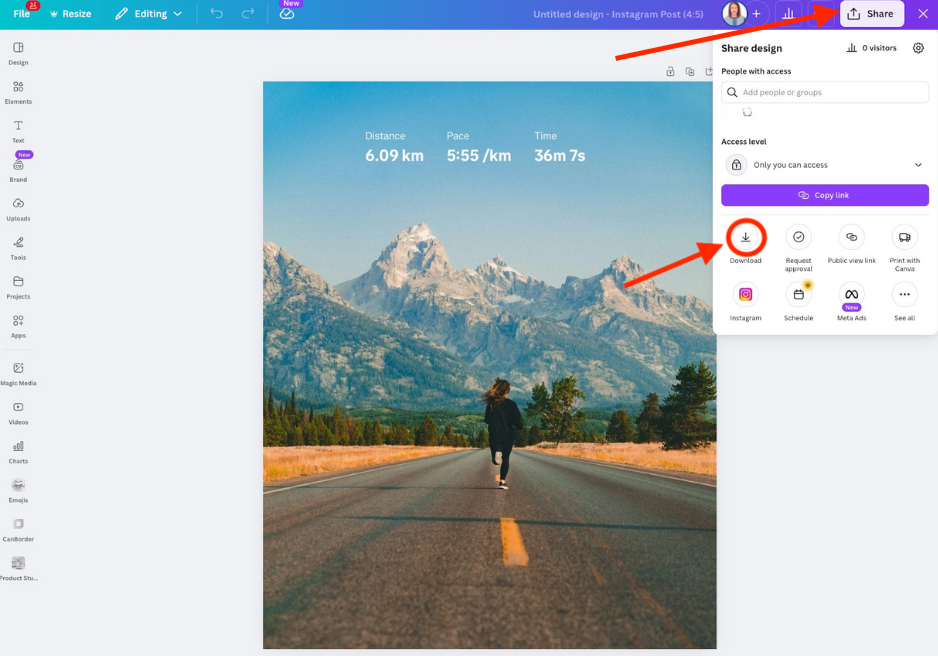
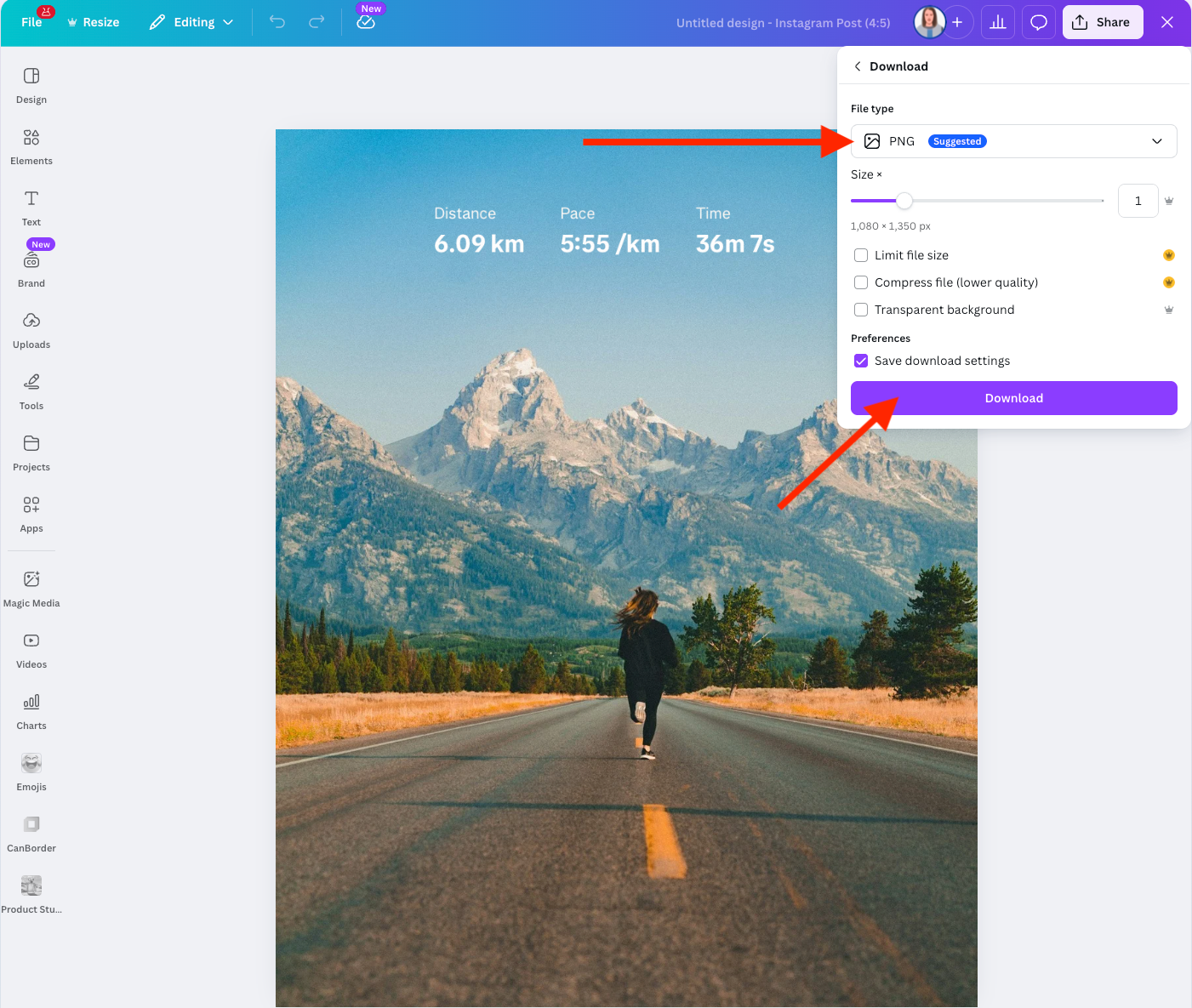
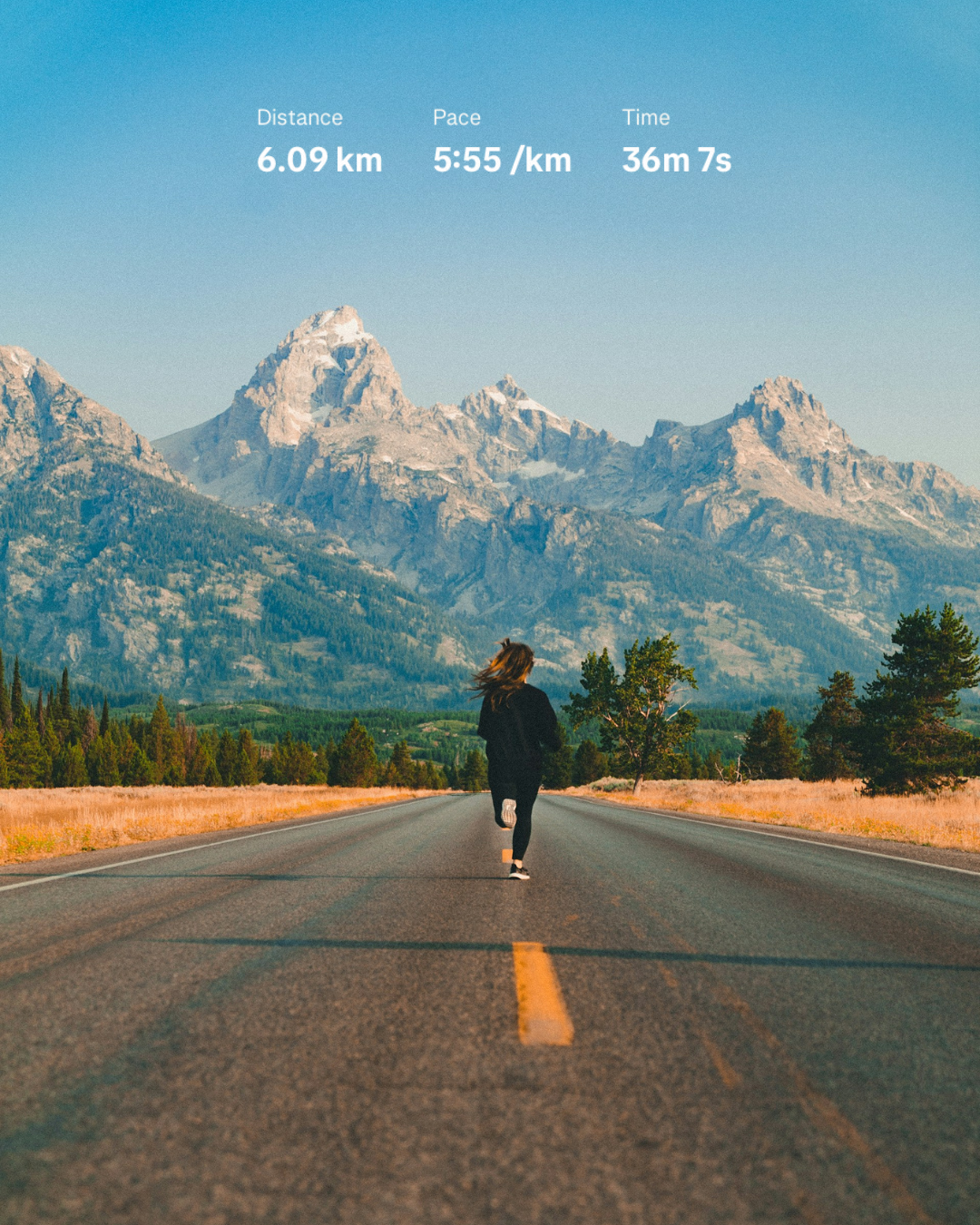
Voilà!Dein Strava-Overlay-Instagram-Beitrag ist bereit zur Veröffentlichung.
Pro-Version: Bearbeitung mit dem Strava-Plugin automatisieren
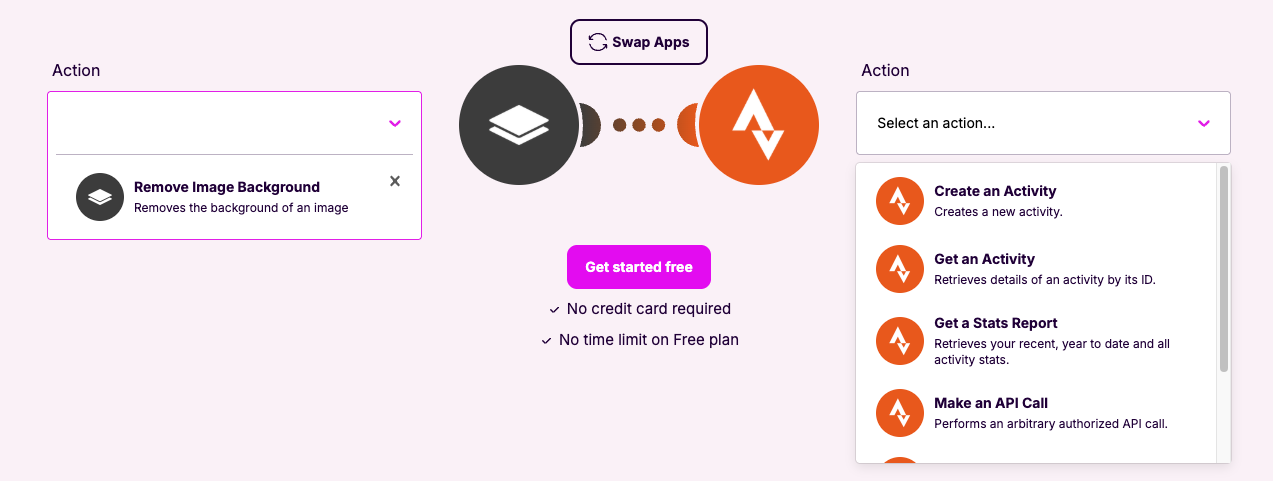
Wenn du Strava-Overlays häufig bearbeitest, kann das manuelle Vorgehen schnell eintönig werden. In diesem Fall solltest du das Strava-Plugin von remove.bg verwenden, um den Prozess zu automatisieren.
So richtest du es ein:
Registriere dich für ein remove.bg-Konto.
Gehe zu Make und melde dich an (oder erstelle ein neues Konto).
Verbinde in Make remove.bg mit Strava.
-
Erstelle deinen eigenen Workflow, indem du Trigger, Aktionen und Suchen auswählst. Zum Beispiel:
Wenn eine neue Strava-Aktivität erkannt wird
Hintergrund automatisch entfernen
Den bearbeiteten Overlay speichern oder posten
Dieses Setup ist perfekt für Sportler, die einen einheitlichen Stil beibehalten oder regelmäßig ihre Aktivitätszusammenfassungen posten möchten.
Und das war's
Drei verschiedene Möglichkeiten, Strava-Overlays für Instagram zu erstellen — von schnellen manuellen Bearbeitungen bis hin zur vollständigen Automatisierung. Wähle die, die am besten zu deinem Workflow passt, teile deinen Fortschritt mit Freunden und Followern und halte die Motivation aufrecht.
Viel Spaß und gute Trainingseinheiten!
Kommentare
Noch keine Kommentare.